Author: quickinvite

  • Top 10 AI Tools for PPT Presentation (2026): Tested, Compared & Reviewed

    Creating a professional PowerPoint presentation used to take hours. You had to research your topic, organize ideas, design slides, choose colors, add visuals, and make sure everything looked polished. Today, AI has changed that workflow completely.

    Over the past few years, AI-powered presentation tools have evolved from simple design assistants into intelligent productivity platforms. Many of them can now generate presentation outlines, write slide content, suggest layouts, create visuals, improve formatting, and even help you present ideas more effectively. Whether you’re preparing a business proposal, classroom presentation, sales pitch, project report, or investor deck, these tools can significantly reduce the time and effort required.

    However, not every AI tool delivers the same experience.

    Some focus on speed, helping you create a complete presentation within minutes. Others prioritize design quality, collaboration, branding, or advanced customization. After testing multiple platforms, I noticed that each tool has its own strengths and limitations depending on your specific needs.

    Instead of recommending a single solution for everyone, I evaluated each tool using practical criteria, including:

    • Ease of use
    • Output quality
    • Design flexibility
    • Template library
    • AI-generated content quality
    • Collaboration features
    • Export options
    • Pricing
    • Overall value

    In this guide, you’ll find a detailed comparison of the top AI tools for PPT presentation available in 2026. I’ll walk you through their features, advantages, drawbacks, pricing, and the scenarios where each tool performs best, helping you choose the one that fits your workflow.

    Quick Comparison of Top 10 AI Tools for PPT Presentation

    Tool Best For Free Plan PowerPoint Export Overall Rating
    AIPresentations.app Fast PPT creation ⭐⭐⭐⭐⭐
    Gamma Interactive presentations ⭐⭐⭐⭐☆
    Canva Design-heavy presentations ⭐⭐⭐⭐☆
    Beautiful.ai Business presentations Limited ⭐⭐⭐⭐☆
    Tome Storytelling Partial ⭐⭐⭐⭐☆
    Pitch Team collaboration ⭐⭐⭐⭐☆
    Plus AI Google Slides workflow Trial ⭐⭐⭐⭐☆
    Visme Marketing presentations Limited ⭐⭐⭐⭐☆
    Slidesgo AI Templates ⭐⭐⭐⭐☆
    Prezi AI Dynamic presentations Trial Partial ⭐⭐⭐⭐☆

    How I Evaluated These AI Tools?

    Choosing the right AI tool isn’t just about how quickly it creates slides. A good platform should also produce accurate content, offer flexible customization, support collaboration, and export presentations without breaking layouts.

    To make this comparison as useful as possible, I tested every tool using the same evaluation criteria.

    Ease of Use

    The first thing I looked at was how quickly a new user could create a presentation. The best tools have intuitive interfaces, require minimal learning, and guide users through the creation process without unnecessary complexity.

    AI Content Quality

    Generating slides is one thing; generating useful content is another. I evaluated how well each tool created presentation outlines, headlines, bullet points, summaries, and supporting information.

    Design Quality

    Presentation quality depends heavily on design. I compared template variety, layout suggestions, typography, color consistency, image integration, and overall visual appeal.

    Editing Flexibility

    No AI-generated presentation is perfect. That’s why editing capabilities matter. I checked how easily users could modify text, rearrange slides, customize themes, and personalize designs.

    Export Options

    Many users eventually need to present in Microsoft PowerPoint or share files as PDFs. I assessed how well each tool exported presentations while preserving formatting and compatibility.

    Pricing & Value

    Finally, I compared pricing plans, free features, and whether the premium offerings justified their cost.

    Top 10 AI Tools for PPT Presentation

    1. AIPresentations.app

    Best for: Creating professional PowerPoint presentations quickly with AI

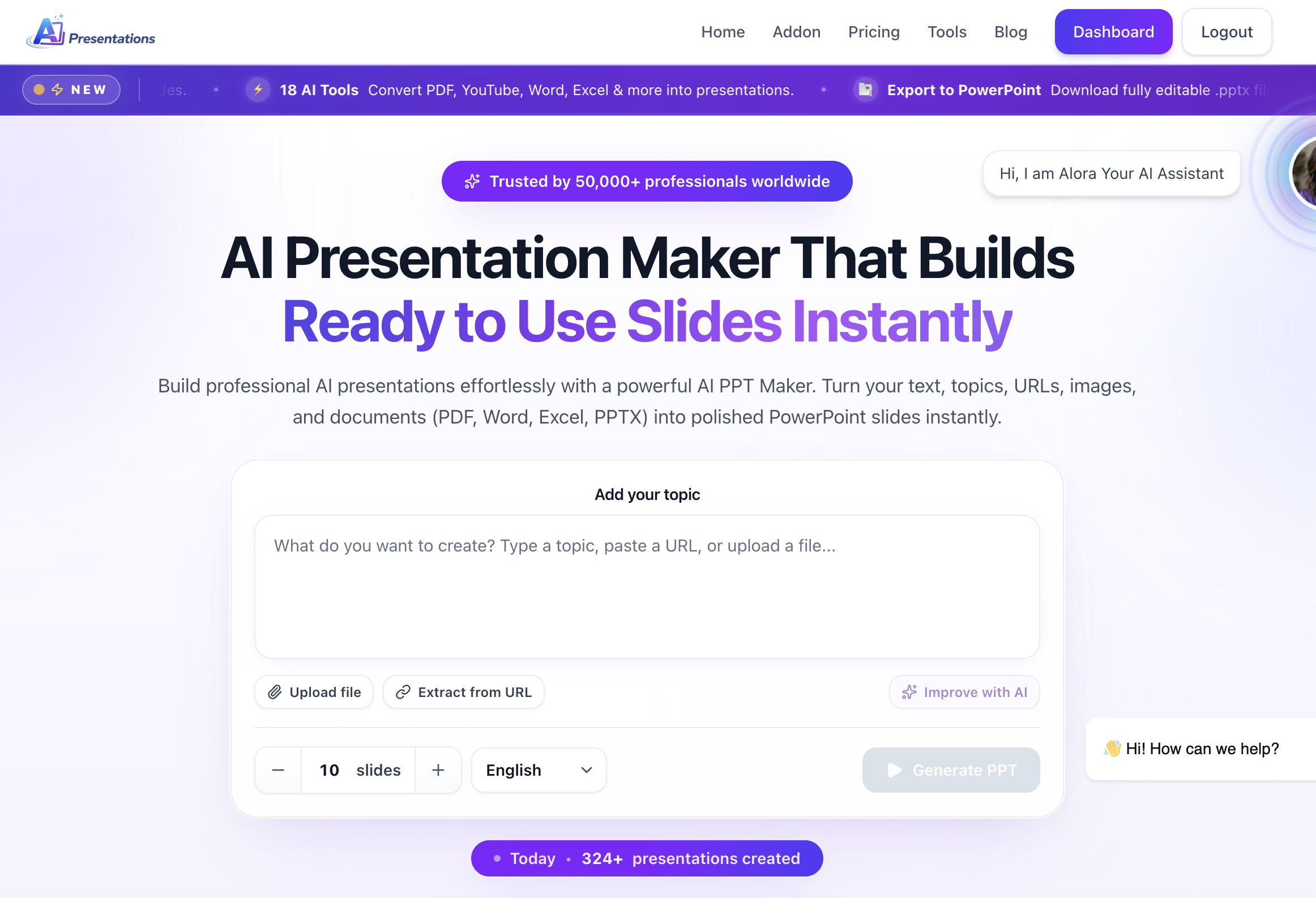
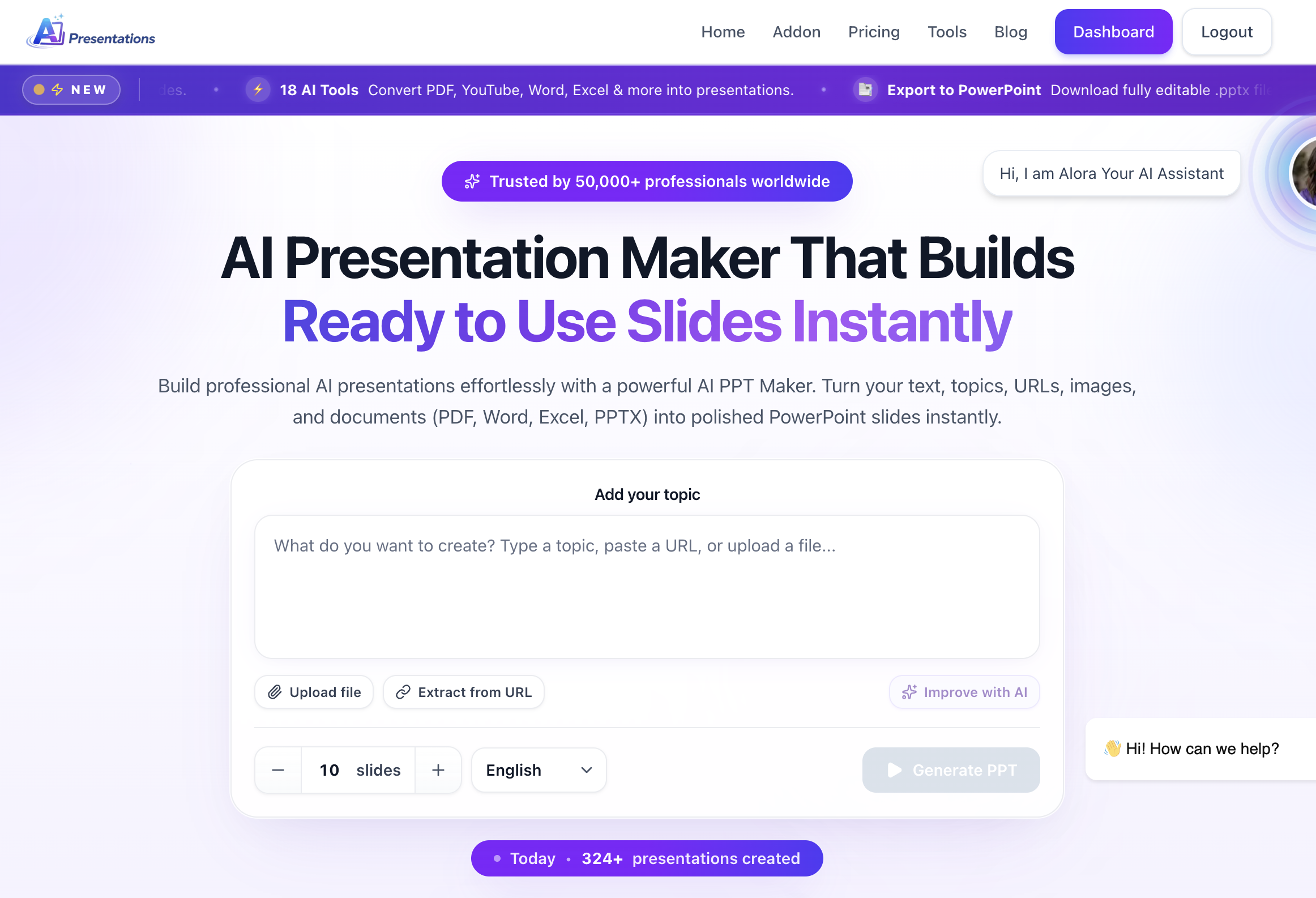
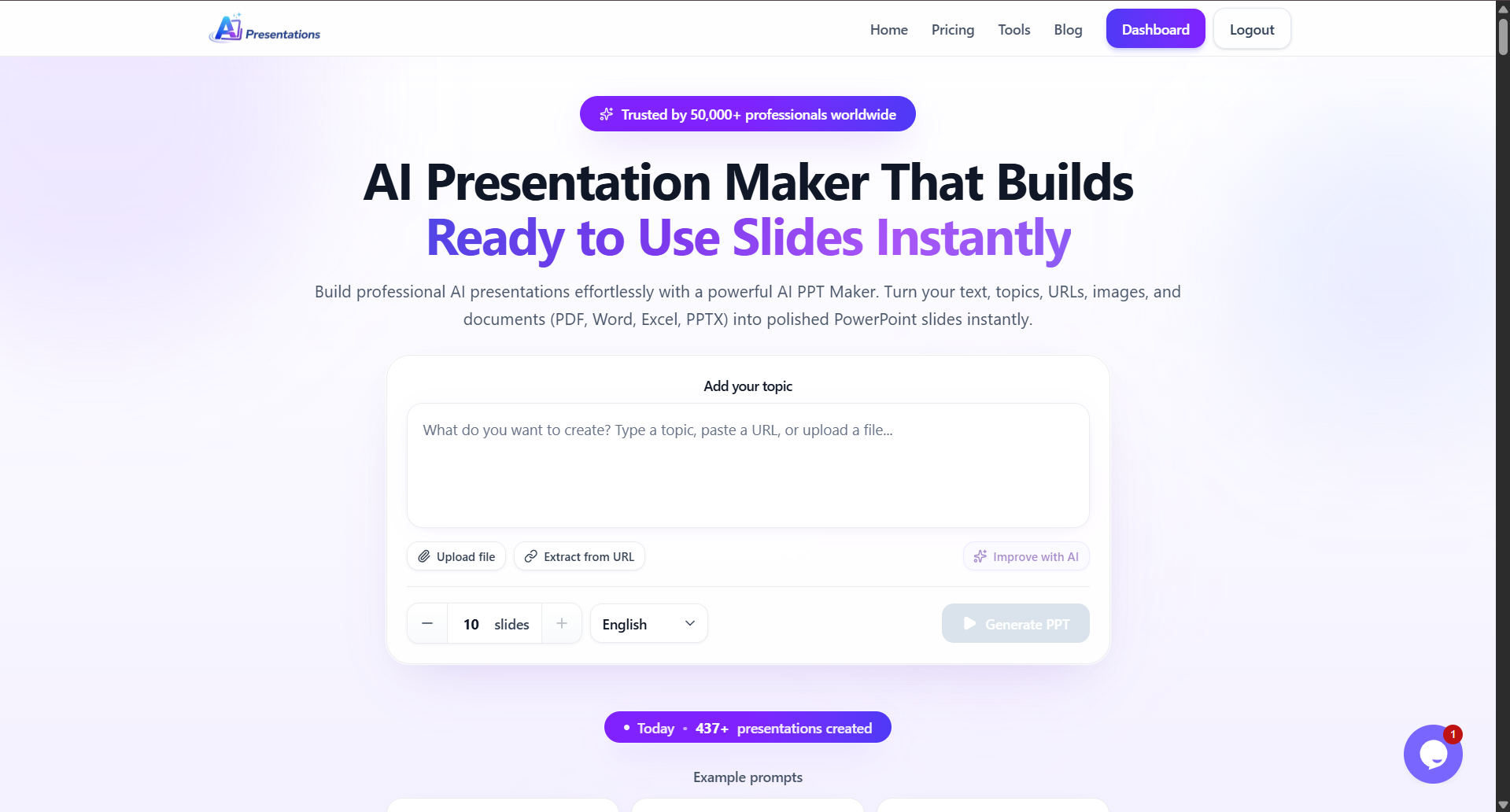
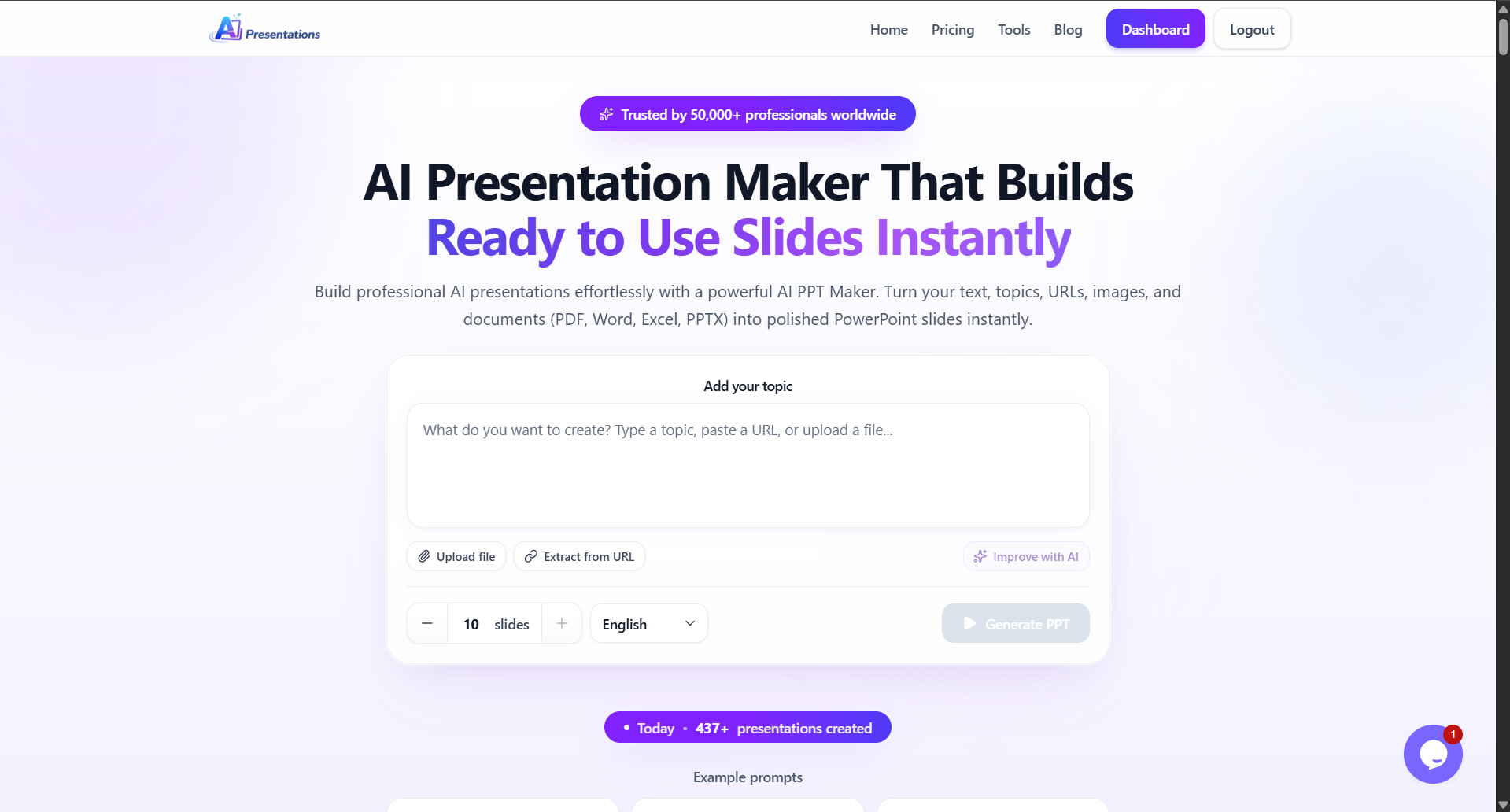
    If your goal is to create presentation slides without spending hours researching content or designing layouts, AIPresentations.app is one of the strongest options available today.
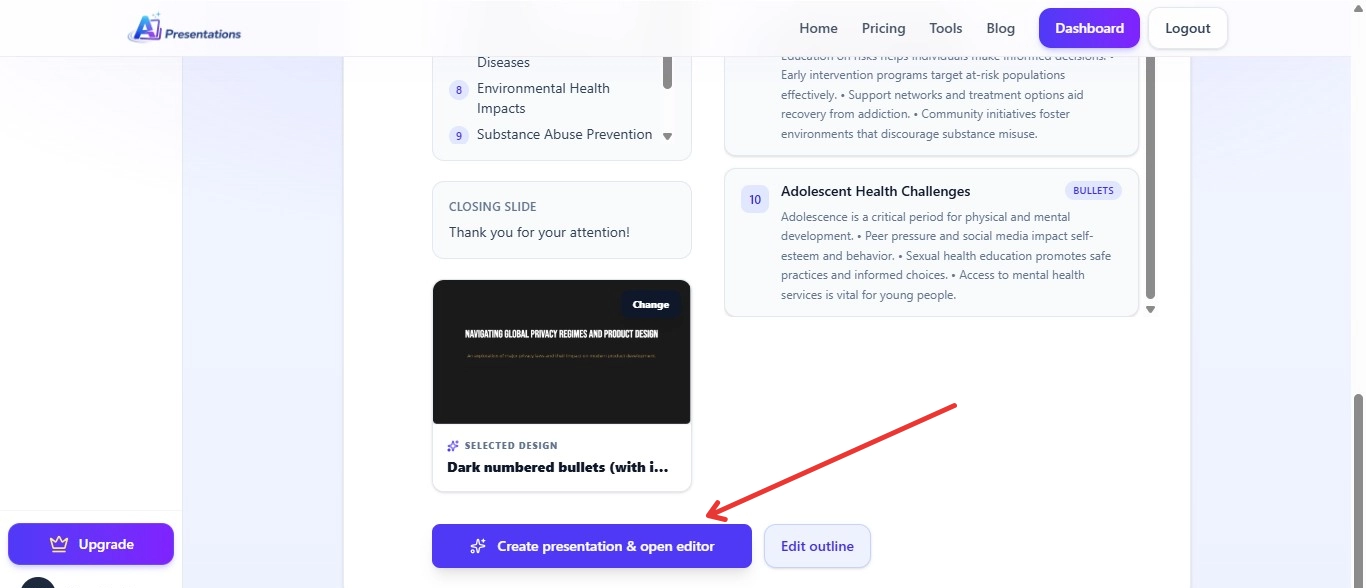
    After testing it across business presentations, marketing proposals, educational content, and project reports, I found that its biggest advantage is how quickly it transforms a simple prompt into a well-structured PowerPoint presentation. Instead of giving users a blank canvas, it generates an organized outline, professionally designed slides, relevant visuals, and editable content within minutes.
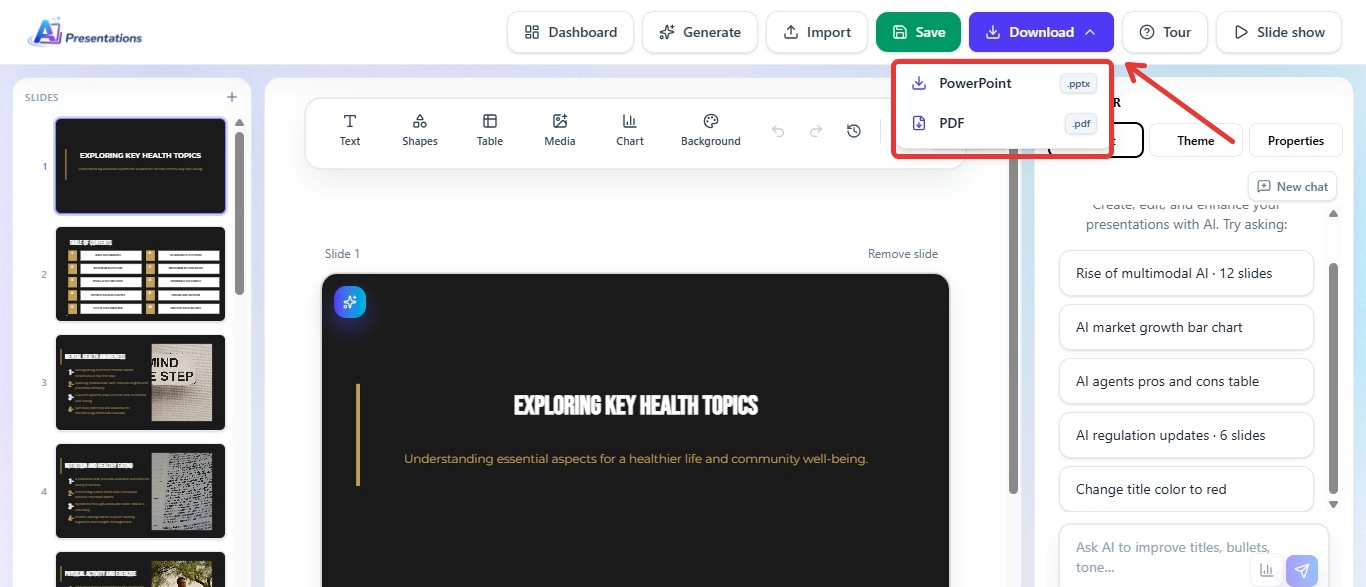
    Unlike many tools that focus primarily on design, AIPresentations.app balances content generation and presentation quality, making it useful for professionals, students, educators, startups, consultants, and corporate teams.

    Another feature I appreciated is the flexibility after generation. AI-generated presentations are rarely perfect on the first attempt, so being able to edit text, replace visuals, reorganize slides, and refine layouts without starting over saves a significant amount of time.

    Whether you’re preparing for a client meeting, classroom lecture, sales presentation, business proposal, or internal company update, the workflow feels efficient from start to finish.

    Key Features

    • Generate complete presentations from a simple prompt
    • Professional slide layouts
    • AI-generated presentation outlines
    • Smart content suggestions
    • Large template library
    • PowerPoint export
    • Google Slides compatibility
    • Brand customization
    • Charts, icons, and images
    • Fast generation speed

    Pros

    ✅ Very fast presentation generation

    ✅ Excellent balance between AI-generated content and design

    ✅ Beginner-friendly interface

    ✅ Good variety of templates

    ✅ Clean PowerPoint exports

    ✅ Works well for business and education

    Cons

    ❌ Some presentations still require manual editing for niche or highly technical topics

    ❌ Advanced branding features require premium plans

    Pricing

    • Free plan available
    • Premium plans with additional features and higher generation limits

    My Experience

    After testing multiple presentation topics, I consistently found AIPresentations.app among the fastest tools in this comparison. It produced structured presentations that required fewer edits than many competitors, especially for business and educational use cases.

    Rather than spending time arranging slides manually, I could focus on improving the content and tailoring the presentation to my audience.

    Overall Rating

    ⭐⭐⭐⭐⭐ 4.9/5

    2. Gamma AI

    Best for: Interactive presentations and modern storytelling

    Gamma takes a different approach from traditional PowerPoint tools. Instead of focusing on slide-by-slide editing, it creates interactive presentations that resemble modern web pages.
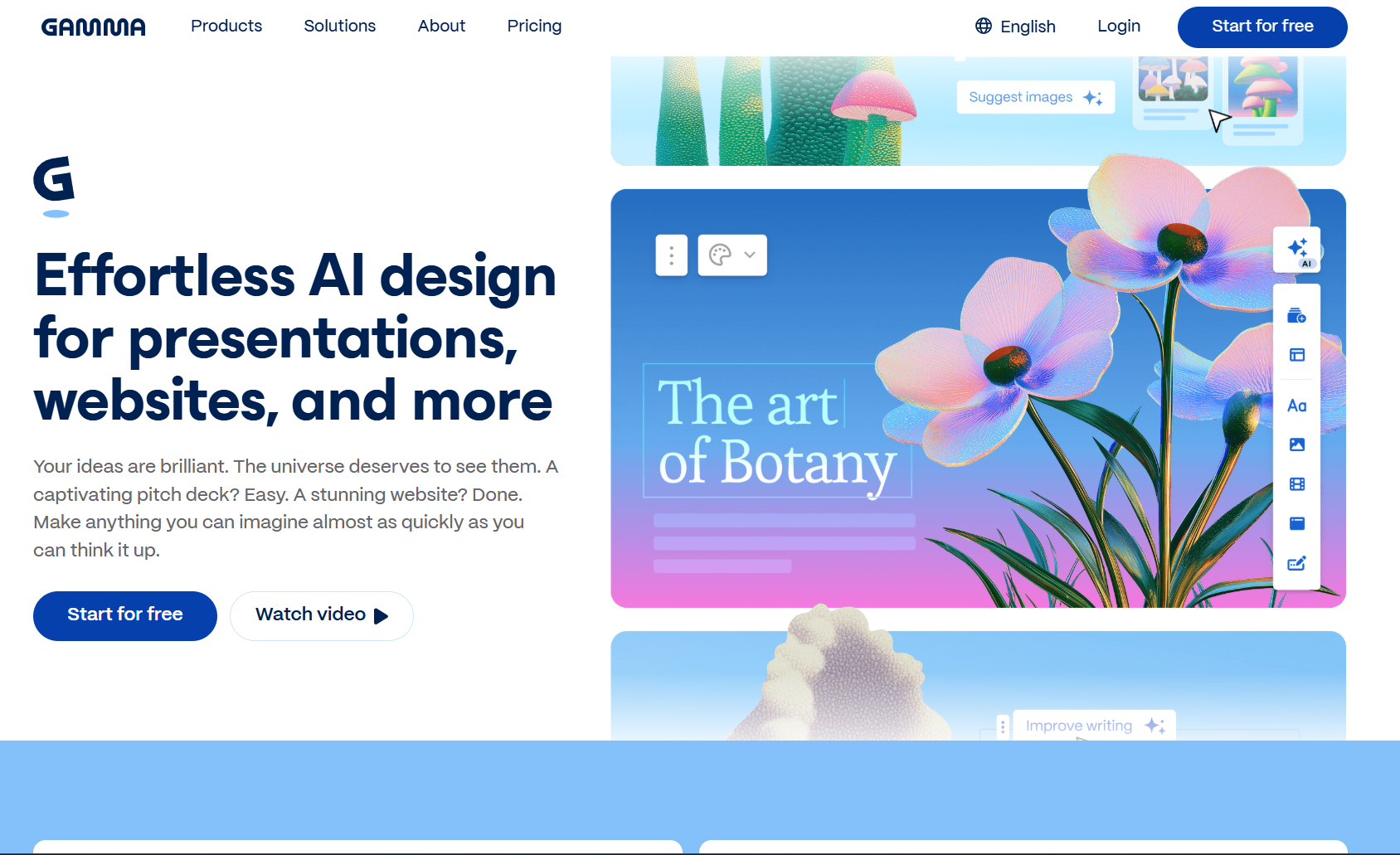
    If you’re building presentations for startups, product demos, workshops, or internal documentation, Gamma offers a refreshing workflow. It emphasizes visual storytelling, responsive layouts, and collaborative editing.

    During testing, I liked how quickly Gamma organized information into visually appealing sections. Its AI also generated decent content from prompts and suggested layouts that looked modern without requiring much manual adjustment.

    However, Gamma feels less suited for users who specifically need traditional PowerPoint files with extensive formatting control. While export options exist, some formatting adjustments may still be necessary depending on the presentation.

    Key Features

    • AI-generated presentation structure
    • Interactive layouts
    • Built-in collaboration
    • AI writing assistance
    • Image generation support
    • Responsive presentation design
    • Team workspaces

    Pros

    ✅ Excellent visual storytelling

    ✅ Modern interface

    ✅ Strong collaboration features

    ✅ Good AI writing capabilities

    ✅ Easy content organization

    Cons

    ❌ Limited customization compared to PowerPoint

    ❌ Export formatting may require adjustments

    ❌ Learning curve for users accustomed to traditional slide editors

    Pricing

    • Free plan available
    • Paid plans for advanced collaboration and AI usage

    My Experience

    Gamma impressed me with its design quality and speed. It’s particularly effective when presenting online or sharing interactive presentations with teams.

    For users who frequently deliver presentations in Microsoft PowerPoint, however, other tools may provide a smoother workflow.

    Check out this: Best Gamma Alternative?

    Overall Rating

    ⭐⭐⭐⭐☆ 4.6/5

    3. Canva

    Best for: Beautiful presentation design and visual creativity

    Canva has evolved far beyond a graphic design platform. Today, it offers AI-powered features that simplify presentation creation while maintaining one of the largest template libraries available.
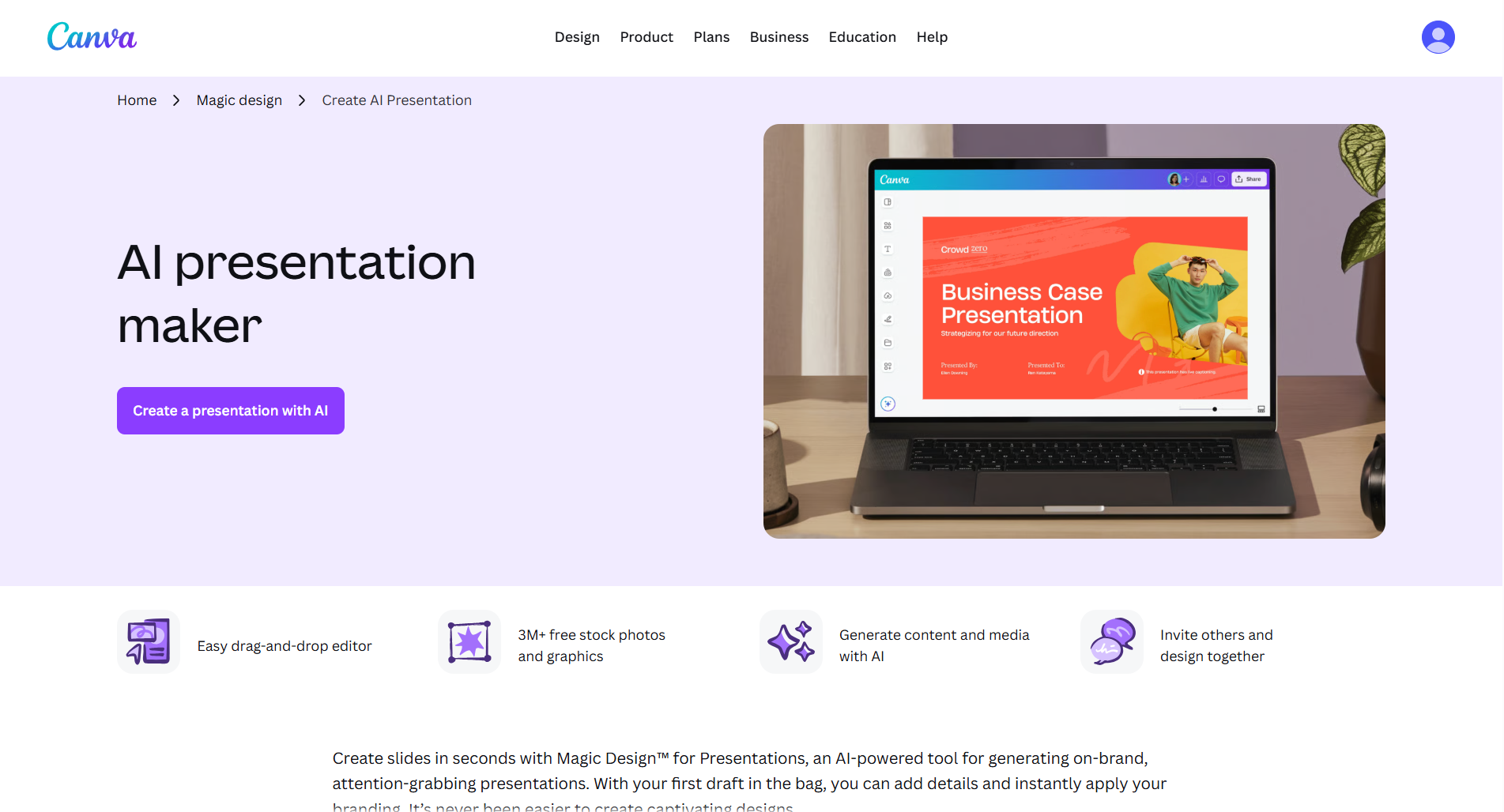
    Its biggest advantage is flexibility. Rather than relying entirely on AI, Canva combines intelligent design assistance with manual editing, giving users greater creative control.

    During testing, I found Canva particularly useful for marketing presentations, educational slides, portfolios, event presentations, and social-media-inspired designs. The sheer number of templates makes it easy to start with a polished foundation.

    The AI tools can generate content, suggest layouts, remove image backgrounds, create graphics, and improve designs. While its AI-generated presentation content wasn’t always as structured as dedicated presentation-focused tools, the design capabilities more than make up for it.

    Key Features

    • Thousands of presentation templates
    • AI writing assistance
    • Magic Design
    • Image editing
    • Background removal
    • Stock photos and graphics
    • Animation effects
    • PowerPoint export
    • Team collaboration

    Pros

    ✅ Outstanding template library

    ✅ Excellent visual design tools

    ✅ Beginner-friendly interface

    ✅ Strong collaboration

    ✅ Rich media library

    Cons

    ❌ AI-generated content is less detailed than specialized presentation tools

    ❌ Large presentations may require more manual editing

    ❌ Some premium assets require a paid subscription

    Pricing

    • Free plan available
    • Canva Pro for premium templates, AI features, and brand tools

    My Experience

    If presentation design matters more than rapid AI-generated content, Canva remains one of the strongest choices. I particularly liked how easy it was to customize colors, fonts, icons, and images without sacrificing visual consistency.

    For users who enjoy having creative control over every slide, Canva continues to be one of the most versatile platforms available.

    Overall Rating

    ⭐⭐⭐⭐☆ 4.7/5

    Quick Comparison After Testing

    Tool Best For AI Content Templates Editing Export Rating
    AIPresentations.app Fast PowerPoint creation ⭐⭐⭐⭐⭐ ⭐⭐⭐⭐⭐ ⭐⭐⭐⭐⭐ ⭐⭐⭐⭐⭐ 4.9/5
    Gamma Interactive presentations ⭐⭐⭐⭐☆ ⭐⭐⭐⭐☆ ⭐⭐⭐⭐☆ ⭐⭐⭐⭐☆ 4.6/5
    Canva Creative design ⭐⭐⭐⭐☆ ⭐⭐⭐⭐⭐ ⭐⭐⭐⭐⭐ ⭐⭐⭐⭐⭐ 4.7/5

    4. Beautiful.ai

    Best for: Business presentations and corporate teams

    If you frequently create business presentations, board meeting decks, investor updates, or executive reports, Beautiful.ai is one of the most polished tools available.
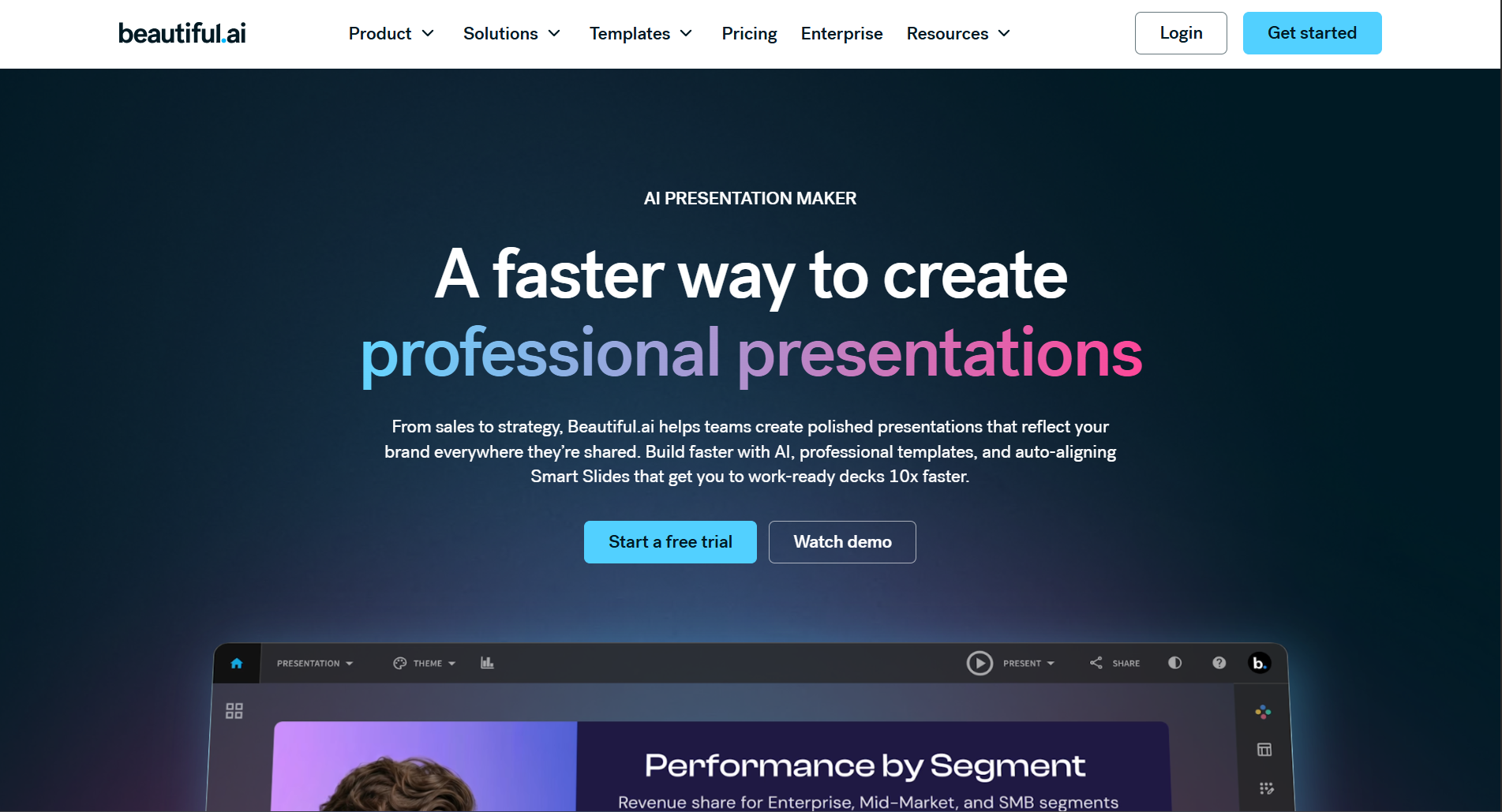
    Unlike many presentation platforms that simply generate slides, Beautiful.ai focuses on presentation design automation. As you add content, it intelligently adjusts layouts, spacing, image placement, and typography to keep every slide looking professional.

    During testing, I found this particularly useful because it eliminates one of the biggest frustrations in presentation design constantly moving elements around to make slides look balanced.

    Instead of manually resizing charts or aligning text boxes, the platform handles much of the design work automatically.

    Key Features

    • Smart slide layouts
    • Business-focused templates
    • AI-assisted content generation
    • Brand consistency tools
    • Team collaboration
    • PowerPoint export
    • Analytics for shared presentations

    Pros

    ✅ Excellent business-focused templates

    ✅ Automatic layout optimization

    ✅ Professional-looking presentations

    ✅ Strong collaboration features

    ✅ Consistent slide design

    Cons

    ❌ Less creative flexibility compared to Canva

    ❌ Smaller template library

    ❌ Premium features require a subscription

    Pricing

    • Limited free access
    • Paid plans for advanced features

    My Experience

    Beautiful.ai consistently produced clean and polished business presentations with minimal effort. If your work involves executive meetings, client proposals, or corporate reports, it’s an excellent option.

    Overall Rating

    ⭐⭐⭐⭐☆ 4.7/5

    5. Tome

    Best for: Storytelling and idea presentations

    Tome approaches presentations differently than traditional slide-based tools.

    Instead of focusing on individual slides, it emphasizes storytelling. The AI helps organize information into logical sections that flow naturally from one idea to the next.

    When I tested Tome for startup pitches and product concepts, it generated well-structured narratives rather than isolated slides.

    It also integrates AI-generated visuals and writing assistance, making it useful when you’re starting with only a rough idea.

    However, users who require highly customized PowerPoint presentations may find Tome somewhat limiting because its workflow is optimized for interactive storytelling.

    Key Features

    • AI-generated narratives
    • Smart page layouts
    • AI writing assistant
    • AI image generation
    • Collaboration tools
    • Presentation sharing
    • Interactive content

    Pros

    ✅ Excellent storytelling capabilities

    ✅ Clean modern interface

    ✅ Fast content generation

    ✅ Strong AI writing

    ✅ Great for idea pitches

    Cons

    ❌ Less suitable for traditional corporate presentations

    ❌ Limited PowerPoint editing flexibility

    ❌ Smaller template collection

    Pricing

    • Free plan available
    • Premium plans for additional AI usage

    My Experience

    Tome stood out whenever I wanted to communicate an idea rather than simply display information. It’s ideal for founders, consultants, educators, and creators who rely on storytelling.

    Overall Rating

    ⭐⭐⭐⭐☆ 4.5/5

    Check out this: Best Tome AI Alternative

    6. Pitch

    Best for: Team collaboration

    Pitch is designed for organizations where multiple people contribute to the same presentation.
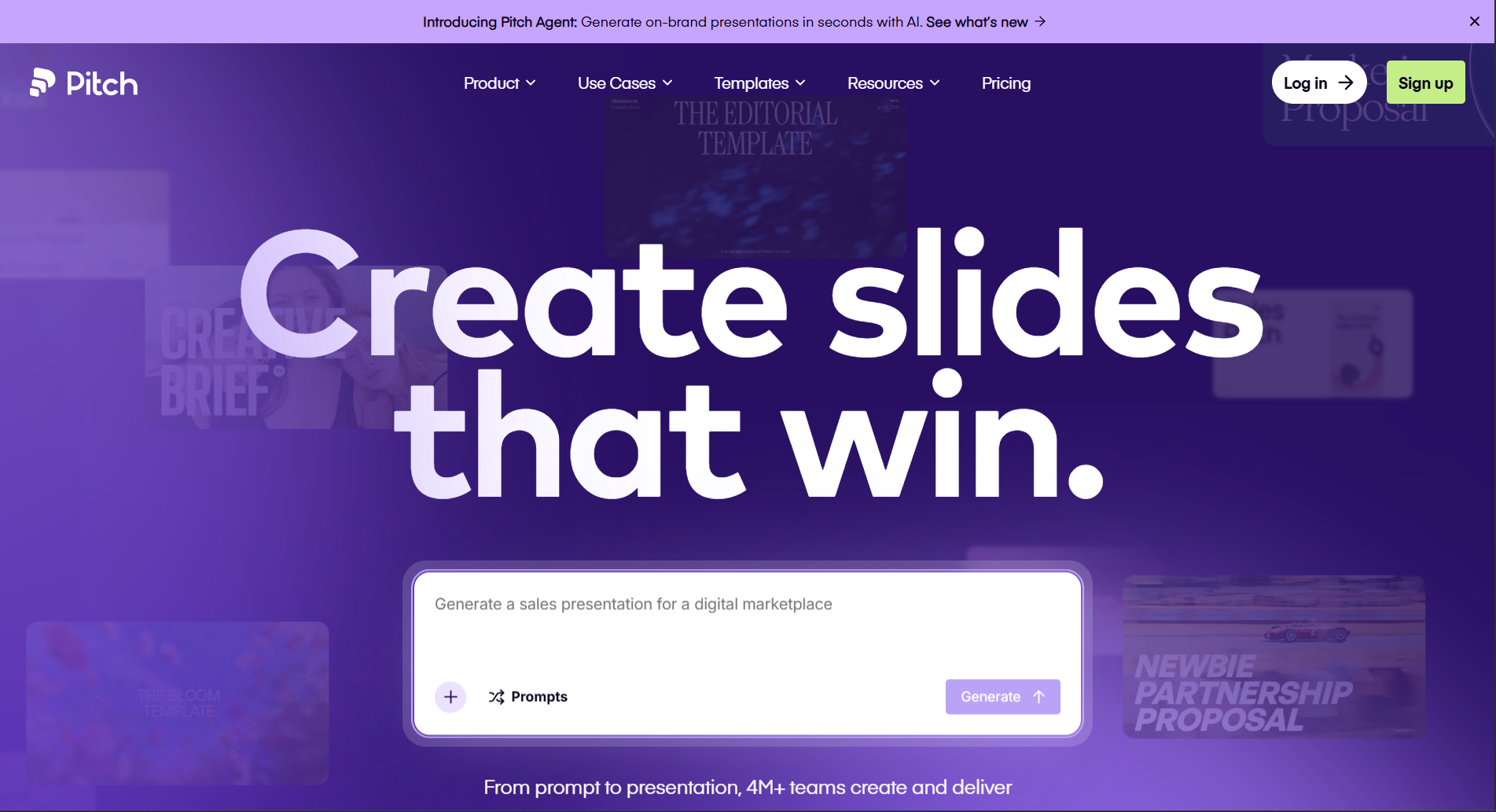
    Rather than focusing solely on AI, it combines collaboration, version history, comments, analytics, and presentation management into one platform.

    During testing, I found Pitch especially useful for marketing teams, agencies, startups, and sales departments that frequently update presentations together.

    Its collaboration experience feels closer to working in a shared document than editing traditional presentation files.

    Key Features

    • Team collaboration
    • AI writing assistance
    • Shared workspaces
    • Comments and approvals
    • Presentation analytics
    • Brand management
    • PowerPoint export

    Pros

    ✅ Excellent collaboration

    ✅ Clean interface

    ✅ Strong team workflow

    ✅ Easy sharing

    ✅ Business-ready templates

    Cons

    ❌ AI generation isn’t as advanced as some competitors

    ❌ Better suited for teams than individuals

    ❌ Some enterprise features are paid

    Pricing

    • Free plan available
    • Premium business plans

    My Experience

    Pitch is one of the strongest collaboration-focused presentation tools I tested. If your organization frequently works on presentations together, it offers a smoother workflow than many traditional presentation applications.

    Overall Rating

    ⭐⭐⭐⭐☆ 4.6/5

    7. Plus AI

    Best for: Google Slides users

    Plus AI is unique because it works directly inside Google Slides.
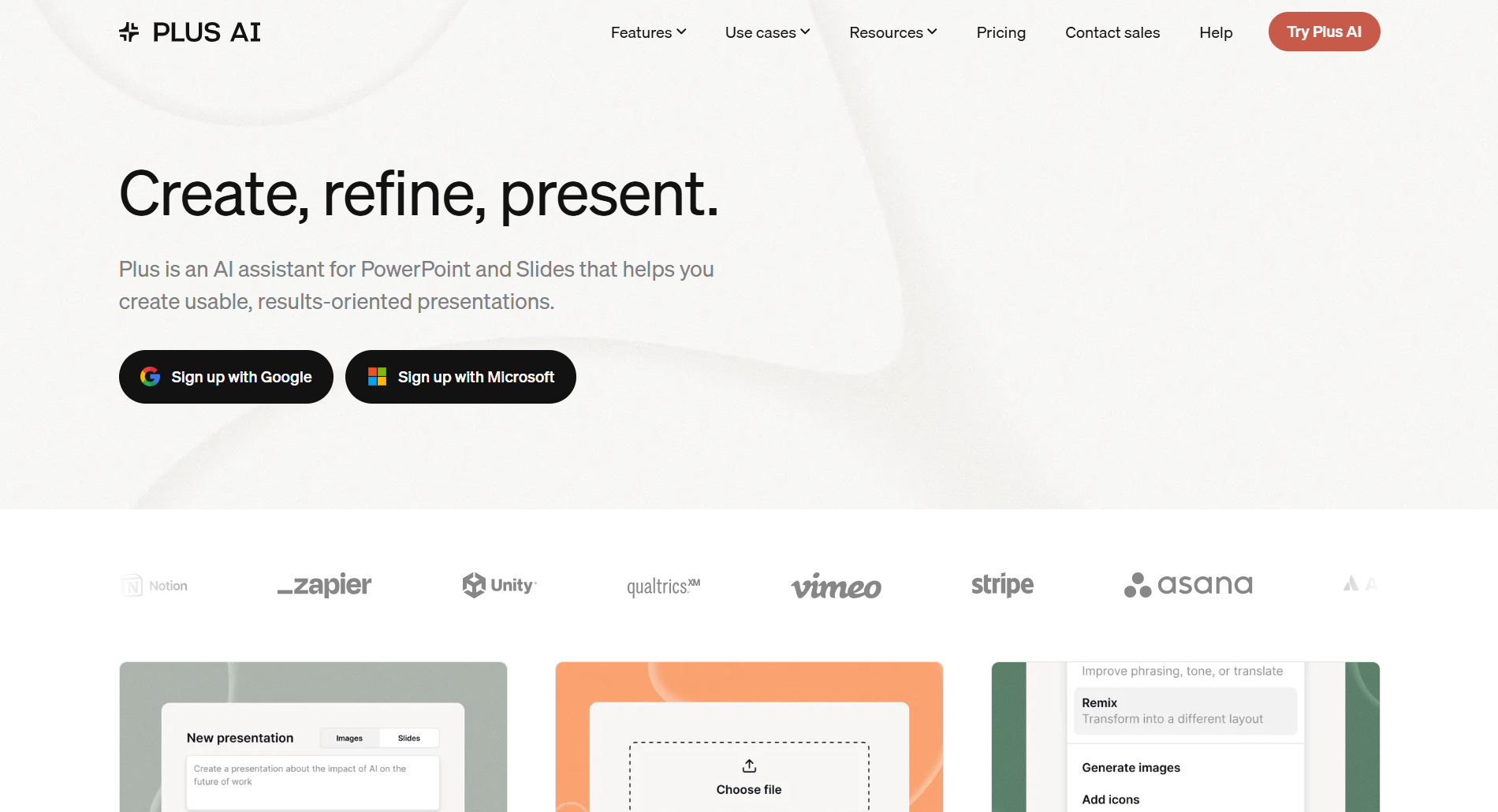
    Instead of switching between different presentation platforms, users can generate outlines, rewrite slides, improve content, and create new presentations without leaving Google’s ecosystem.

    For teams already invested in Google Workspace, this creates a much more seamless workflow.

    During testing, I appreciated how quickly it generated presentation structures while preserving the familiar Google Slides editing experience.

    Key Features

    • Google Slides integration
    • AI-generated outlines
    • Rewrite existing slides
    • Prompt-based generation
    • AI editing assistant
    • Team collaboration
    • PowerPoint compatibility

    Pros

    ✅ Native Google Slides workflow

    ✅ Easy learning curve

    ✅ Helpful AI editing

    ✅ Fast presentation creation

    ✅ Good collaboration

    Cons

    ❌ Requires Google Slides

    ❌ Smaller template ecosystem

    ❌ Limited standalone functionality

    Pricing

    • Free trial
    • Paid subscription

    My Experience

    If you already spend most of your time working in Google Slides, Plus AI is one of the easiest tools to adopt because it integrates directly into your existing workflow instead of requiring you to learn an entirely new platform.

    Overall Rating

    ⭐⭐⭐⭐☆ 4.6/5

    Mid-Article Comparison

    Tool Ease of Use AI Quality Design Collaboration Best For
    AIPresentations.app ⭐⭐⭐⭐⭐ ⭐⭐⭐⭐⭐ ⭐⭐⭐⭐⭐ ⭐⭐⭐⭐☆ Fast presentation creation
    Gamma ⭐⭐⭐⭐☆ ⭐⭐⭐⭐☆ ⭐⭐⭐⭐⭐ ⭐⭐⭐⭐☆ Interactive presentations
    Canva ⭐⭐⭐⭐⭐ ⭐⭐⭐⭐☆ ⭐⭐⭐⭐⭐ ⭐⭐⭐⭐⭐ Creative presentations
    Beautiful.ai ⭐⭐⭐⭐☆ ⭐⭐⭐⭐☆ ⭐⭐⭐⭐⭐ ⭐⭐⭐⭐☆ Business presentations
    Tome ⭐⭐⭐⭐☆ ⭐⭐⭐⭐☆ ⭐⭐⭐⭐☆ ⭐⭐⭐⭐☆ Storytelling
    Pitch ⭐⭐⭐⭐☆ ⭐⭐⭐⭐☆ ⭐⭐⭐⭐☆ ⭐⭐⭐⭐⭐ Team collaboration
    Plus AI ⭐⭐⭐⭐⭐ ⭐⭐⭐⭐☆ ⭐⭐⭐⭐☆ ⭐⭐⭐⭐☆ Google Slides users

    8. Visme

    Best for: Marketing presentations, reports, and data visualization

    Visme is more than a presentation platform. It’s a complete visual communication tool designed for businesses, marketers, educators, and organizations that regularly create presentations, reports, infographics, proposals, and dashboards.
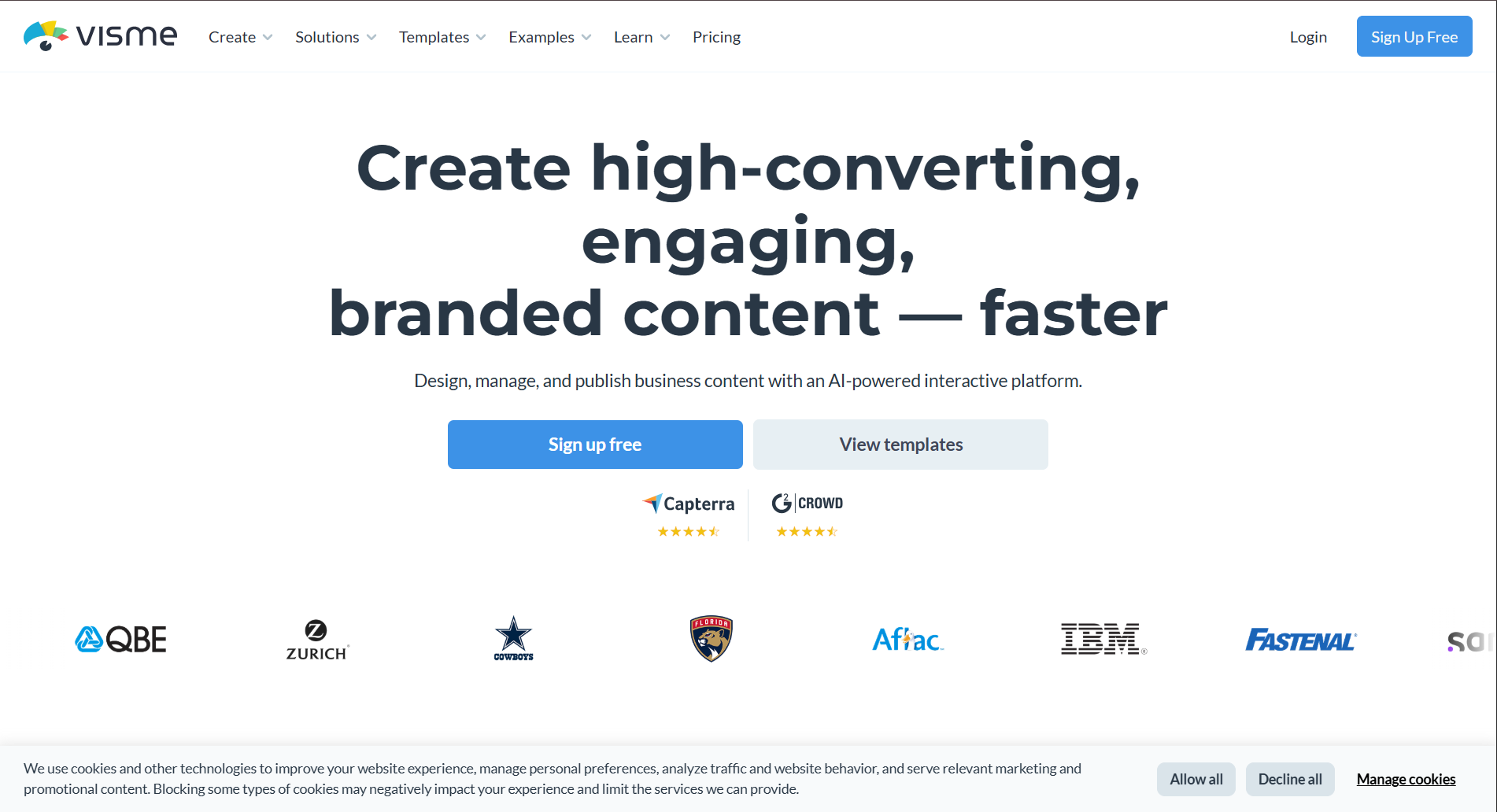
    During my testing, Visme stood out because of its extensive collection of charts, icons, illustrations, and data visualization tools. If your presentations rely heavily on statistics, KPIs, or business reports, it offers more flexibility than many competitors.

    While its AI capabilities continue to improve, I found that Visme’s biggest advantage is its ability to turn information-heavy presentations into visually engaging slides.

    Key Features

    • AI-assisted content generation
    • Professional templates
    • Interactive charts
    • Infographics
    • Brand management
    • Collaboration
    • PowerPoint export
    • Analytics

    Pros

    ✅ Excellent data visualization

    ✅ Large library of business assets

    ✅ Strong branding options

    ✅ Interactive content

    ✅ Professional templates

    Cons

    ❌ AI generation isn’t as advanced as dedicated AI-first platforms

    ❌ Beginners may need time to explore all features

    ❌ Premium assets require a subscription

    Pricing

    • Limited free plan
    • Paid plans for advanced features

    My Experience

    For business reports and marketing presentations, Visme consistently produced attractive visuals with relatively little effort. If data storytelling is a major part of your work, it’s a strong choice.

    Overall Rating

    ⭐⭐⭐⭐☆ 4.5/5

    9. Slidesgo AI

    Best for: Ready-made templates with AI assistance

    Slidesgo has long been known for its extensive collection of presentation templates, and its AI features make creating presentations even faster.
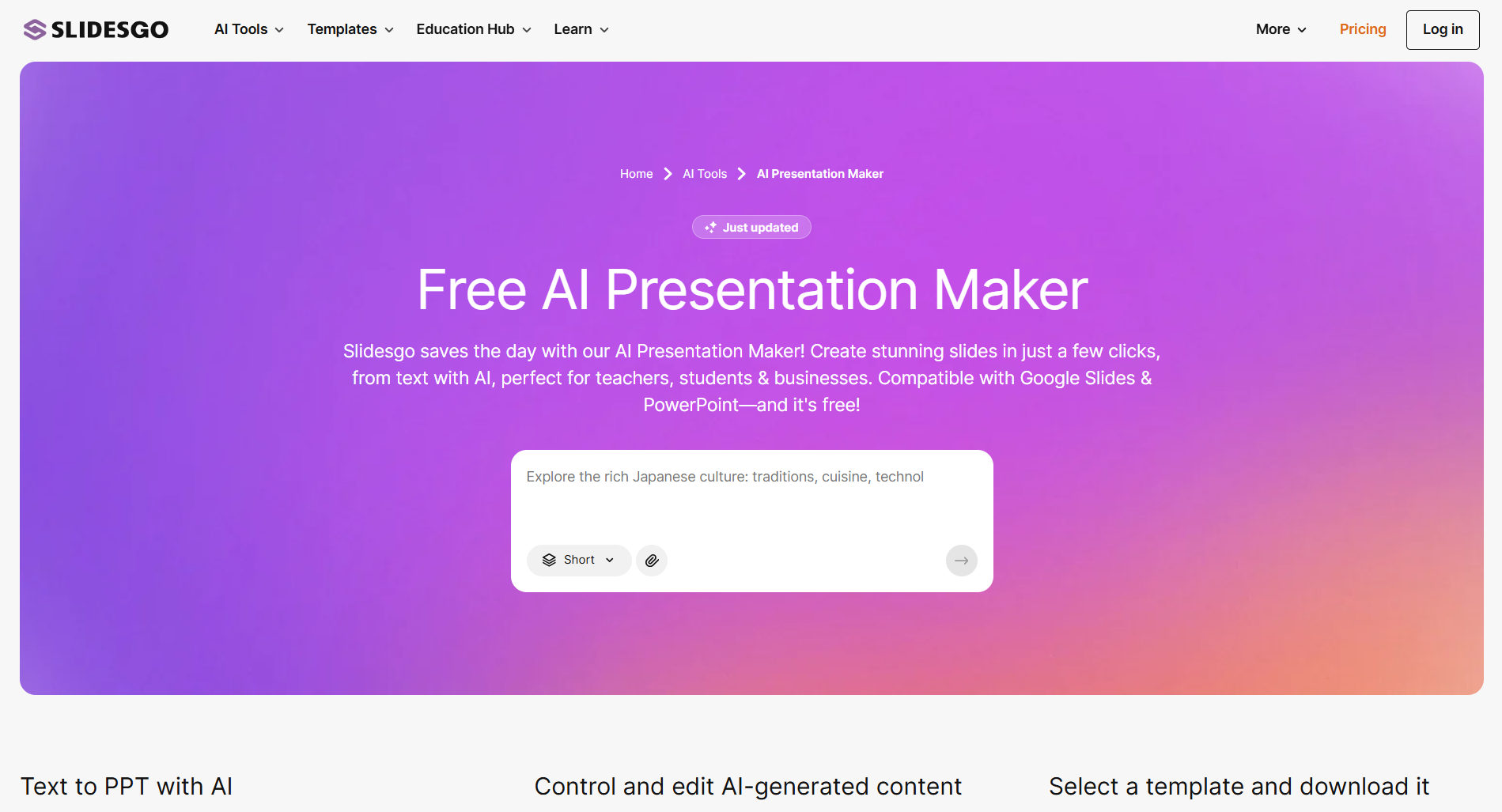
    Rather than starting from scratch, users can generate presentation drafts and combine them with Slidesgo’s professionally designed templates. This is particularly helpful for students, teachers, freelancers, and professionals who need visually appealing presentations without investing hours in design.

    During testing, I found the platform easy to use and appreciated the variety of layouts available for different industries and presentation styles.

    Key Features

    • AI-generated presentations
    • Large template library
    • Google Slides compatibility
    • PowerPoint compatibility
    • Educational templates
    • Business templates
    • Editable graphics

    Pros

    ✅ Huge template collection

    ✅ Beginner-friendly

    ✅ Fast presentation creation

    ✅ Great for education

    ✅ Easy customization

    Cons

    ❌ AI writing is more basic than some competitors

    ❌ Limited advanced collaboration

    ❌ Premium templates require a subscription

    Pricing

    • Free plan
    • Premium subscription

    My Experience

    Slidesgo AI is ideal if you value professionally designed templates and want AI to speed up the initial draft. It’s particularly useful for classrooms, workshops, and general business presentations.

    Overall Rating

    ⭐⭐⭐⭐☆ 4.4/5

    10. Prezi AI

    Best for: Dynamic and non-linear presentations

    Prezi has always been different from traditional presentation software, and its AI features continue that approach.
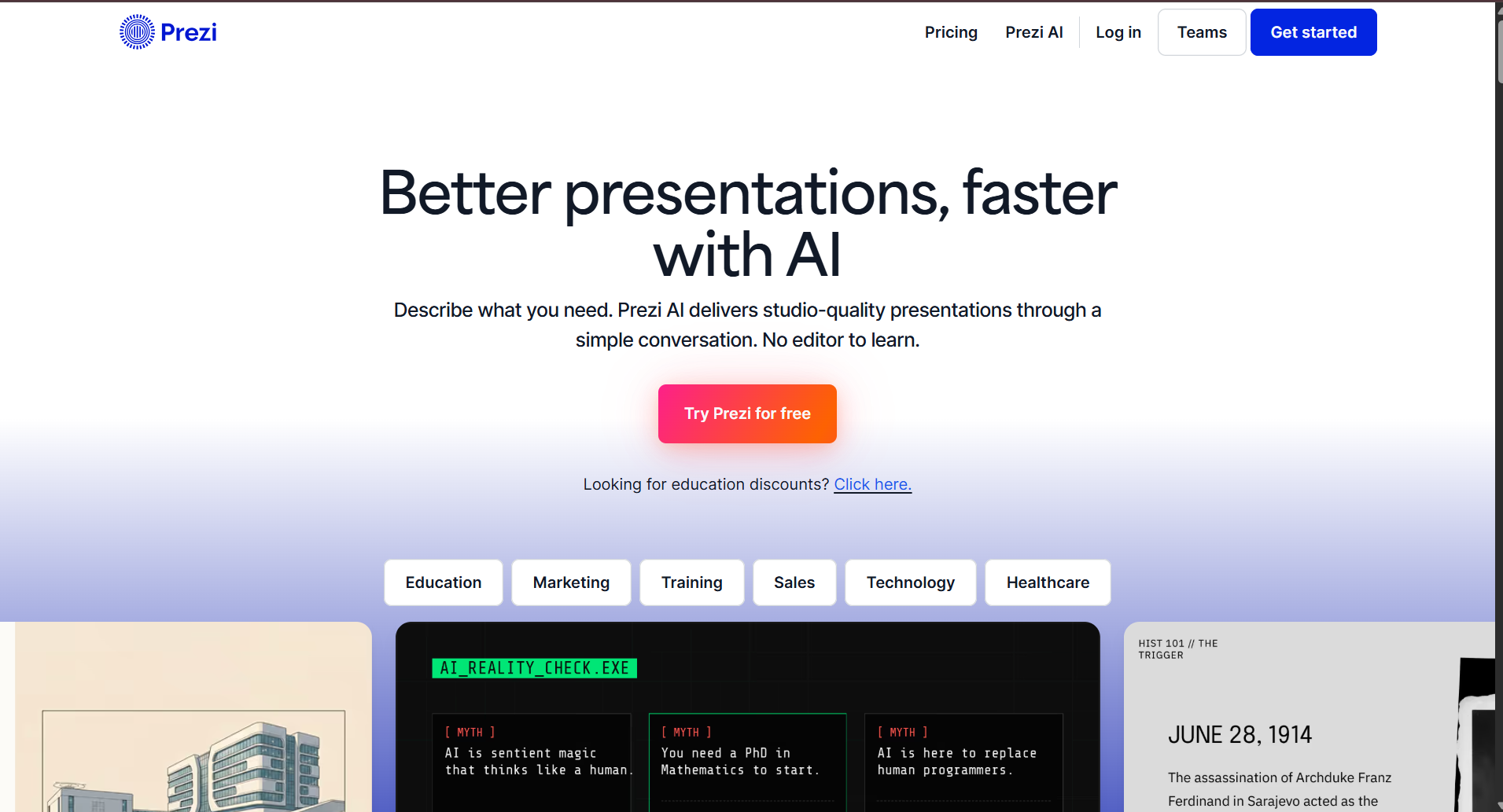
    Instead of organizing content as a sequence of slides, Prezi allows presenters to zoom in and out of topics, creating a more dynamic storytelling experience.

    This style works especially well for keynote presentations, workshops, conferences, and educational sessions where audience engagement is a priority.

    During testing, I found that Prezi’s AI helped generate presentation structures quickly, but its unique navigation style requires some practice if you’re accustomed to conventional slide decks.

    Key Features

    • AI-assisted presentation creation
    • Zoom-based navigation
    • Dynamic storytelling
    • Collaboration
    • Presentation analytics
    • Cloud sharing
    • Multimedia support

    Pros

    ✅ Unique presentation style

    ✅ Highly engaging

    ✅ Excellent for public speaking

    ✅ Good storytelling workflow

    ✅ Strong visual impact

    Cons

    ❌ Learning curve for new users

    ❌ Not ideal for every business environment

    ❌ Limited compatibility with traditional slide workflows

    Pricing

    • Free trial
    • Paid plans

    My Experience

    Prezi remains one of the most distinctive presentation platforms available. If you regularly speak at conferences or want presentations that stand out visually, it’s worth considering.

    Overall Rating

    ⭐⭐⭐⭐☆ 4.4/5

    Complete Comparison Table

    Tool AI Content Templates Collaboration PowerPoint Export Google Slides Best For
    AIPresentations.app ⭐⭐⭐⭐⭐ ⭐⭐⭐⭐⭐ ⭐⭐⭐⭐☆ Fast presentation creation
    Gamma ⭐⭐⭐⭐☆ ⭐⭐⭐⭐☆ ⭐⭐⭐⭐☆ Limited Interactive presentations
    Canva ⭐⭐⭐⭐☆ ⭐⭐⭐⭐⭐ ⭐⭐⭐⭐⭐ Creative design
    Beautiful.ai ⭐⭐⭐⭐☆ ⭐⭐⭐⭐⭐ ⭐⭐⭐⭐☆ No Business presentations
    Tome ⭐⭐⭐⭐☆ ⭐⭐⭐⭐☆ ⭐⭐⭐⭐☆ Partial No Storytelling
    Pitch ⭐⭐⭐⭐☆ ⭐⭐⭐⭐☆ ⭐⭐⭐⭐⭐ Limited Team collaboration
    Plus AI ⭐⭐⭐⭐☆ ⭐⭐⭐⭐☆ ⭐⭐⭐⭐☆ Google Slides workflow
    Visme ⭐⭐⭐⭐☆ ⭐⭐⭐⭐⭐ ⭐⭐⭐⭐☆ Limited Marketing & reports
    Slidesgo AI ⭐⭐⭐⭐☆ ⭐⭐⭐⭐⭐ ⭐⭐⭐☆☆ Templates & education
    Prezi AI ⭐⭐⭐⭐☆ ⭐⭐⭐⭐☆ ⭐⭐⭐⭐☆ Partial No Dynamic presentations

    Which Tool Should You Choose?

    Every user has different requirements, so there isn’t a single tool that’s perfect for everyone.

    Choose AIPresentations.app if you:

    • Want to create complete presentations quickly
    • Need PowerPoint-ready files
    • Prefer balanced AI content and professional design
    • Create business, educational, or client presentations regularly

    Choose Gamma if you:

    • Prefer interactive presentations
    • Deliver online presentations
    • Want modern layouts

    Choose Canva if you:

    • Care most about visual design
    • Customize every slide
    • Create marketing or social-media-focused presentations

    Choose Beautiful.ai if you:

    • Build business presentations frequently
    • Need polished corporate designs
    • Want automatic layout optimization

    Choose Tome if you:

    • Focus on storytelling
    • Create startup pitches
    • Present ideas instead of detailed reports

    Choose Pitch if you:

    • Collaborate with teams
    • Need shared workspaces
    • Want version history and comments

    Choose Plus AI if you:

    • Work primarily in Google Slides
    • Want AI assistance without leaving your existing workflow

    Choose Visme if you:

    • Build reports and dashboards
    • Use charts and infographics often
    • Need strong branding capabilities

    Choose Slidesgo AI if you:

    • Prefer starting from ready-made templates
    • Create educational presentations
    • Want a wide variety of design styles

    Choose Prezi AI if you:

    • Deliver keynote presentations
    • Want dynamic storytelling
    • Need presentations that stand out visually

    Benefits of Using AI Tools for PPT Presentation

    Creating presentations is no longer just about arranging text and images on slides. Modern AI-powered tools simplify the entire workflow from brainstorming ideas to designing polished presentations.

    Here are some of the biggest advantages I noticed while testing these tools.

    1. Save Hours of Manual Work

    Building a presentation from scratch often involves researching the topic, writing content, designing layouts, selecting visuals, and formatting slides.

    AI significantly reduces this workload by generating a structured draft in minutes. Instead of starting with a blank screen, you begin with a complete presentation that you can refine and customize.

    2. Create Better-Structured Presentations

    Many AI tools organize content into logical sections with clear titles, supporting points, and smooth transitions.

    This helps improve the overall flow of a presentation, especially when you’re explaining complex topics or presenting detailed information.

    3. Improve Design Consistency

    One of the most common challenges in presentation design is maintaining a consistent look across every slide.

    AI tools automatically apply layouts, fonts, colors, spacing, and alignment, resulting in presentations that look polished without requiring professional design skills.

    4. Generate Content Faster

    Whether you’re preparing a business proposal, project report, classroom lecture, or sales deck, AI can help generate outlines, summaries, headlines, and supporting points much faster than writing everything manually.

    5. Increase Productivity

    Instead of spending hours formatting slides, you can focus on refining your message, adding personal insights, and preparing for your presentation.

    For professionals who create presentations regularly, these time savings can be substantial over the course of a year.

    6. Support Different Presentation Types

    Most modern AI tools can assist with a variety of presentation formats, including:

    • Business proposals
    • Sales presentations
    • Investor pitches
    • Educational lectures
    • Training materials
    • Marketing reports
    • Project updates
    • Research presentations
    • Product launches
    • Conference talks

    Things to Consider Before Choosing an AI Tool

    Not every AI tool is designed for the same type of user. Before selecting one, it’s worth considering a few practical factors.

    Your Workflow

    If your team already uses PowerPoint or Google Slides, choose a tool that integrates smoothly with your existing workflow rather than requiring you to learn an entirely new platform.

    Export Quality

    A presentation may look great inside the platform but lose formatting when exported.

    Always check whether the tool preserves layouts, fonts, images, and animations when downloading PowerPoint files.

    Customization Options

    AI-generated presentations are only a starting point.

    Choose a tool that allows you to easily edit text, rearrange slides, replace visuals, and apply your own branding.

    Collaboration Features

    If multiple people work on presentations, look for features like:

    • Real-time editing
    • Comments
    • Version history
    • Shared workspaces
    • Access controls

    Pricing

    Some tools offer generous free plans, while others require a subscription for advanced AI capabilities.

    Compare features carefully to ensure the pricing matches your actual needs.

    Data Privacy

    If you’re working with confidential business information, review how the platform handles uploaded documents and AI-generated content.

    Frequently Asked Questions

    What are AI tools for PPT presentation?

    AI tools for PPT presentation use artificial intelligence to help create presentation outlines, generate slide content, suggest layouts, and simplify the presentation creation process.

    Can AI create an entire presentation?

    Yes. Many modern tools can generate a complete presentation from a prompt, document, or topic. However, reviewing and customizing the final result is always recommended.

    Are free AI presentation tools worth using?

    Many free plans provide enough functionality for occasional users, students, and educators. Premium plans generally unlock additional AI usage, templates, collaboration, and branding features.

    Which AI tool is best for business presentations?

    If your focus is business presentations, look for platforms that offer professional templates, clean PowerPoint exports, branding options, and collaboration features. The right choice depends on your workflow and presentation style.

    Can AI tools export PowerPoint files?

    Most leading platforms support PowerPoint export, although formatting quality can vary between tools. It’s a good idea to review exported presentations before sharing them.

    Do AI tools work with Google Slides?

    Some platforms integrate directly with Google Slides, while others allow you to export presentations for further editing.

    Are AI-generated presentations editable?

    Yes. Nearly all modern AI tools allow you to edit text, replace images, rearrange slides, change themes, and customize the presentation after generation.

    Are AI tools suitable for students?

    Absolutely. Students can use AI tools to create class presentations, project reports, research summaries, seminar slides, and thesis presentations more efficiently.

    Can AI help with presentation design?

    Yes. Many platforms automatically suggest layouts, typography, color schemes, icons, and images to create visually appealing presentations.

    How do I choose the right AI tool?

    The best choice depends on your goals. Consider factors such as presentation quality, editing flexibility, collaboration features, export options, pricing, and how well the tool fits your existing workflow.

    Final Verdict

    After comparing ten of the most popular AI tools for PPT presentation, one thing became clear: there is no single platform that’s perfect for every user.

    Some tools prioritize creative design, while others focus on collaboration, storytelling, or business presentations. The right choice depends on how you work, who your audience is, and how much customization you need after the initial draft.

    If your priority is creating professional PowerPoint presentations quickly with a balance of strong AI-generated content, polished designs, and flexible editing, AIPresentations.app is a compelling option to explore.

    For users who value design freedom, collaboration, or unique presentation styles, platforms like Canva, Pitch, Gamma, Beautiful.ai, and others each offer strengths that may better suit specific workflows.

    Rather than relying on a single feature, evaluate each tool based on the way you create and deliver presentations. The right tool should help you spend less time building slides and more time communicating your ideas effectively.

    Quick Recap

    Requirement Recommended Tool
    Fast presentation creation AIPresentations.app
    Business presentations Beautiful.ai
    Creative design Canva
    Team collaboration Pitch
    Interactive presentations Gamma
    Storytelling Tome
    Google Slides workflow Plus AI
    Reports & data visualization Visme
    Ready-made templates Slidesgo AI
    Dynamic presentations Prezi AI
  • How to Add Video to Google Slides (YouTube, Google Drive & MP4 Guide)

    How to Add Video to Google Slides (YouTube, Google Drive & MP4 Guide)

    Whether I’m creating a business presentation, a classroom lesson, or a project proposal, adding videos is one of the easiest ways to make my slides more engaging. A well-placed video can explain complex ideas, capture attention, and make presentations far more memorable than text alone.

    Fortunately, Google Slides makes it simple to embed videos directly into your presentation. You can insert videos from YouTube, use videos stored in Google Drive, and customize playback settings so they play exactly when you want.

    In this guide, I’ll walk you through every method available to add videos to Google Slides. I’ll also share practical tips, common mistakes to avoid, and troubleshooting solutions if your videos don’t play correctly.

    Why Add Videos to Google Slides?

    Adding videos isn’t just about making slides look better it helps communicate information more effectively.

    Here are some of the biggest benefits I’ve experienced when using videos in presentations.

    Improve Audience Engagement

    Videos naturally capture attention better than long paragraphs or static images. Instead of explaining every concept with text, you can let a short video demonstrate it in seconds.

    This is especially useful during:

    • Business presentations
    • Product demonstrations
    • Marketing pitches
    • Educational lessons
    • Team training sessions

    Explain Complex Topics Faster

    Some ideas are easier to show than describe.

    For example, if you’re explaining software, a screen recording is often much more effective than multiple screenshots. Similarly, product demonstrations, tutorials, or animated explainers can help your audience understand concepts much faster.

    Create More Professional Presentations

    Modern presentations rely on multimedia rather than text-heavy slides. Adding relevant videos helps create a polished presentation that feels more interactive and engaging.

    Increase Information Retention

    Research consistently shows that combining visuals, audio, and text helps people remember information better than text alone. Strategic use of videos can improve how well your audience understands and recalls your presentation.

    Tip: Use short, relevant videos instead of lengthy clips. In most presentations, videos between 30 seconds and 2 minutes work best because they support your message without distracting from it.

    Ways to Add Videos to Google Slides

    Google Slides offers multiple ways to insert videos, and the best method depends on where your video is stored.

    Method Best For Internet Required
    YouTube Video Public videos, tutorials, demos Yes
    Google Drive Video Personal or company videos Yes (for most presentations)
    Uploaded MP4 (via Google Drive) Recorded presentations, custom videos Yes (through Drive access)

    If you’re working with a video stored on your computer, you’ll first need to upload it to Google Drive before inserting it into your presentation.

    How to Add a YouTube Video to Google Slides?

    Adding a YouTube video is the quickest and most popular method because Google Slides integrates directly with YouTube.

    I usually use this option when I want to include tutorials, promotional videos, interviews, webinars, or product demonstrations.

    Method 1: Search for a YouTube Video

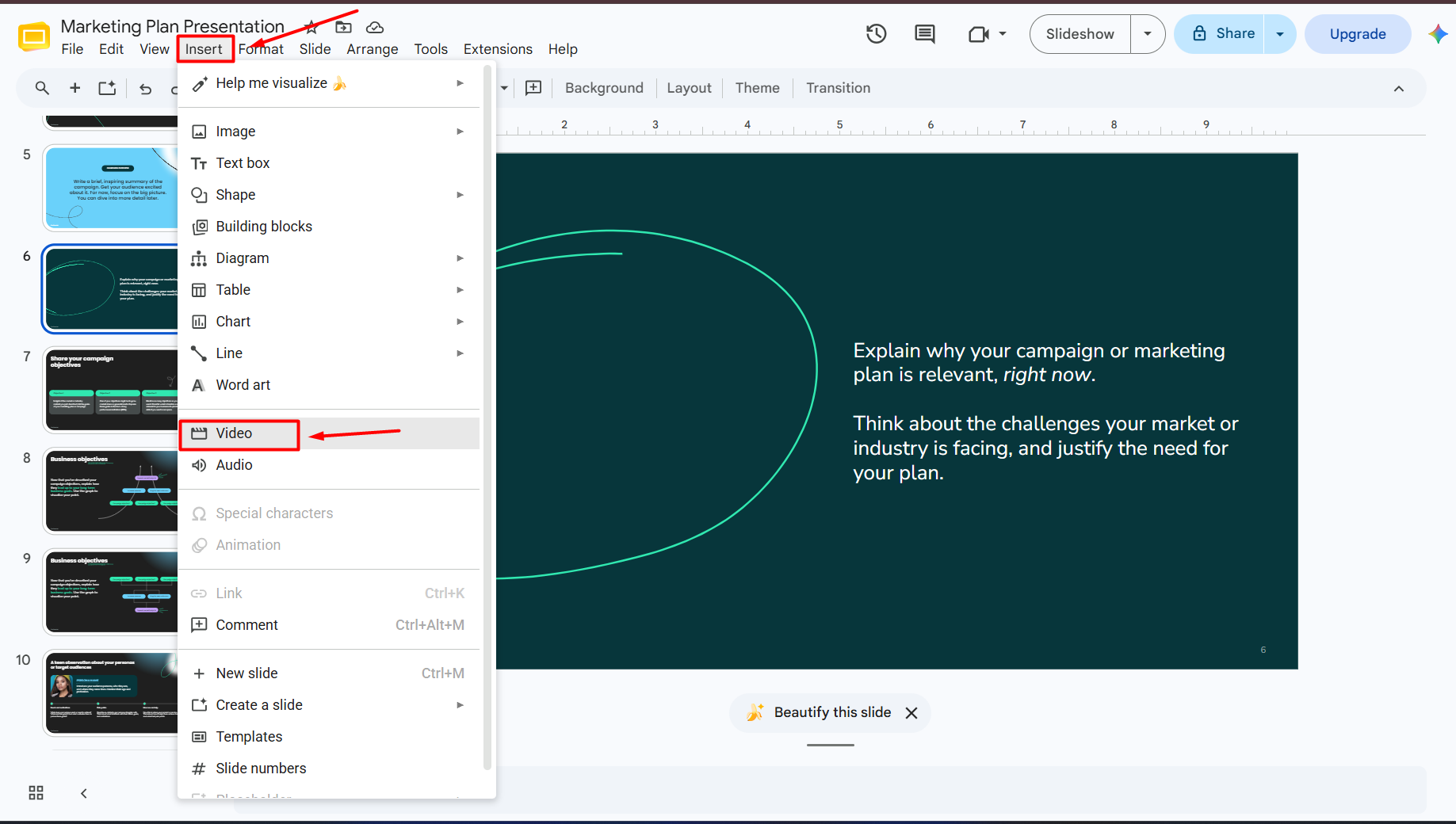
    Step 1. Open your presentation in Google Slides.

    Step 2. Select the slide where you want the video to appear.

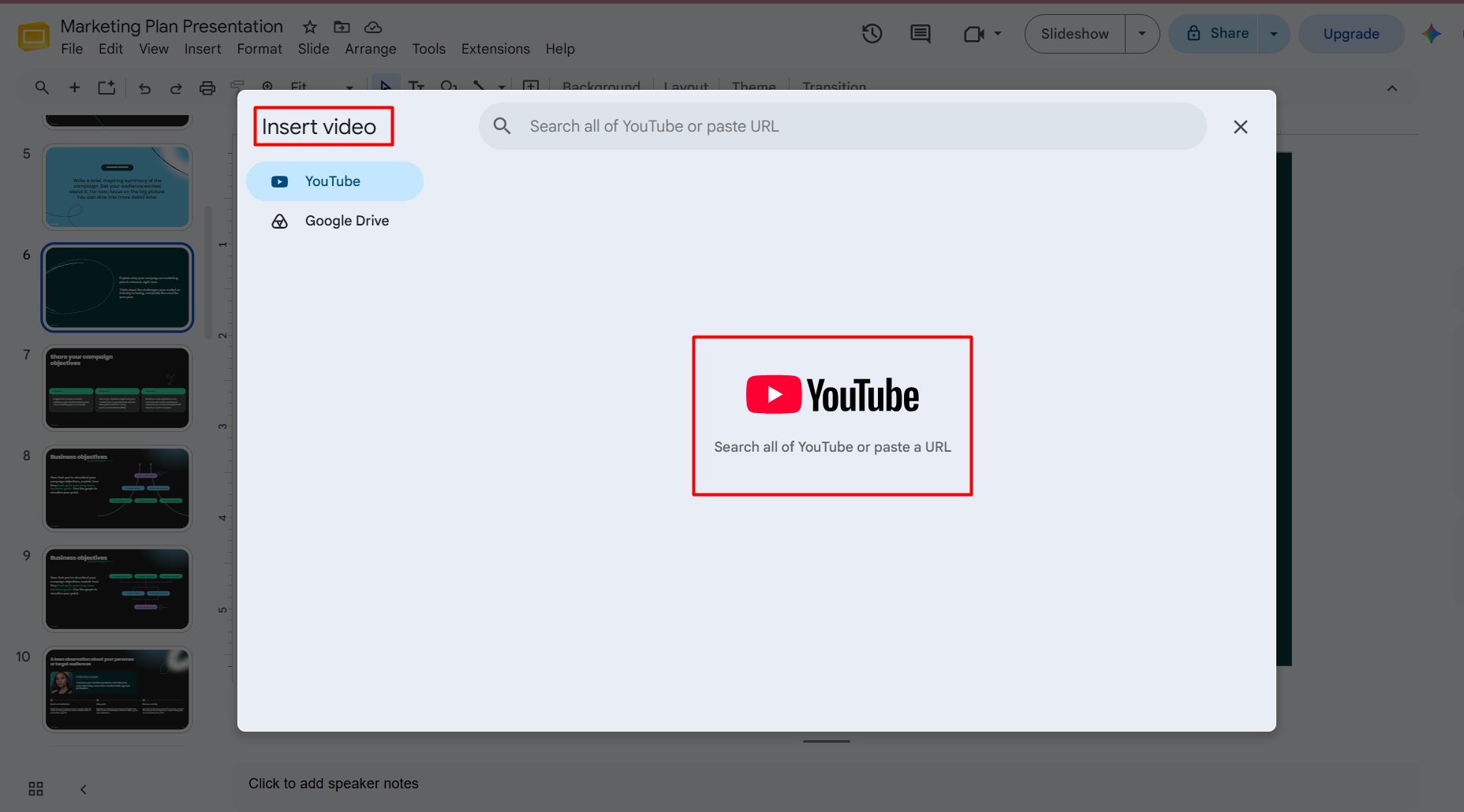
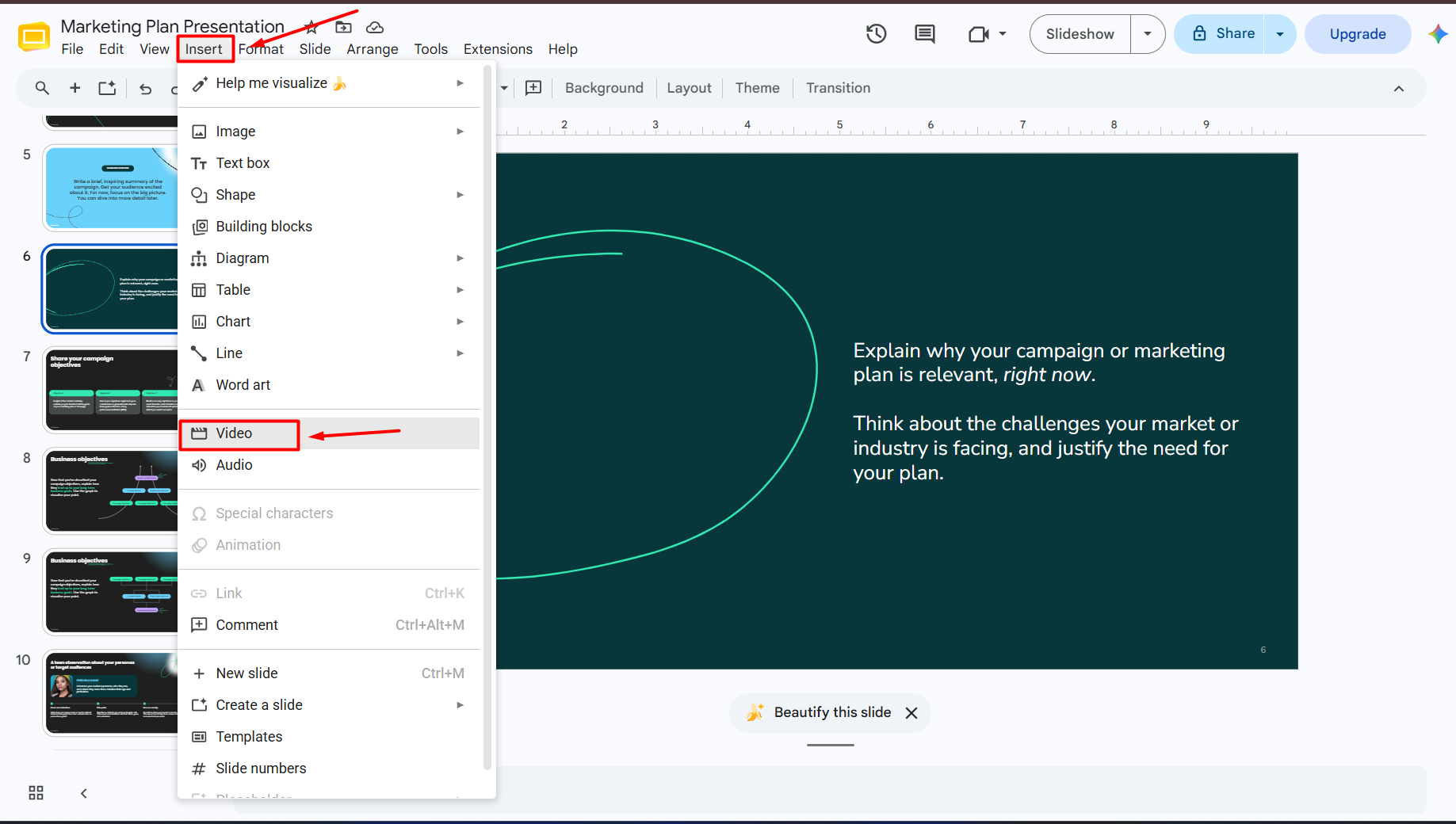
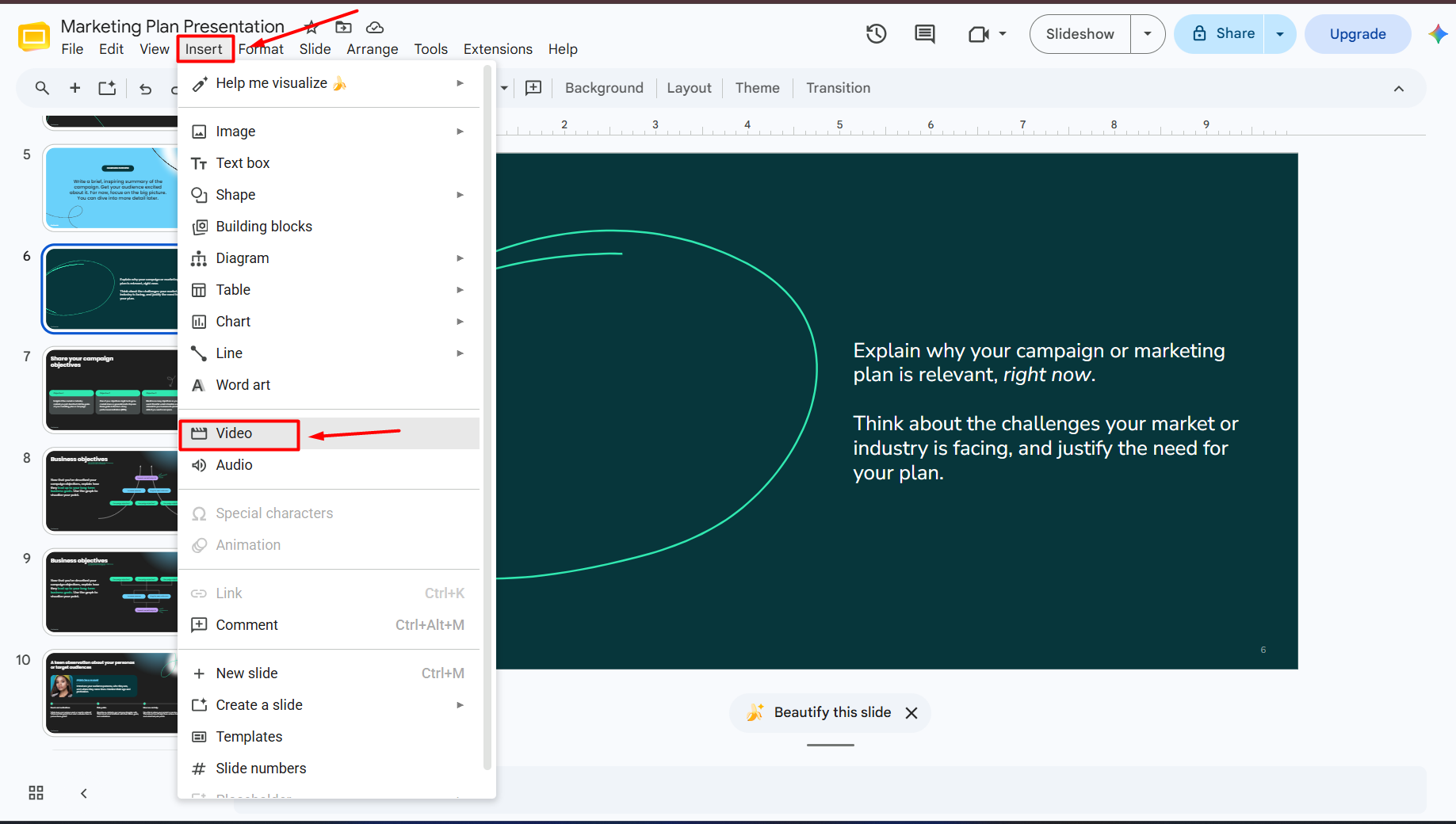
    Step 3. Click Insert from the top menu.

    Step 4. Select Video.

    A new window will appear with multiple options.

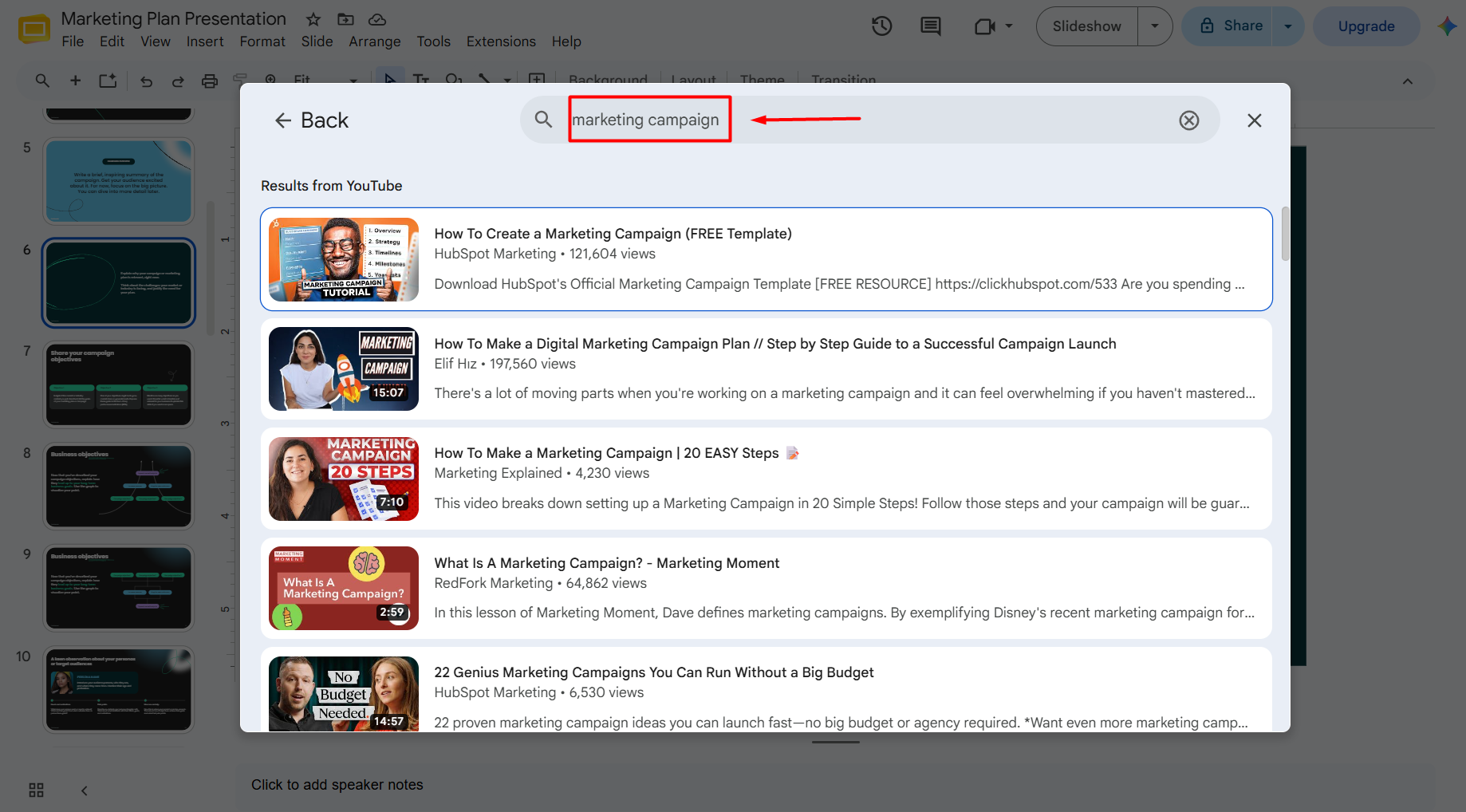
    Step 5. Choose the Search tab.

    Step 6. Type the title or keywords for the YouTube video.

    Google Slides will display matching YouTube results directly inside the editor.

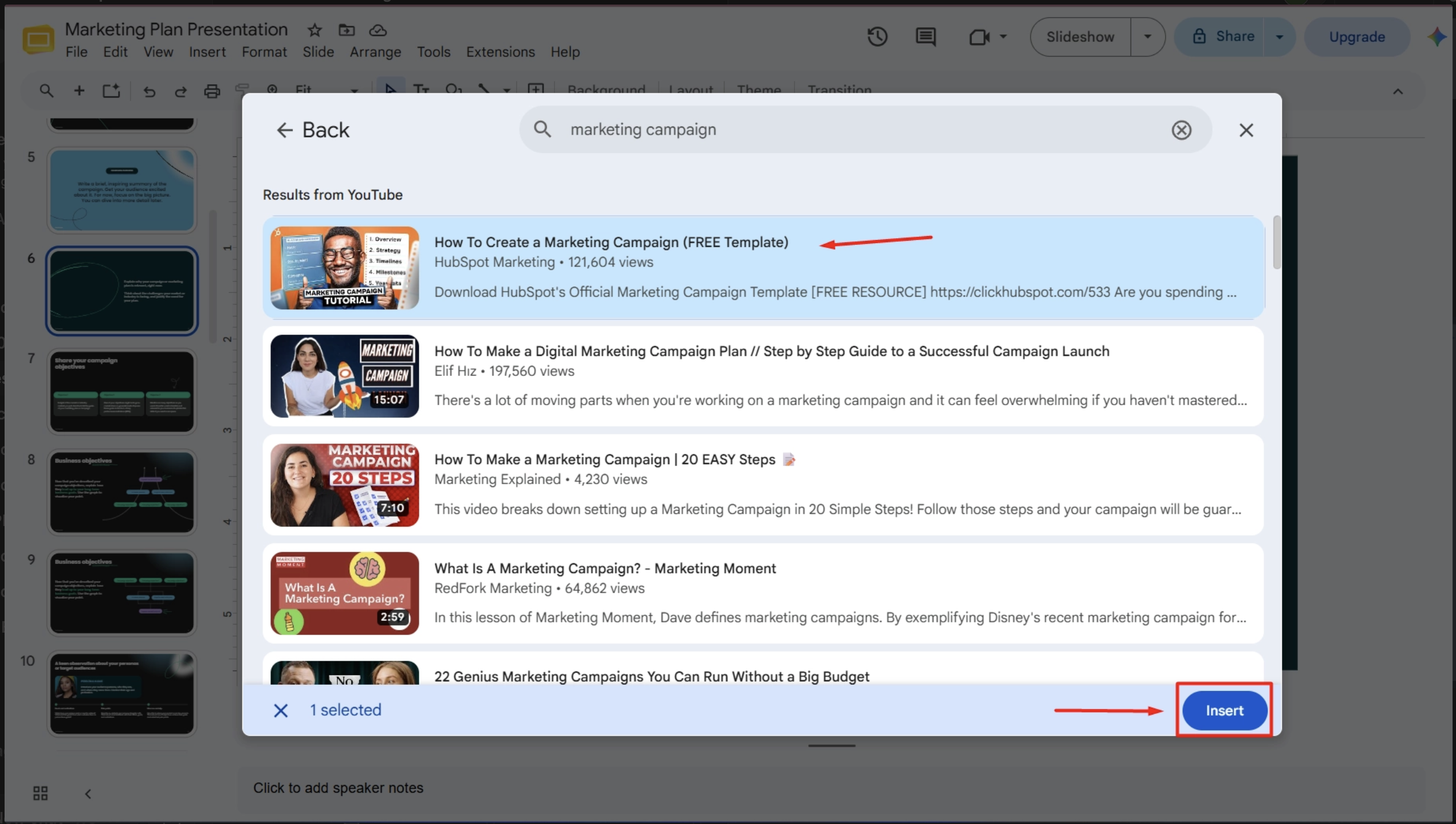
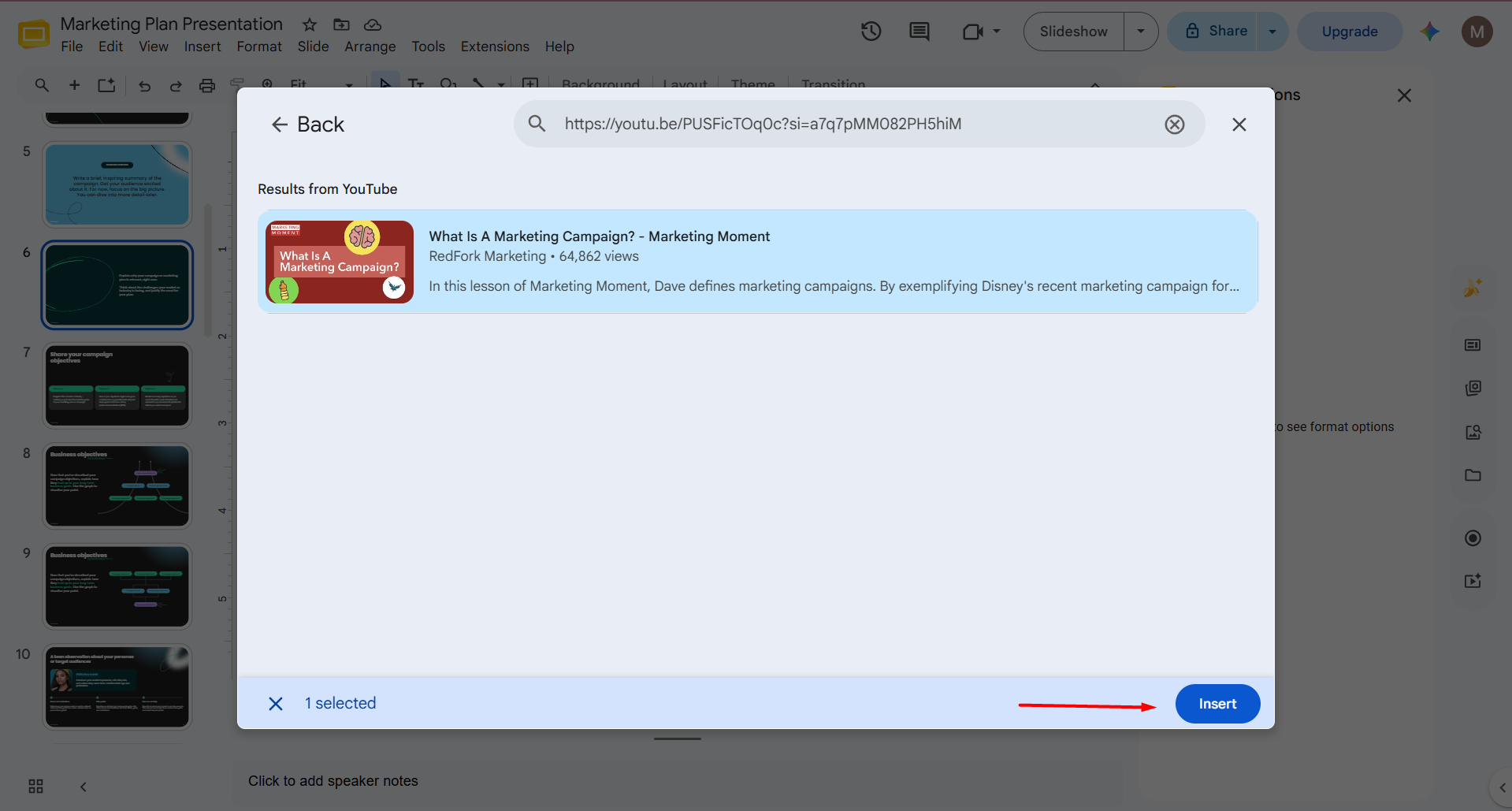
    Step 7. Select the video you want.

    Step 8. Click Insert.

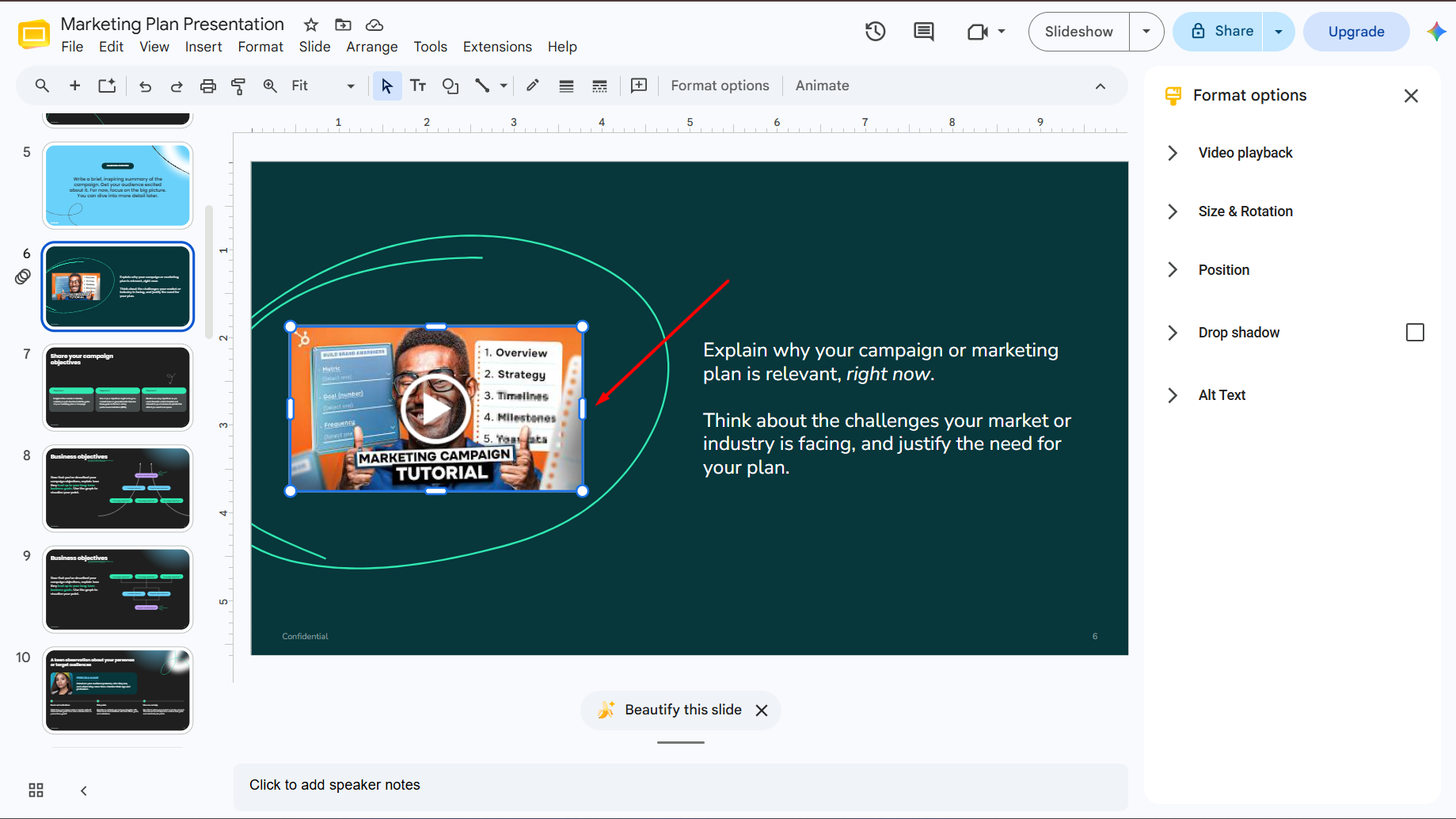
    The video will now appear on your slide, and you can resize or reposition it just like an image.

    Method 2: Insert a YouTube Video Using Its URL

    If you already have the video’s link, this method is even faster.

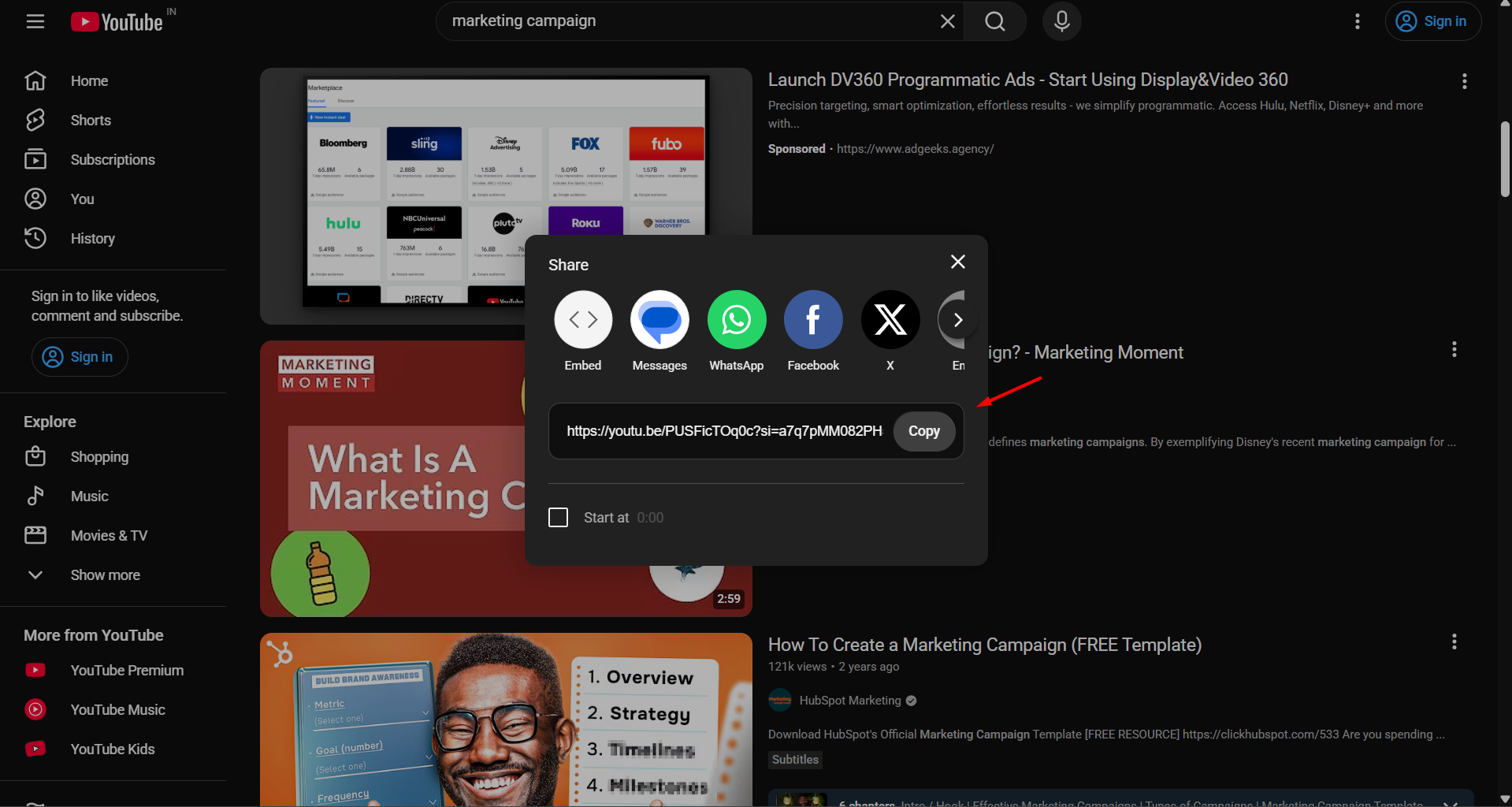
    Step 1. Copy the YouTube video’s URL.

    Step 2. In Google Slides, go to:

    Insert → Video

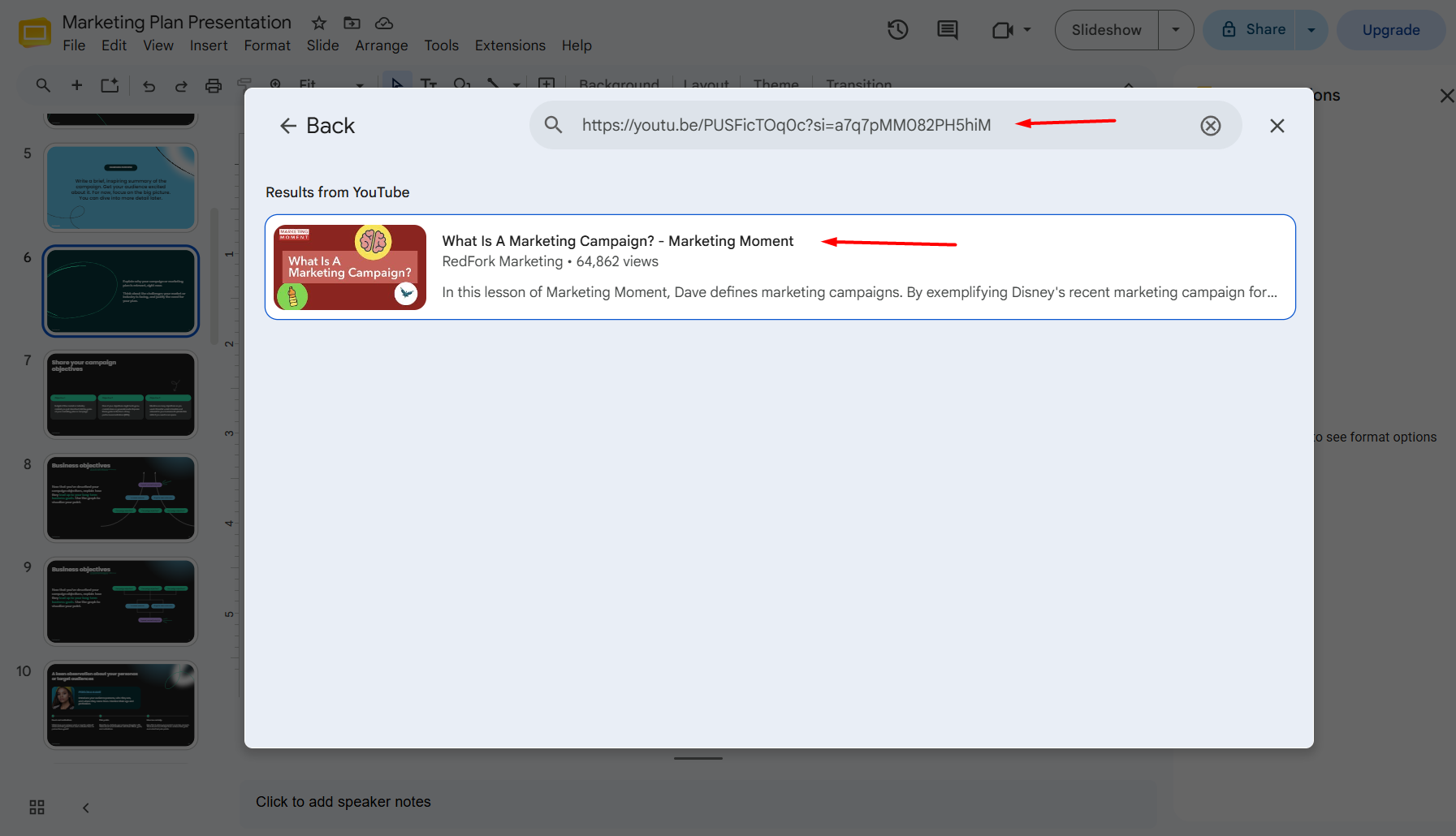
    Step 3. Select the By URL option.

    Step 4. Paste the YouTube link.

    Step 5. Click Insert.

    Google Slides will automatically embed the video into your presentation.

    Pro Tip

    Before presenting, play the embedded video once to make sure it loads correctly. This helps avoid unexpected playback issues during your presentation, especially if you’re using a shared internet connection.

    Common Mistakes

    Avoid these common errors when inserting YouTube videos:

    • Using deleted or unavailable YouTube videos
    • Embedding age-restricted videos that require login
    • Assuming the video will work offline
    • Forgetting to test playback before presenting

    How to Add a Video from Google Drive?

    If you’ve created your own video or downloaded one from another source, Google Drive is usually the best option.

    I often use Google Drive for company training videos, recorded meetings, product walkthroughs, and custom tutorials that aren’t available on YouTube.

    Step 1: Upload Your Video to Google Drive

    If your video isn’t already stored in Google Drive:

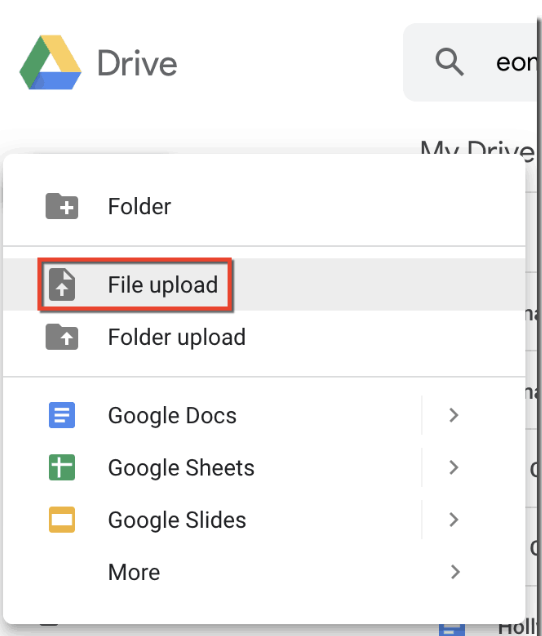
    1. Open Google Drive.
    2. Click New.
    3. Select File Upload.
    4. Choose your video file.
    5. Wait for the upload to finish.

    Once uploaded, you’re ready to insert it into Google Slides.

    Step 2: Insert the Video into Google Slides

    Open your presentation.

    Navigate to:

    Insert → Video

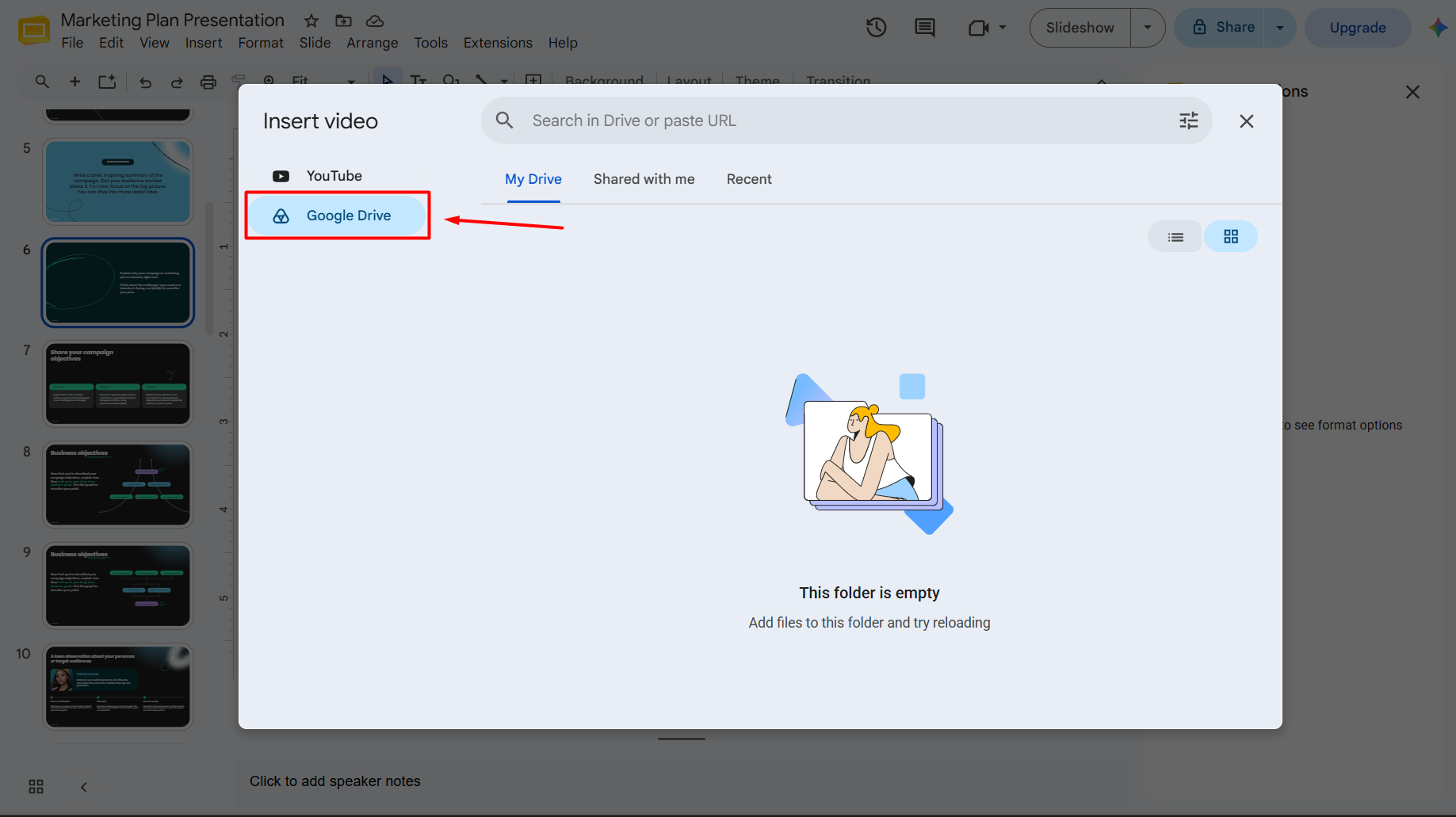
    Instead of searching YouTube, switch to the Google Drive tab.

    Google Slides will display the videos stored in your Drive.

    Select your preferred video.

    Click Insert.

    The video will immediately appear on your slide.

    Share Permissions Matter

    One of the most common reasons Drive videos fail to play is incorrect sharing permissions.

    If you’re sharing your presentation with classmates, coworkers, or clients, make sure they also have permission to access the video stored in Google Drive.

    Otherwise, they may see an error instead of the video.

    I always test my presentation using another account before an important meeting to confirm that every embedded video is accessible.

    Best Practices for Google Drive Videos

    • Keep filenames descriptive so they’re easy to find.
    • Organize presentation videos in dedicated Drive folders.
    • Avoid moving or deleting videos after embedding them.
    • Use high-quality MP4 files for the best playback experience.
    • Verify sharing permissions before sending your presentation.

    Can You Upload an MP4 Directly to Google Slides?

    Many users search for ways to upload an MP4 directly into Google Slides.

    The important thing to understand is that Google Slides doesn’t store local video files inside the presentation itself. Instead, videos from your computer are typically uploaded to Google Drive first and then inserted into your slides from there.

    Here’s the typical workflow I follow:

    1. Save the MP4 file on your computer.
    2. Upload it to Google Drive.
    3. Wait for the upload to complete.
    4. Open Google Slides.
    5. Select Insert → Video.
    6. Choose the Google Drive tab.
    7. Select the uploaded video.
    8. Click Insert.

    This approach keeps your presentation lightweight while allowing Google Slides to stream the video from Drive when it’s played.

    Which Video Formats Work Best?

    For the best compatibility, use widely supported formats such as MP4 encoded with standard video and audio codecs. If you have videos in other formats, converting them to MP4 before uploading can help avoid playback issues.

    Practical Tip: Before uploading, compress large video files if possible. Smaller files upload faster, are easier to manage in Google Drive, and can reduce buffering during presentations without a noticeable loss in quality.

    How to Resize, Move, and Format Videos in Google Slides?

    Once you’ve added a video to your slide, taking a few minutes to position and format it properly can make your presentation look much more polished. A poorly placed or stretched video can distract your audience, while a well-formatted one blends naturally with your slide design.

    Here’s how I usually adjust videos before presenting.

    Resize a Video

    1. Click on the video.
    2. Drag any of the corner handles to resize it.
    3. Hold Shift (if needed) to maintain the aspect ratio while resizing.

    Tip: Resize using the corner handles instead of the side handles to avoid stretching the video.

    Move the Video

    Simply click and drag the video anywhere on the slide.

    For better alignment, Google Slides displays smart guides that help you position the video evenly with other elements.

    Align Your Video

    For professional-looking slides:

    • Center videos on the slide whenever they’re the main focus.
    • Leave enough white space around the video.
    • Keep consistent margins across all slides.
    • Align videos with text boxes and images.

    A clean layout makes your presentation easier to follow.

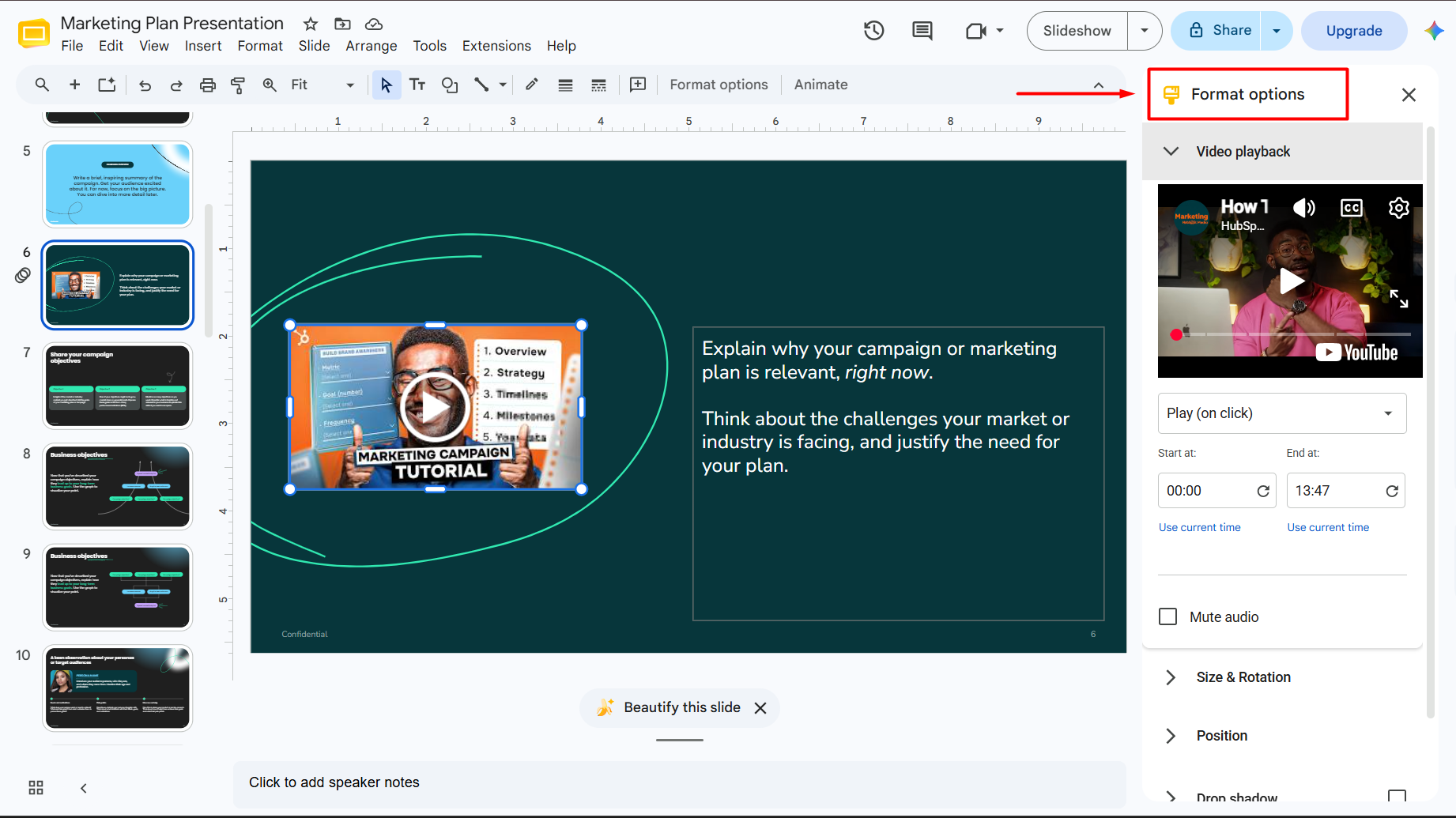
    Use Format Options

    Google Slides also lets you customize the appearance of videos using Format options.

    Depending on your version of Google Slides, you may be able to adjust:

    • Position
    • Size
    • Rotation
    • Drop shadow
    • Reflection (when available)

    These small adjustments can improve the overall look of your presentation without overwhelming the slide.

    Best Practice: Let the video be the focal point. Avoid placing large blocks of text directly over or next to the video unless they’re essential.

    How to Change Video Playback Settings?

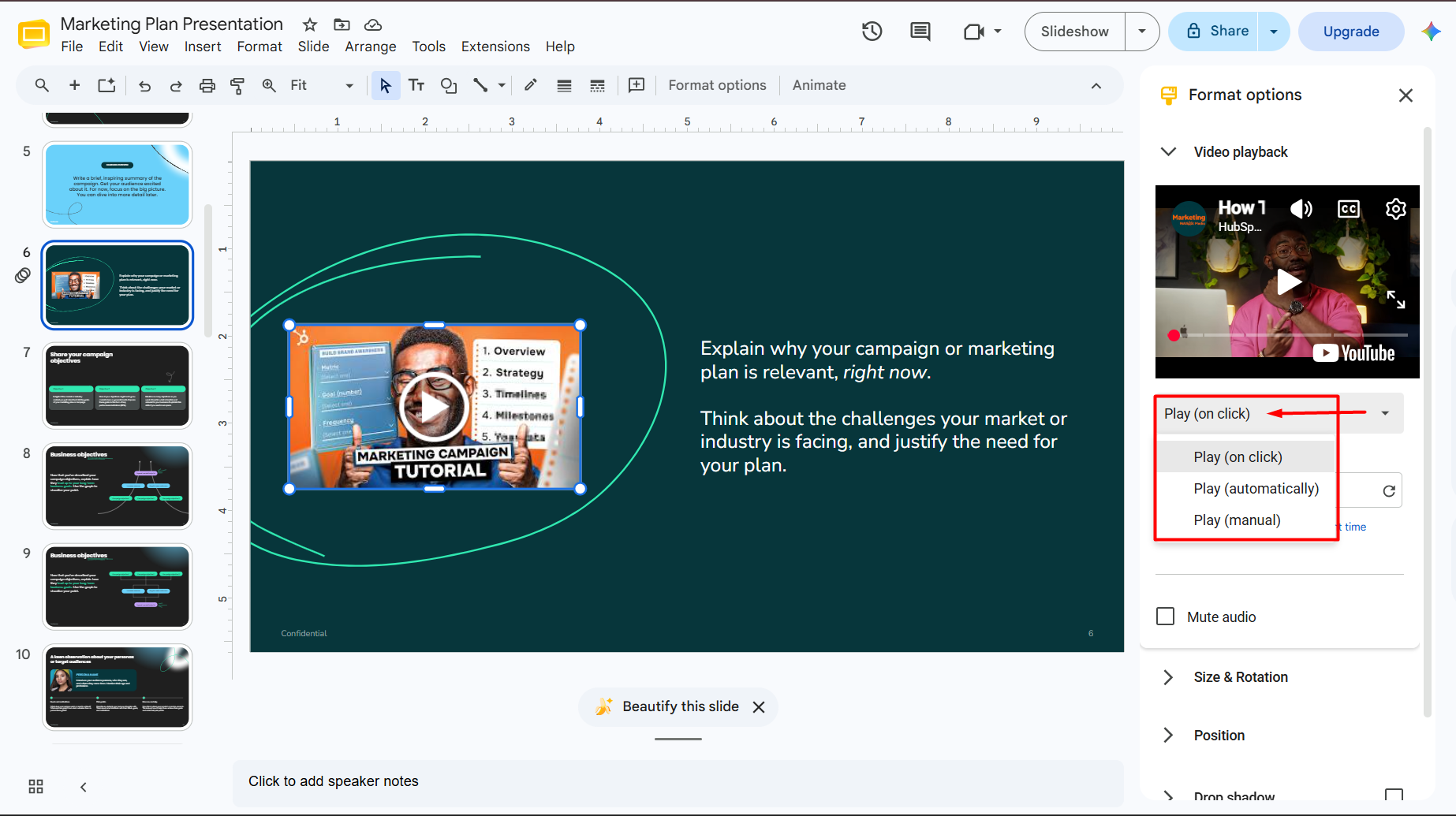
    Google Slides provides several playback options that let you control how a video behaves during your presentation.

    To access these settings:

    1. Select the video.
    2. Open Format options (or the playback settings panel, depending on the interface).
    3. Adjust the available playback settings.

    Let’s look at the most useful options.

    Play on Click

    This is the default behavior.

    The video only starts when you click it during your presentation.

    I recommend this option for:

    • Business presentations
    • Sales pitches
    • Client meetings
    • Educational lessons

    It gives you full control over when the video begins.

    Autoplay During Presentation

    If you want the video to start automatically when you reach a slide, enable the autoplay option if it’s available in your Google Slides version.

    Autoplay works well for:

    • Welcome slides
    • Event presentations
    • Digital signage
    • Kiosk displays
    • Self-running presentations

    However, I avoid autoplay for every slide because unexpected audio can distract the audience.

    Mute Audio

    Sometimes you only want viewers to watch the visuals.

    Muting the video’s audio is useful when:

    • You’re narrating live.
    • Background music isn’t needed.
    • The video’s audio quality is poor.

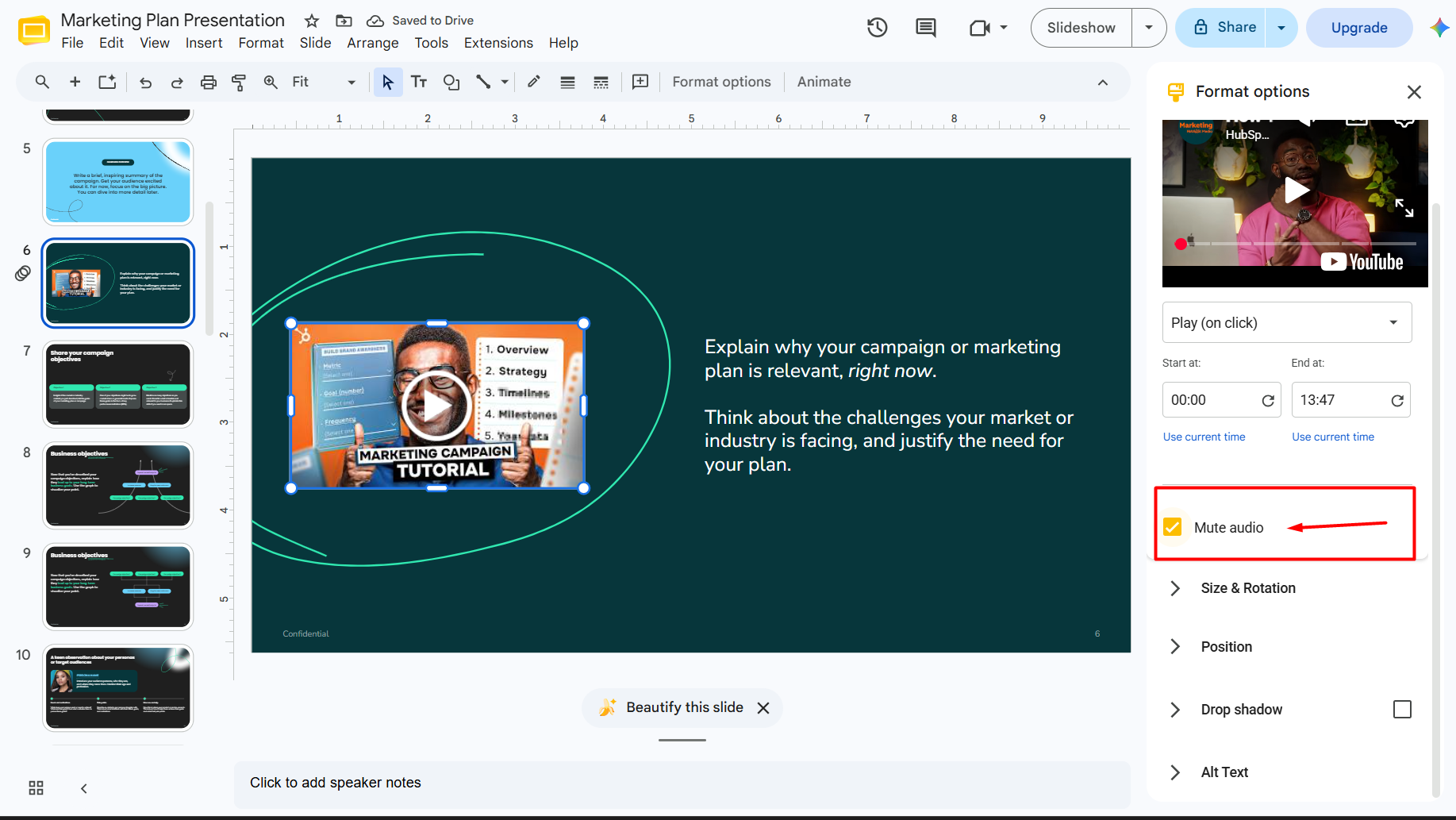
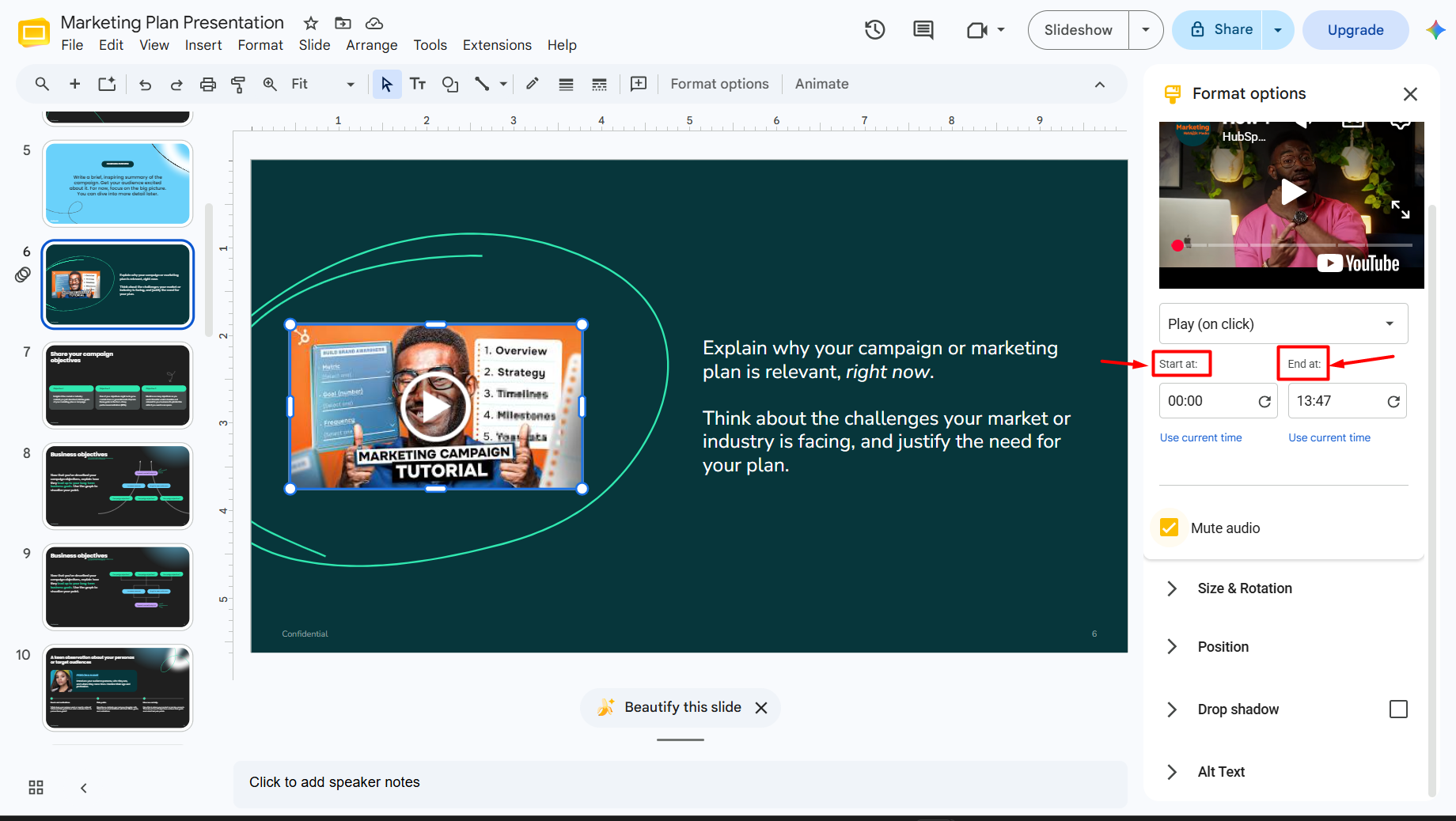
    Set Start and End Times

    One of my favorite features is trimming playback without editing the original video file.

    Instead of playing the entire video, you can specify:

    • Start time
    • End time

    For example:

    • Start at 00:45
    • End at 01:30

    This allows you to show only the most relevant section of a longer video.

    Skip Long Introductions

    Many YouTube videos begin with branding, intros, or advertisements for the creator’s channel.

    Rather than making your audience wait, start playback from the section that delivers the information they need.

    It creates a smoother presentation and keeps people engaged.

    How to Trim a Video in Google Slides?

    Google Slides doesn’t permanently edit your video. Instead, it lets you control which portion plays during the presentation.

    To trim playback:

    1. Select the embedded video.
    2. Open the playback settings.
    3. Enter a Start Time.
    4. Enter an End Time.

    Only that section will play during your presentation.

    This is perfect for:

    • Tutorials
    • Product demos
    • Webinar highlights
    • Interviews
    • Recorded presentations

    Limitation

    If you need to:

    • Remove scenes
    • Cut unwanted footage
    • Add transitions
    • Add captions
    • Edit audio

    You’ll need to edit the video first using a dedicated video editor before uploading it to Google Drive or YouTube.

    Video Not Playing? Here’s How to Fix It

    One of the most common frustrations is clicking a video during a presentation only to find that it doesn’t play.

    Fortunately, most playback problems are easy to fix.

    Check Your Internet Connection

    YouTube videos and most Google Drive videos require an internet connection.

    If your connection is slow or unavailable:

    • Videos may buffer.
    • Playback may fail.
    • Embedded YouTube videos may not load.

    If you’re presenting in a venue with unreliable Wi-Fi, test the connection beforehand or consider alternative presentation methods if appropriate.

    Verify Google Drive Permissions

    If viewers receive a permission error, the video’s sharing settings are likely incorrect.

    Open Google Drive.

    Check the video’s sharing permissions.

    Ensure the people viewing your presentation can access the file.

    This is one of the most common issues I encounter when collaborating with teams.

    Make Sure the Video Still Exists

    If someone deletes the original YouTube video or removes the Google Drive file, Google Slides won’t be able to play it.

    Before an important presentation, verify that:

    • The YouTube video is still available.
    • The Google Drive file hasn’t been deleted or moved.
    • The video link hasn’t changed.

    Use a Supported Video Format

    If you’re uploading your own video, MP4 is generally the safest and most compatible format.

    Unsupported or corrupted files may fail to play correctly.

    Clear Browser Cache

    Occasionally, browser cache can interfere with video playback.

    If videos aren’t loading:

    • Refresh the page.
    • Clear your browser cache.
    • Restart your browser.
    • Try opening the presentation in another supported browser.

    Test Before Presenting

    This is the simplest yet most important tip.

    I always play every embedded video before presenting.

    Testing helps identify:

    • Permission issues
    • Broken links
    • Buffering problems
    • Incorrect playback settings

    Spending five minutes testing can prevent awkward interruptions during a live presentation.

    Best Practices for Adding Videos to Google Slides

    After creating dozens of presentations, I’ve found that a few simple habits make a big difference.

    Keep Videos Short

    Short videos maintain audience attention better than long clips.

    Aim for 30 seconds to 2 minutes whenever possible.

    Use Videos Purposefully

    Every video should support your message.

    Avoid adding videos simply because they look impressive.

    Ask yourself:

    “Does this video help explain my point better than text or images?”

    If the answer is no, it’s probably unnecessary.

    Match Your Presentation Style

    Choose videos that align with your presentation’s design, tone, and audience.

    For example:

    • Corporate presentations should use professional-looking videos.
    • Educational presentations can include tutorials and explainers.
    • Marketing presentations benefit from product demos and customer stories.

    Test on the Presentation Device

    A presentation that works perfectly on your laptop may behave differently on another computer or projector.

    Whenever possible, open your presentation on the device you’ll actually use.

    Avoid Overusing Videos

    Too many videos can overwhelm your audience and interrupt the flow of your presentation.

    Instead of embedding videos on every slide, use them strategically to emphasize important moments.

    Common Mistakes to Avoid

    Even experienced presenters make these mistakes.

    Avoid them to ensure a smoother presentation:

    • Embedding videos without testing playback.
    • Forgetting to update Google Drive sharing permissions.
    • Stretching videos and distorting their aspect ratio.
    • Using videos that are much longer than necessary.
    • Relying entirely on autoplay.
    • Using low-quality or blurry videos.
    • Deleting or moving the original video after embedding it.
    • Ignoring internet requirements before presenting.

    Create Your Presentation Faster Before Adding Videos

    Adding videos is one of the final steps in creating a compelling presentation. Before you start enhancing your slides with multimedia, it’s worth making sure the presentation itself has a strong structure and professional design.

    If you’re starting from a blank slide, AI Presentations can help you generate a complete presentation in minutes. Instead of building every slide manually, you can create a polished draft, customize the content in Google Slides, and then use the techniques in this guide to embed videos where they add the most value.

    This workflow saves time while still giving you full control over your final presentation.

    Related: How to Add Audio to Google Slides (Step-by-Step Guide 2026)

    Frequently Asked Questions

    Q1. Can I add a video to Google Slides for free?

    Yes. Google Slides allows you to embed videos from YouTube and Google Drive at no additional cost.

    Q2. Can Google Slides play MP4 videos?

    Yes. Upload the MP4 file to Google Drive first, then insert it into your presentation through the Google Drive option.

    Q3. Can I upload a video directly from my computer?

    The typical workflow is to upload the video to Google Drive and then insert it into Google Slides from there.

    Q4. Can I make a video autoplay in Google Slides?

    Yes, depending on the available playback settings in your version of Google Slides, you can configure videos to play automatically during a presentation.

    Q5. Why isn’t my video playing?

    Common causes include:

    • No internet connection
    • Incorrect Google Drive permissions
    • Unsupported or corrupted video files
    • Removed YouTube videos
    • Browser-related issues

    Checking these areas usually resolves the problem.

    Q6. Can I use Vimeo videos?

    Google Slides doesn’t provide native Vimeo embedding like it does for YouTube. If you want to use Vimeo content, you’ll typically need to link to it or use a compatible workflow outside of direct embedding.

    Q7. Can videos play offline?

    YouTube videos generally require an internet connection. Google Drive videos may also depend on connectivity and access permissions, so test your presentation in the environment where you’ll present.

    Conclusion

    Adding a video to Google Slides is a simple way to make your presentations more engaging, memorable, and informative. Whether you’re embedding a YouTube tutorial, a product demonstration from Google Drive, or your own MP4 recording, Google Slides gives you the flexibility to integrate multimedia with just a few clicks.

    The key is to choose the right insertion method, adjust playback settings to fit your presentation, and test everything before you present. Paying attention to permissions, video quality, and slide layout will help ensure a smooth experience for both you and your audience.

    If you’re creating a presentation from scratch, consider using AI Presentations to generate a professional slide deck in minutes. Once your content is ready, you can enhance it with videos using the techniques covered in this guide to deliver a more engaging and impactful presentation.

  • AI से PPT कैसे बनाएं | Step-by-Step हिंदी Guide | मिनटों में फ्री प्रेजेंटेशन बनाने का तरीका
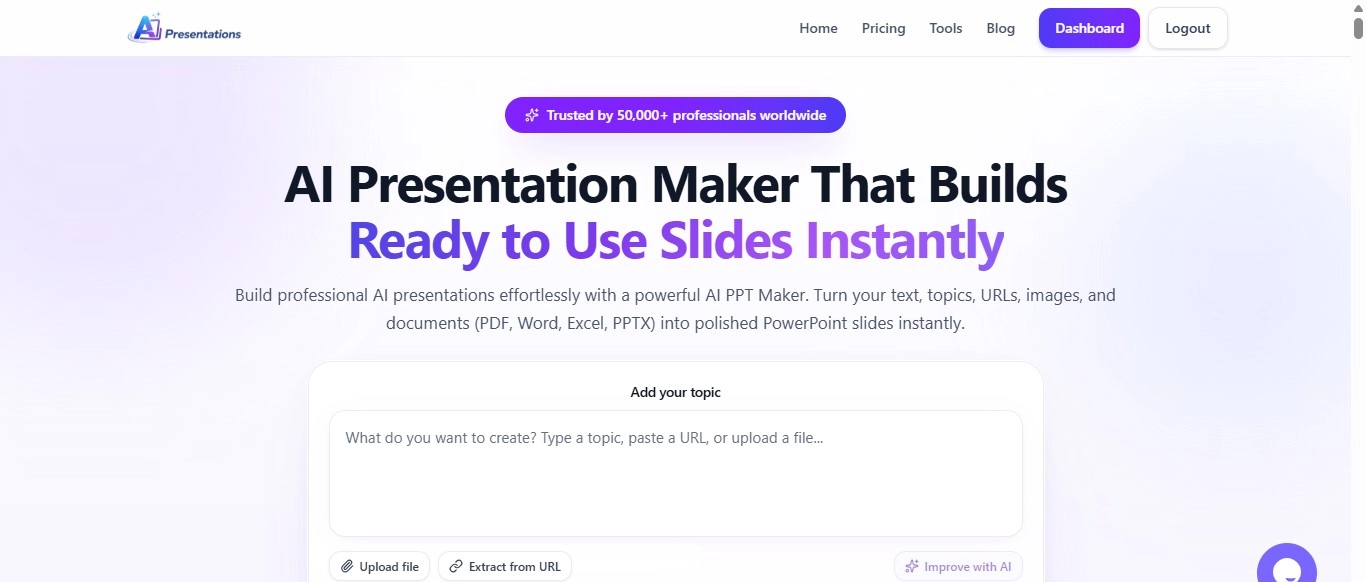
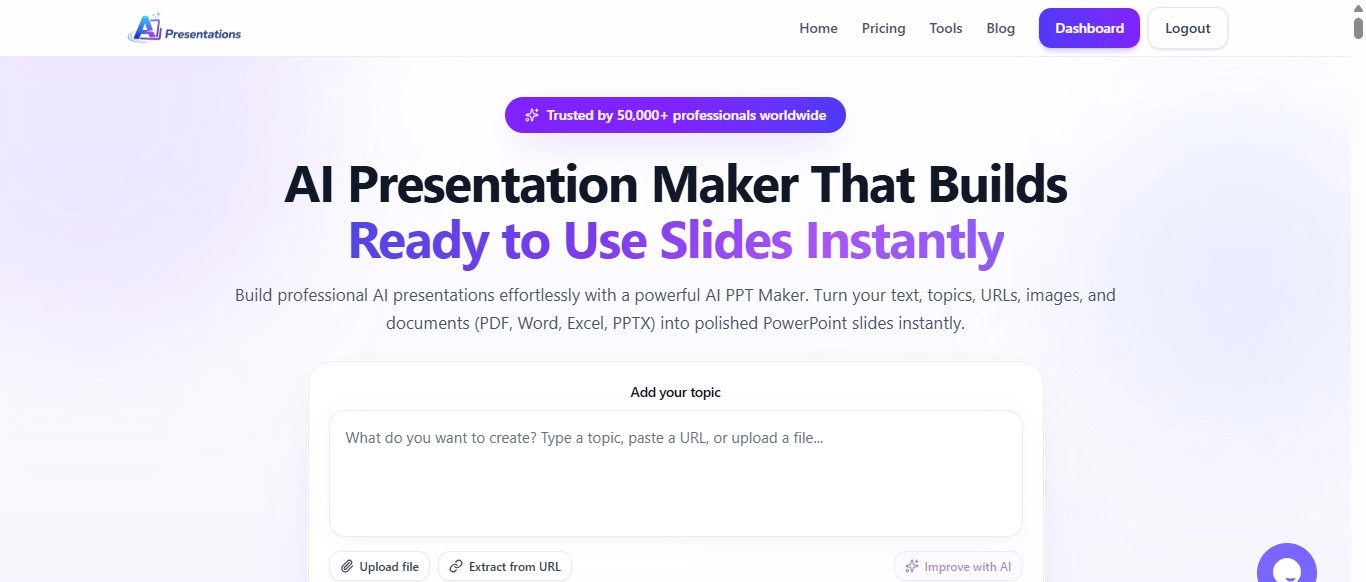
    AI से PPT कैसे बनाएं | Step-by-Step हिंदी Guide | मिनटों में फ्री प्रेजेंटेशन बनाने का तरीका

    आज के समय में Presentation बनाना पहले से कहीं ज्यादा आसान हो गया है। अगर पहले आपको एक PowerPoint Presentation तैयार करने में कई घंटे लगते थे, तो अब Artificial Intelligence (AI) की मदद से वही काम कुछ ही मिनटों में किया जा सकता है।

    चाहे आपको स्कूल प्रोजेक्ट बनाना हो, कॉलेज सेमिनार की तैयारी करनी हो, ऑफिस में क्लाइंट प्रेजेंटेशन देनी हो या बिजनेस पिच तैयार करनी हो, AI आपकी पूरी Presentation बनाने की प्रक्रिया को तेज और आसान बना सकता है।

    अब आपको हर स्लाइड का कंटेंट खुद लिखने, डिजाइन चुनने या लेआउट तैयार करने की जरूरत नहीं होती। आप सिर्फ अपना Topic, PDF, Word Document, YouTube Video या Website URL देते हैं और AI उसके आधार पर एक पूरी Presentation तैयार कर देता है। इसके बाद आप जरूरत के अनुसार स्लाइड्स को एडिट करके उन्हें PowerPoint या Google Slides में इस्तेमाल कर सकते हैं।

    इस गाइड में हम विस्तार से सीखेंगे

    • AI से PPT कैसे बनाएं?
    • AI से Presentation कैसे बनाएं?
    • AI से PowerPoint कैसे बनाएं?
    • बेहतर रिजल्ट के लिए Prompt कैसे लिखें?
    • AI से बनी Presentation को Professional कैसे बनाएं?
    • किन गलतियों से बचना चाहिए?

    अगर आप पहली बार AI की मदद से Presentation बनाना चाहते हैं, तो यह गाइड आपके लिए है।

    AI से PPT कैसे बनाएं? (Quick Answer)

    अगर आपके पास समय कम है, तो इन आसान स्टेप्स को फॉलो करें—

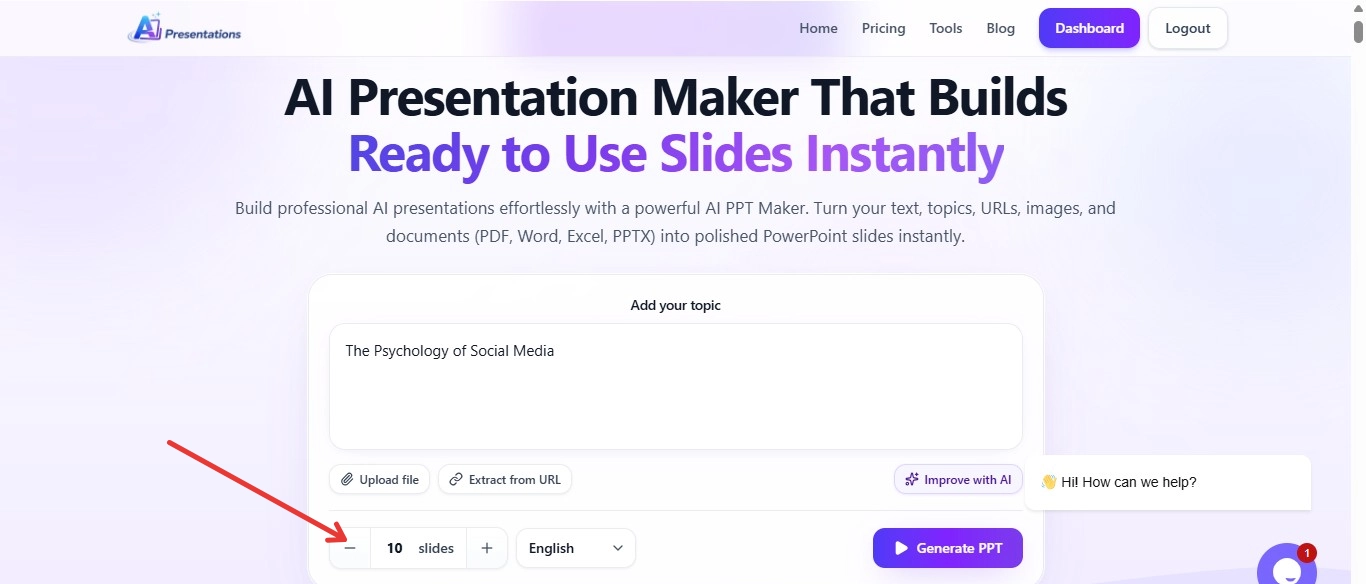
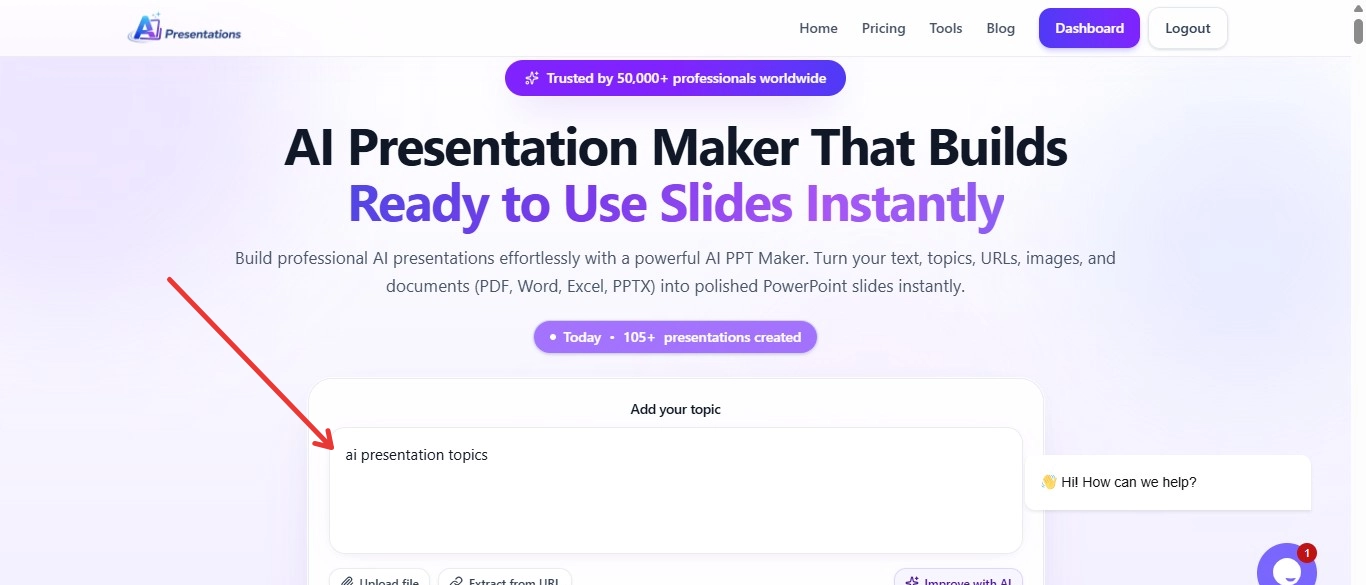
    1. AI Presentations App वेबसाइट खोलें।
    2. अपना Topic लिखें या PDF, Word File, YouTube Video या Website URL अपलोड करें।
    3. Presentation की भाषा और Theme चुनें।
    4. Generate Presentation पर क्लिक करें।
    5. AI कुछ ही सेकंड में पूरी Presentation तैयार कर देगा।
    6. जरूरत के अनुसार Slides Edit करें।
    7. Presentation को PowerPoint (PPTX) या Google Slides में Export करें।

    अगर आपके पास केवल एक आइडिया है, तब भी AI कुछ ही मिनटों में एक अच्छी Presentation तैयार कर सकता है।

    AI की मदद से Presentation कैसे बनती है?

    Artificial Intelligence ऐसे Algorithms का उपयोग करता है जो आपके दिए गए विषय को समझकर उसके आधार पर Presentation तैयार करते हैं।

    जब आप कोई Topic या Document देते हैं, तो AI सबसे पहले यह समझने की कोशिश करता है कि उस विषय में कौन-कौन से मुख्य बिंदु शामिल होने चाहिए। इसके बाद वह एक Logical Outline तैयार करता है और उसी के अनुसार हर Slide का Content लिखता है।

    आधुनिक AI Presentation Tools केवल टेक्स्ट लिखने तक सीमित नहीं हैं। वे Presentation के लिए उपयुक्त Layout, Design, Colors, Icons और Visual Elements भी चुन सकते हैं, जिससे आपकी Slides अधिक आकर्षक और Professional दिखाई देती हैं।

    यही कारण है कि आज AI का उपयोग केवल Students ही नहीं बल्कि Companies, Marketing Teams, Trainers और Business Professionals भी कर रहे हैं।

    AI से Presentation बनाने के फायदे

    AI का सबसे बड़ा फायदा यह है कि यह Presentation बनाने में लगने वाला समय काफी कम कर देता है। लेकिन इसके अलावा भी इसके कई लाभ हैं।

    1. मिनटों में Presentation तैयार करें

    जहां पहले Presentation तैयार करने में कई घंटे लग जाते थे, वहीं AI कुछ ही मिनटों में एक Draft तैयार कर देता है।

    2. Research का समय बचता है

    AI आपके Topic को समझकर एक Organized Structure तैयार करता है। इससे शुरुआत करने में आसानी होती है और आपको हर Slide की Planning अलग से नहीं करनी पड़ती।

    3. Professional Structure मिलता है

    एक अच्छी Presentation में केवल जानकारी होना ही काफी नहीं है। उसका Flow भी सही होना चाहिए।

    AI आमतौर पर Presentation को इस क्रम में तैयार करता है—

    • Introduction
    • Main Points
    • Examples
    • Summary
    • Conclusion

    जिससे आपकी Presentation अधिक प्रभावशाली बनती है।

    4. Design चुनने की परेशानी कम होती है

    Presentation बनाते समय सही Color Scheme, Fonts और Layout चुनना कई लोगों के लिए मुश्किल होता है।

    AI इस काम को आसान बना देता है और शुरुआत के लिए एक Professional Design तैयार कर देता है।

    5. Beginners भी अच्छी Presentation बना सकते हैं

    अगर आपको PowerPoint का ज्यादा अनुभव नहीं है, तब भी AI आपकी मदद कर सकता है।

    यह खासकर Students, Teachers और Professionals के लिए उपयोगी है जिन्हें कम समय में Presentation तैयार करनी होती है।

    AI से PPT बनाने से पहले किन बातों का ध्यान रखें?

    बेहतर Presentation पाने के लिए कुछ छोटी-छोटी बातों का ध्यान रखना जरूरी है।

    अपना Topic स्पष्ट रखें

    गलत उदाहरण:

    AI

    बेहतर उदाहरण:

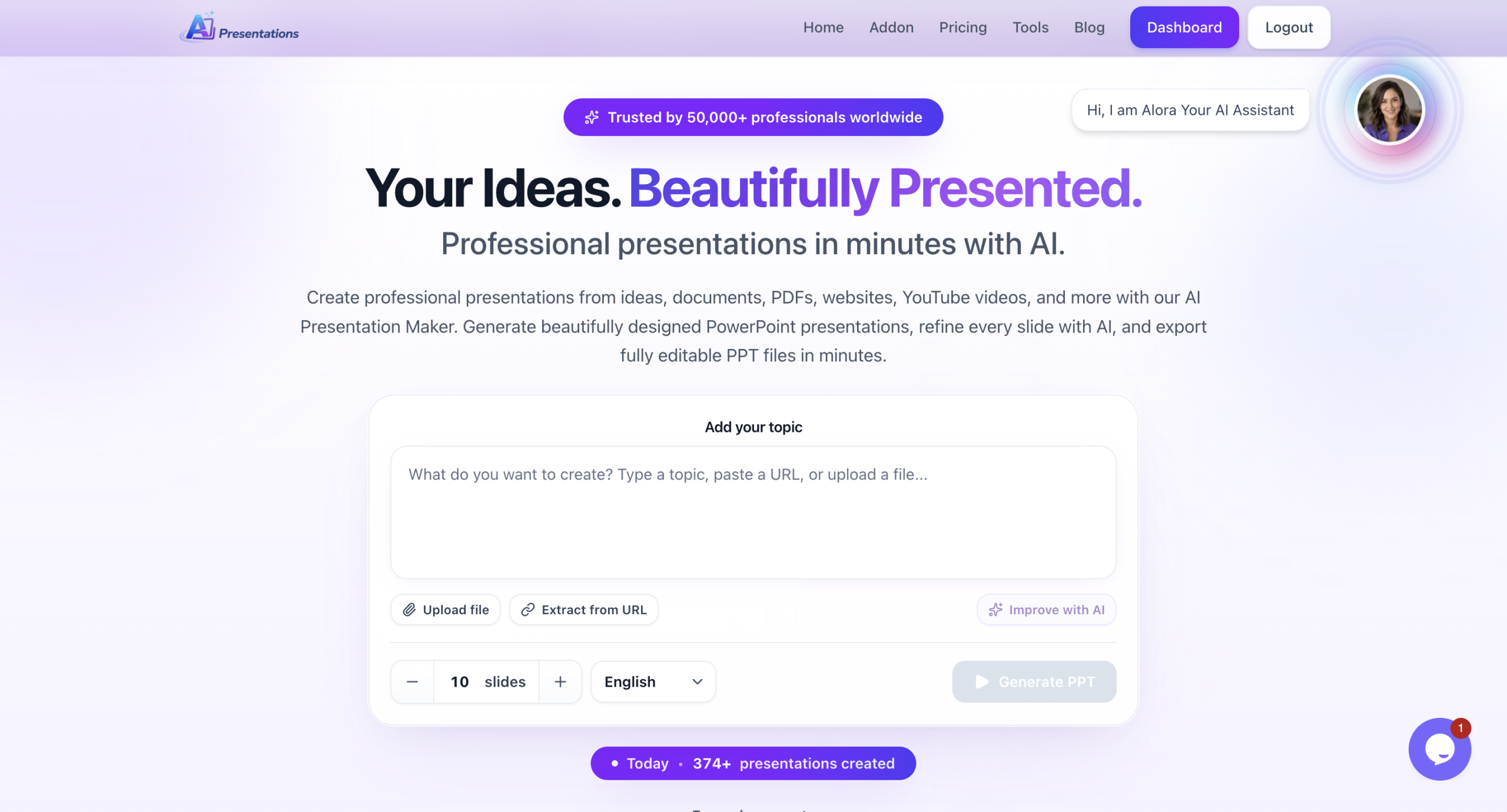
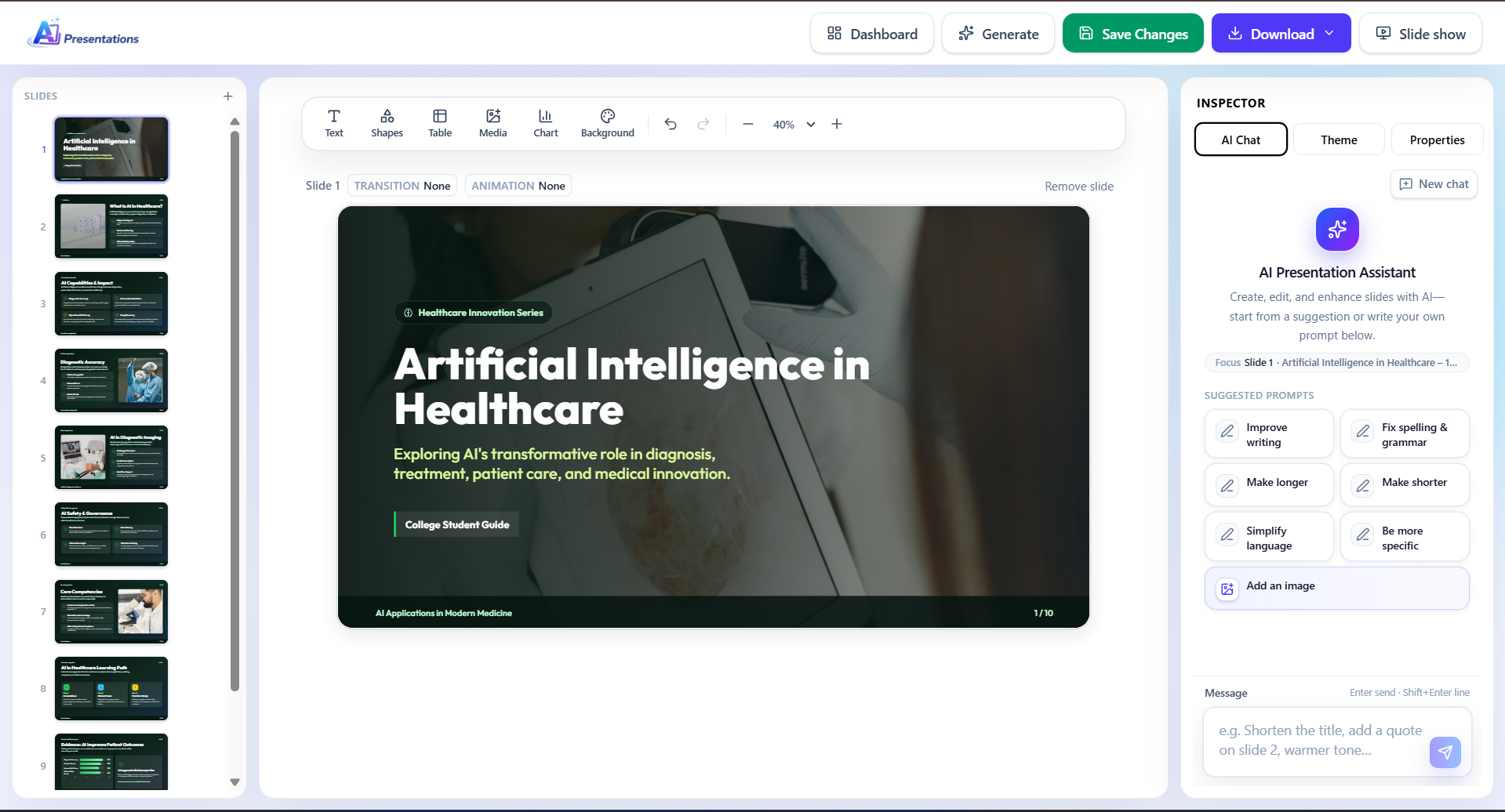
    Artificial Intelligence in Healthcare – 10 Slide Presentation for College Students

    जितनी स्पष्ट जानकारी होगी, उतना बेहतर Result मिलेगा।

    मेरी सलाह: मैंने अलग-अलग AI Presentation Tools को इस्तेमाल करने के बाद पाया कि सबसे अच्छे परिणाम तब मिलते हैं जब आप स्पष्ट Topic, Target Audience और Slides की संख्या पहले से तय करते हैं। इससे AI अधिक व्यवस्थित Presentation तैयार करता है।

    AI से PPT कैसे बनाएं? (Step-by-Step Guide)

    अब सबसे महत्वपूर्ण सवाल

    AI से PowerPoint Presentation कैसे बनाएं?

    नीचे पूरा Process बताया गया है।

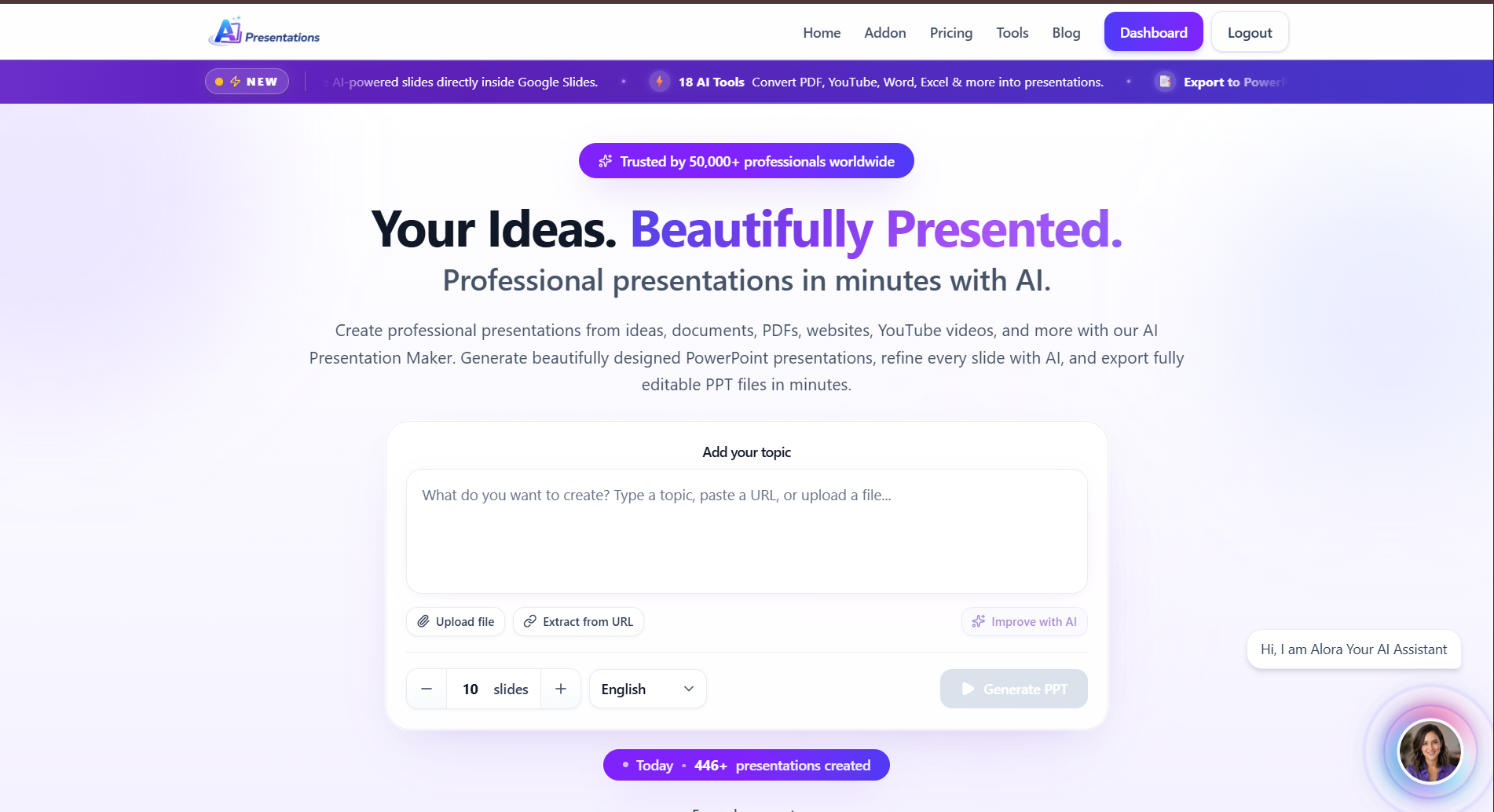
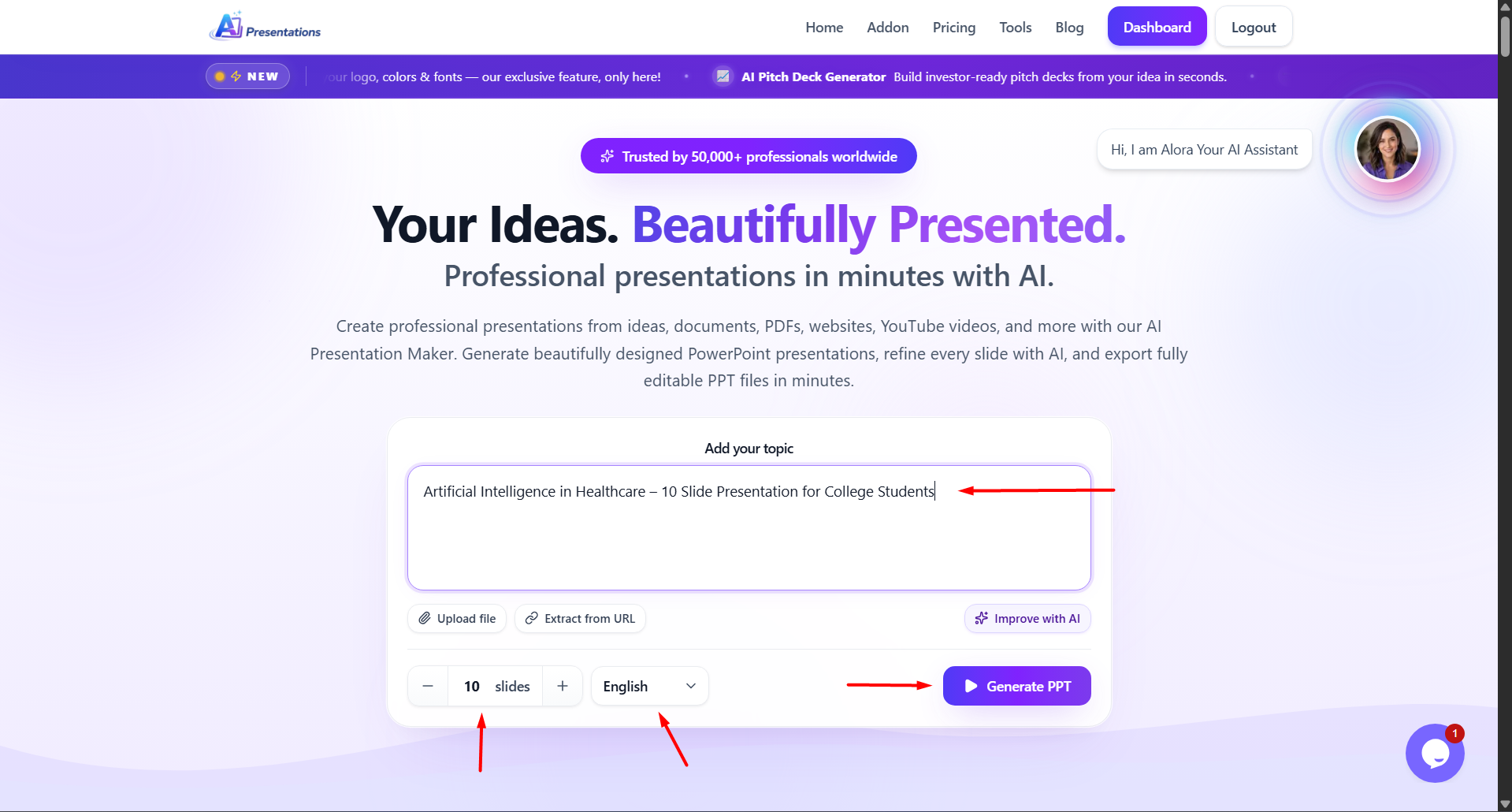
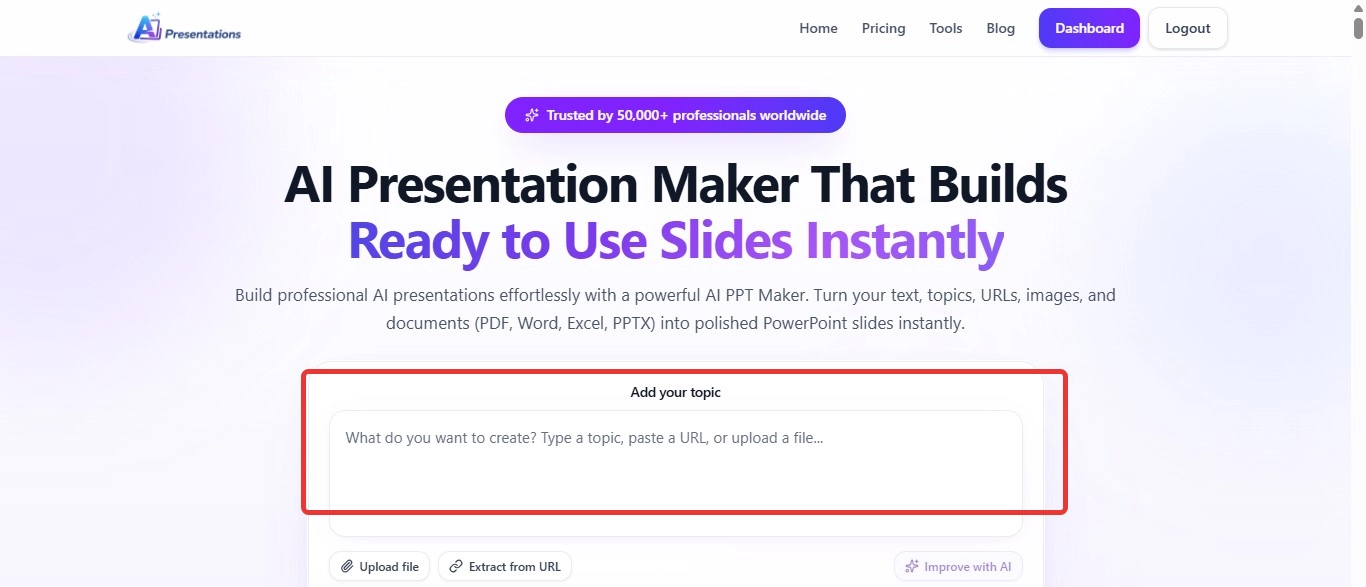
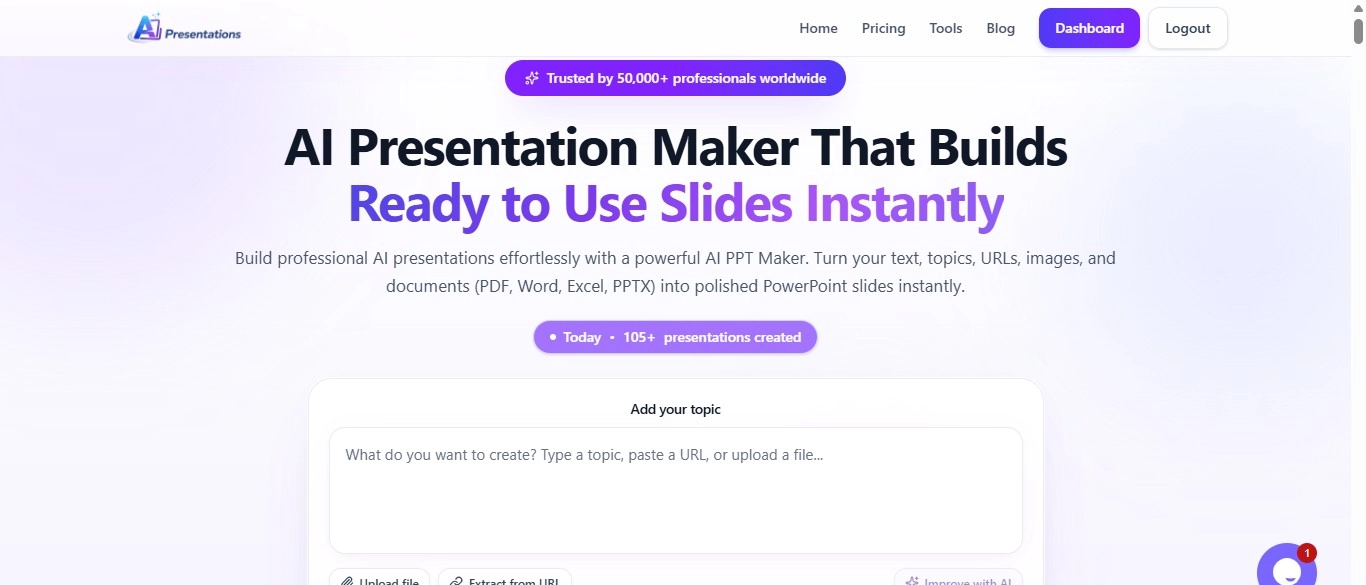
    Step 1: AI Presentations App खोलें

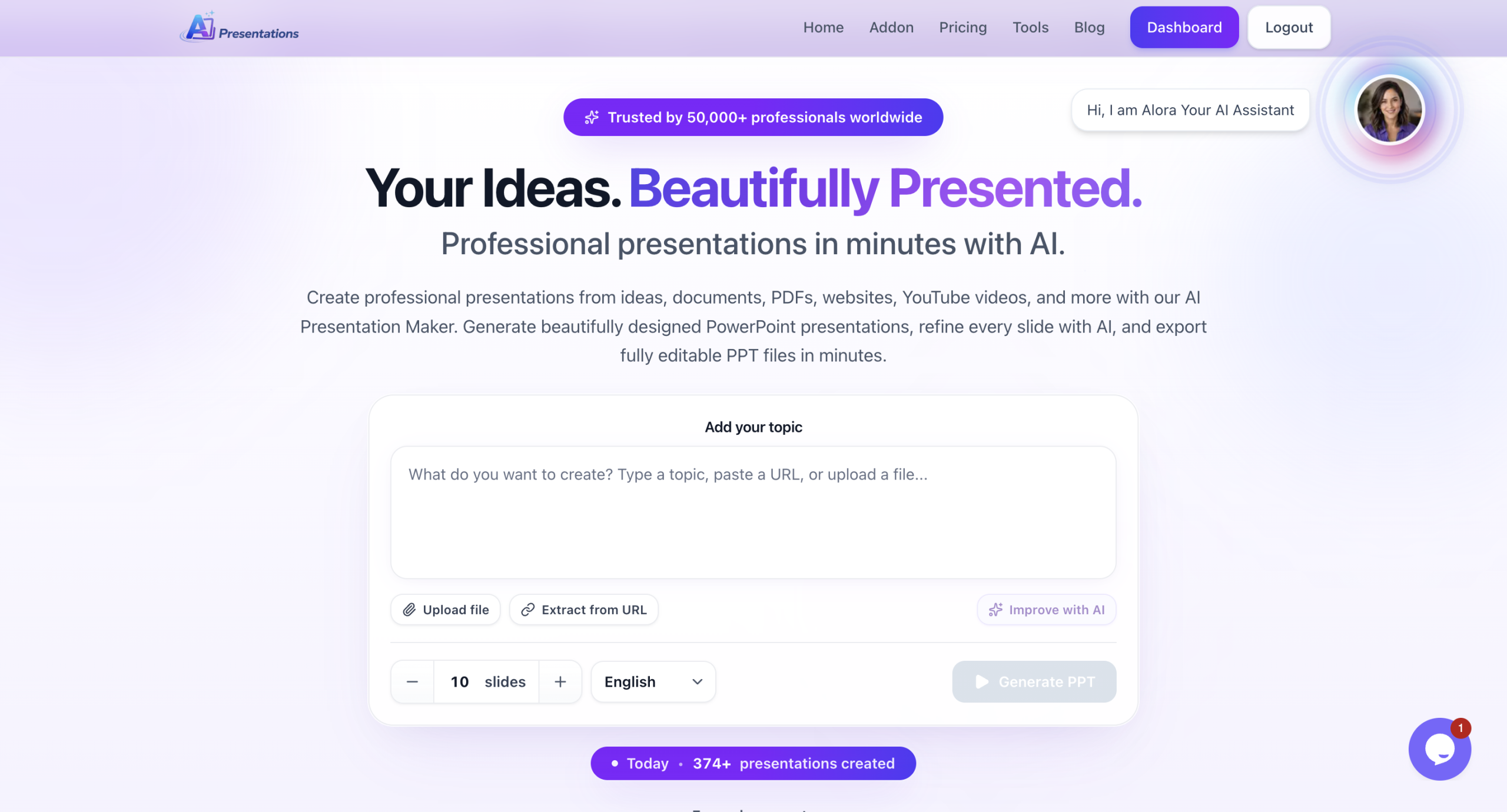
    सबसे पहले AI Presentations वेबसाइट पर जाएं।

    यह एक AI आधारित Presentation Platform है जिसकी मदद से आप अलग-अलग प्रकार के Content से Presentation बना सकते हैं।

    उदाहरण के लिए

    अगर आपके पास Content पहले से तैयार है, तो आपको उसे दोबारा लिखने की जरूरत नहीं होती।

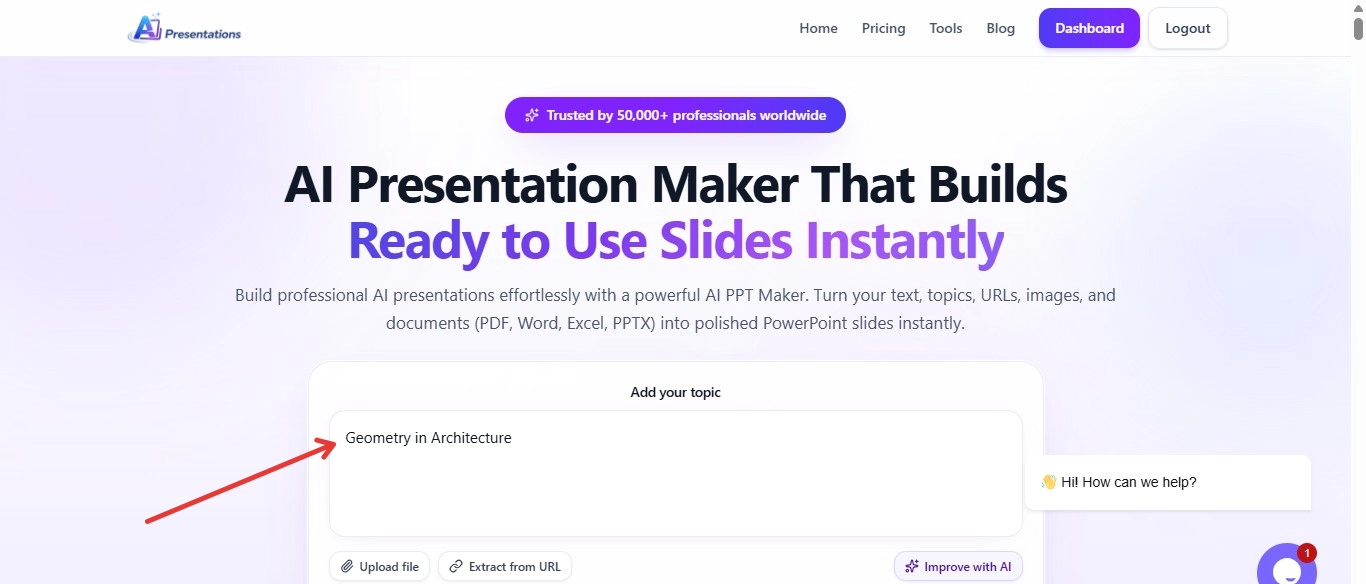
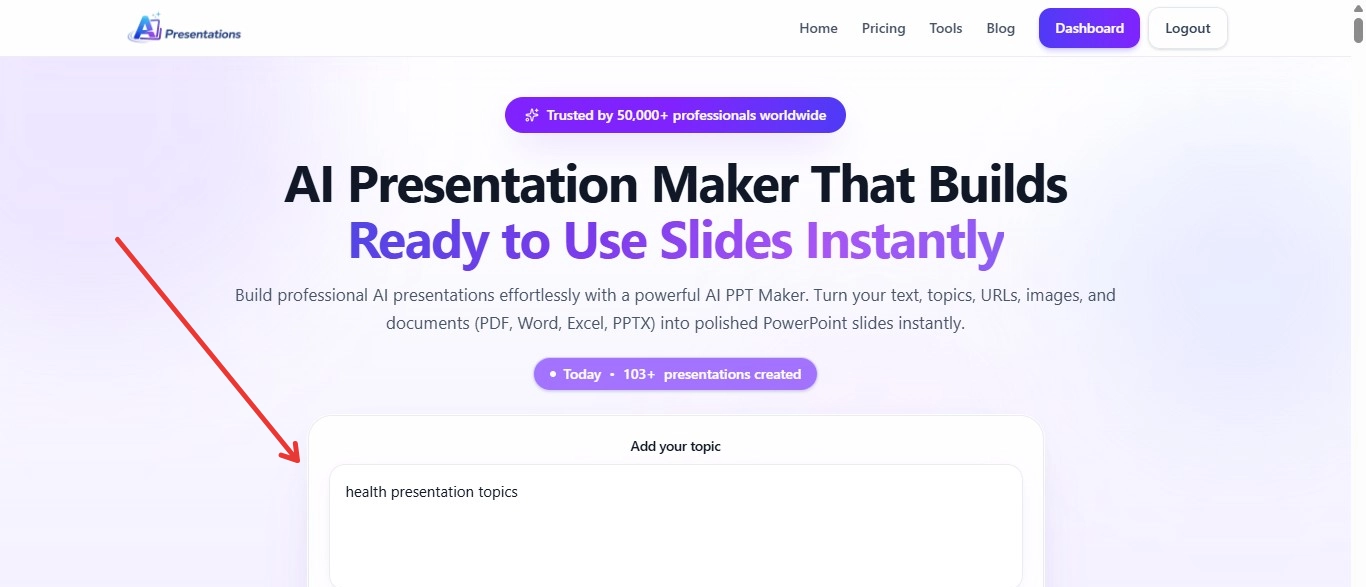
    Step 2: अपना Topic या Content जोड़ें

    अब अपना Topic लिखें या उपलब्ध Content अपलोड करें।

    उदाहरण

    • Artificial Intelligence in Healthcare – 10 Slide Presentation for College Students
    • Digital Marketing Strategy
    • Climate Change
    • Machine Learning
    • Startup Business Plan
    • Solar Energy
    • Financial Planning

    अगर आपके पास पहले से PDF या Word Document है, तो उसे भी इस्तेमाल किया जा सकता है।

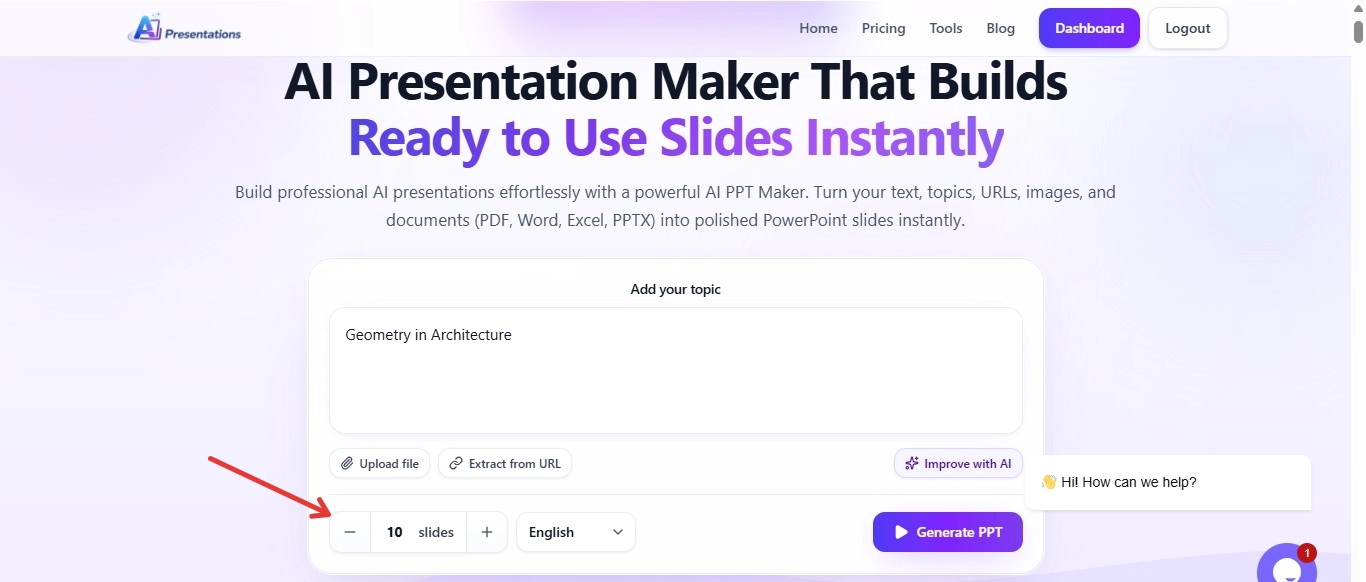
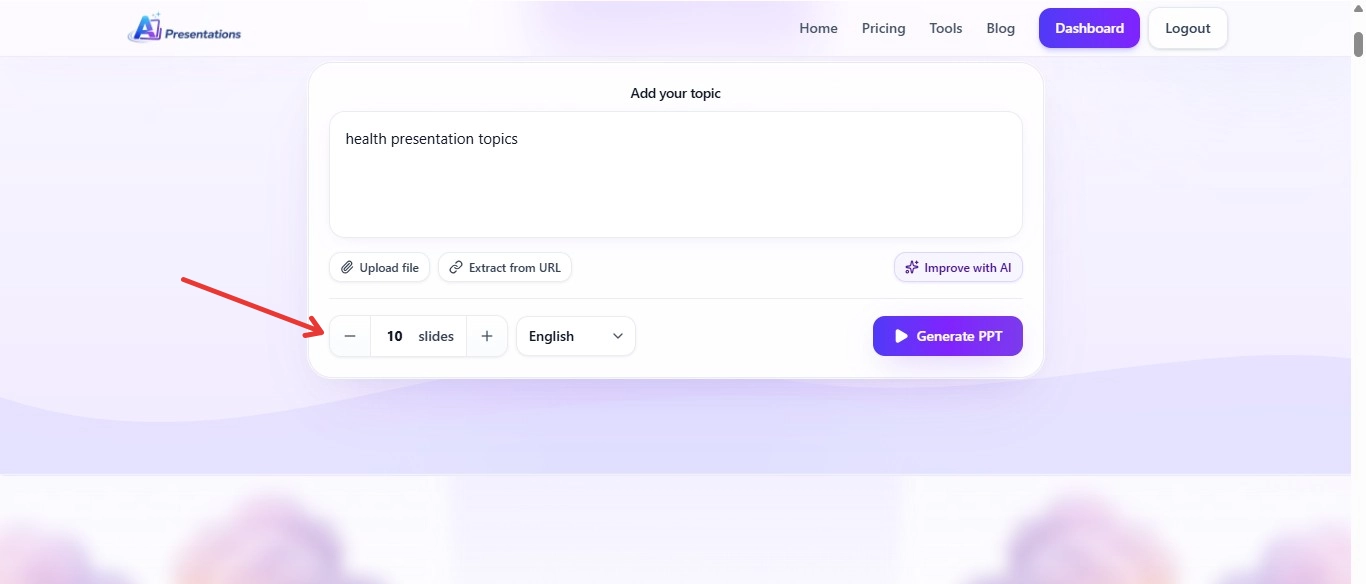
    Step 3: Presentation की भाषा चुनें

    अब अपनी पसंद की भाषा चुनें।

    आप Presentation हिंदी, अंग्रेज़ी और कई अन्य भाषाओं में तैयार कर सकते हैं।

    अगर आपकी Audience भारत में है, तो हिंदी या Hinglish Presentation बेहतर विकल्प हो सकती है।

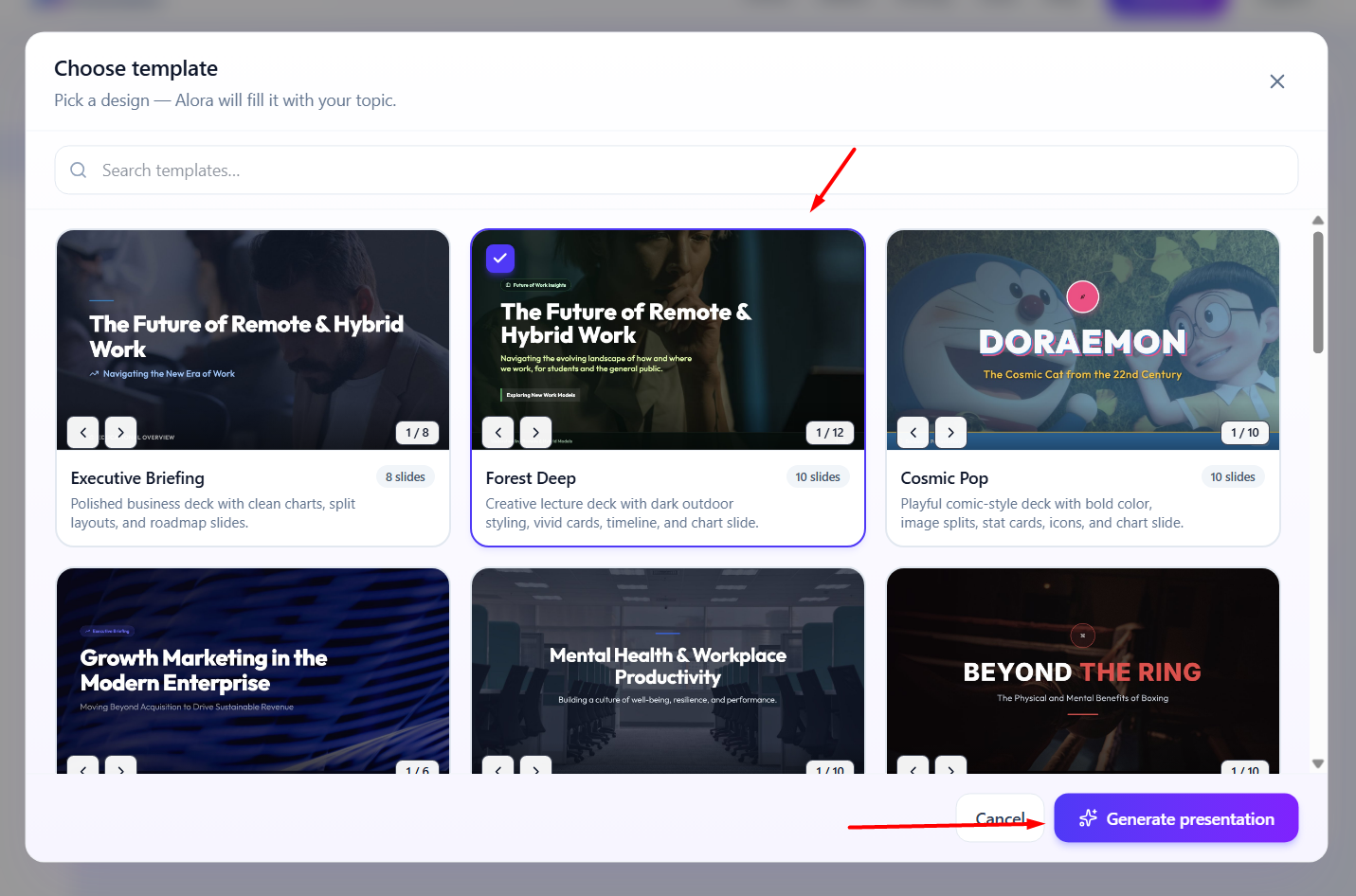
    Step 4: Theme और Style चुनें

    अब Presentation का Design चुनें।

    उदाहरण

    • Professional
    • Business
    • Education
    • Startup
    • Minimal
    • Modern

    सही Theme चुनने से Presentation अधिक आकर्षक दिखाई देती है।

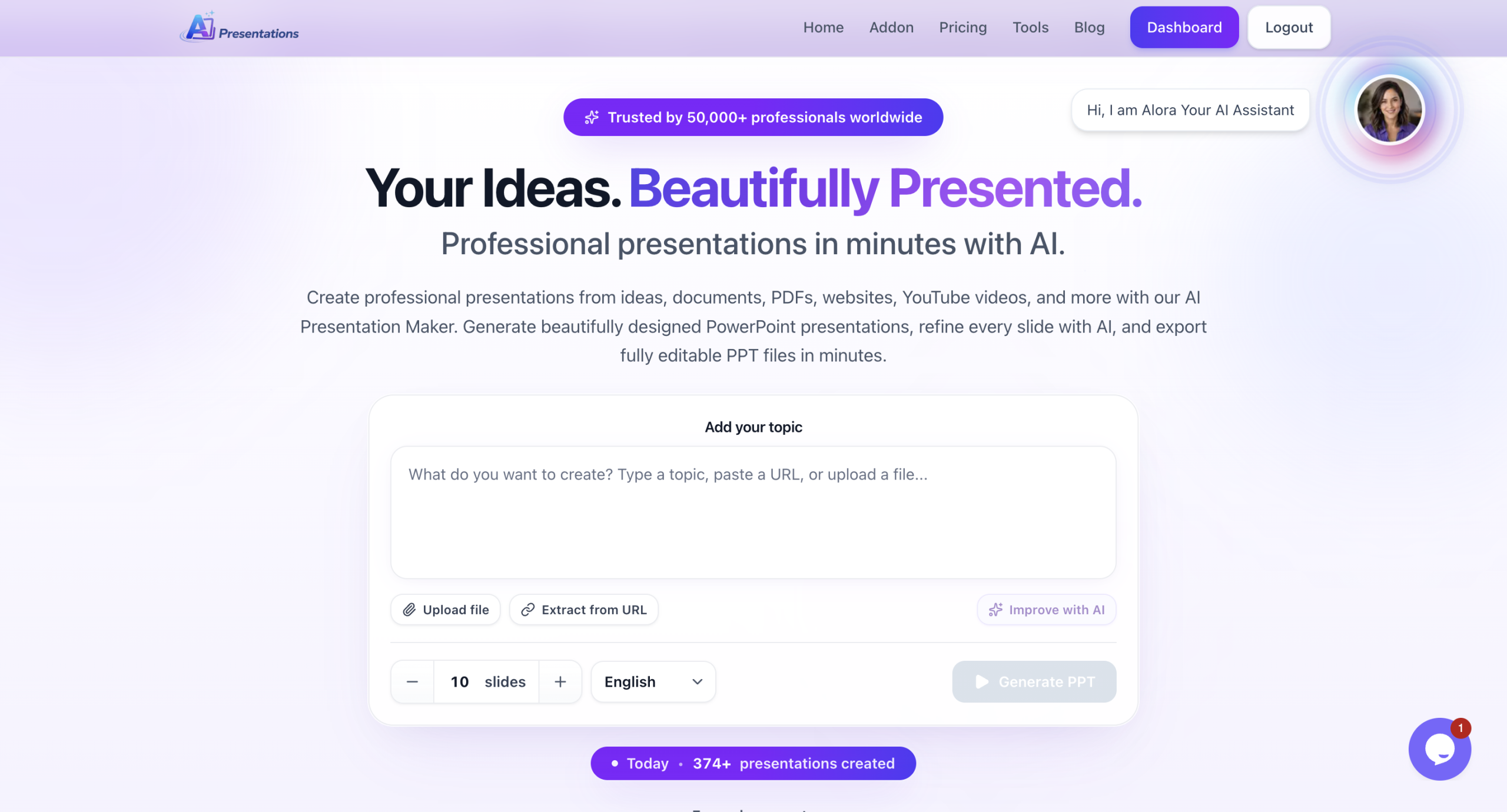
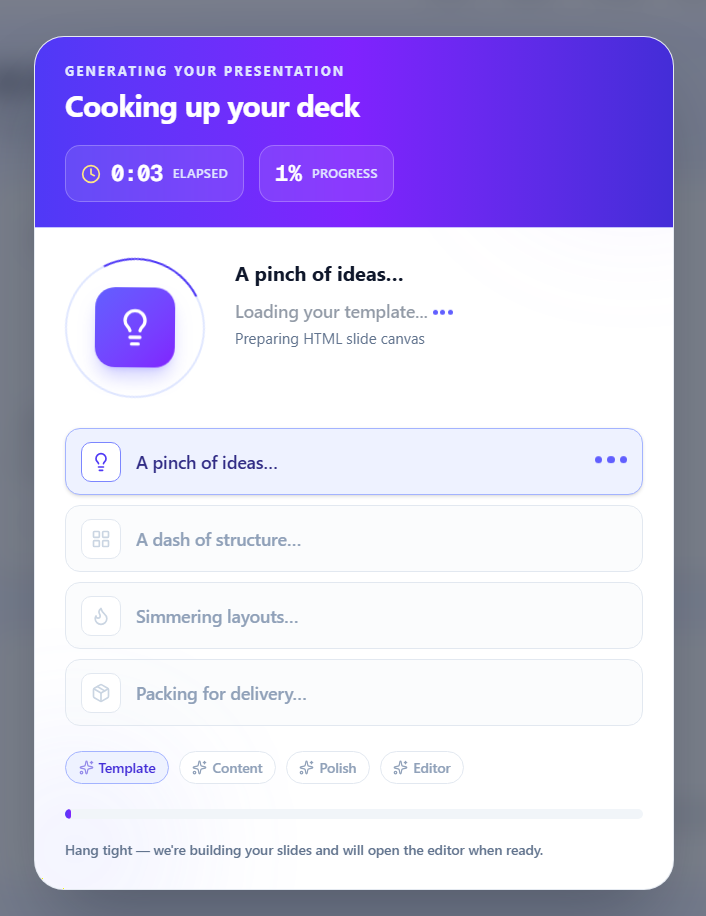
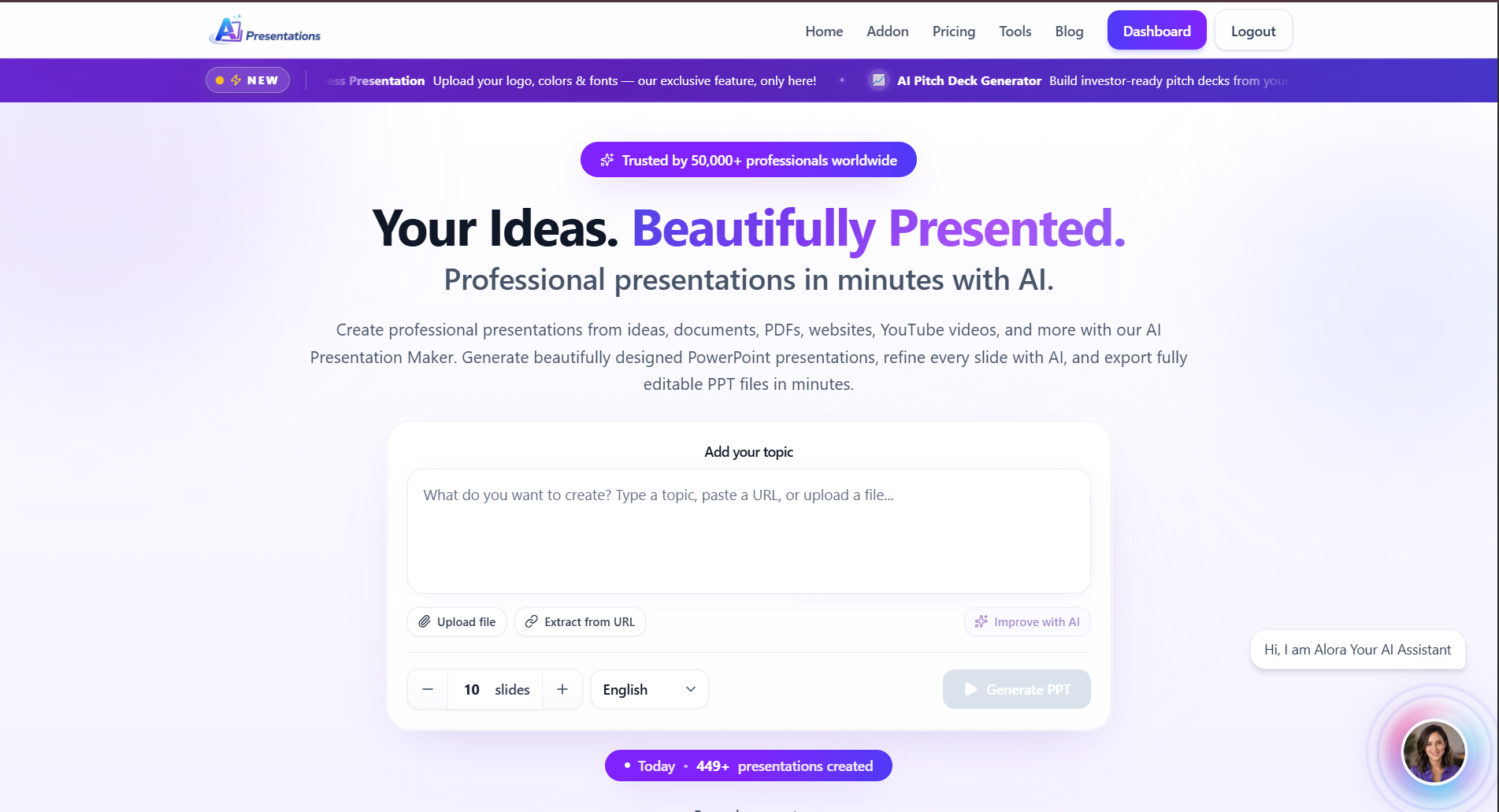
    Step 5: Presentation Generate करें

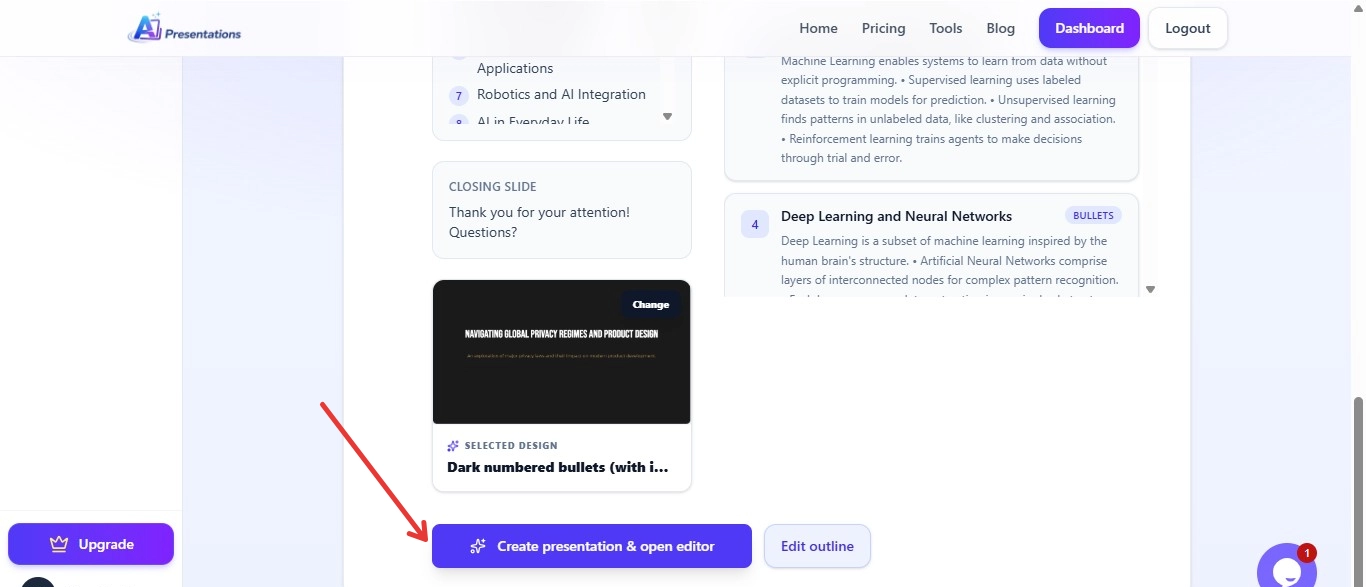
    अब Generate पर क्लिक करें।

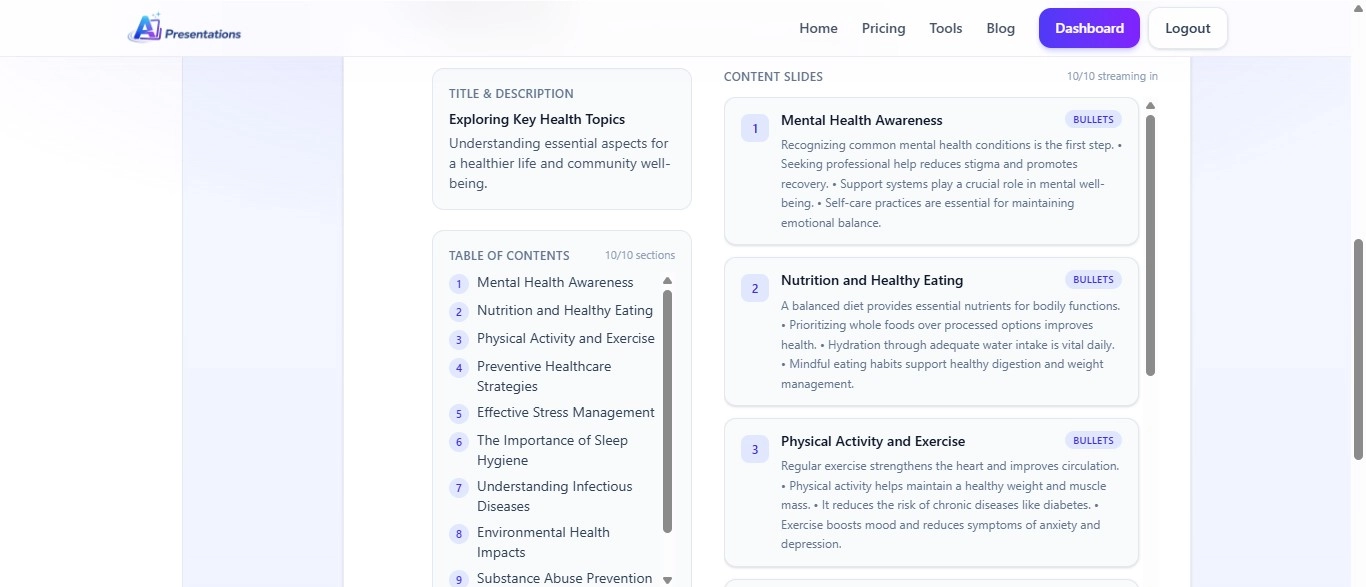
    image

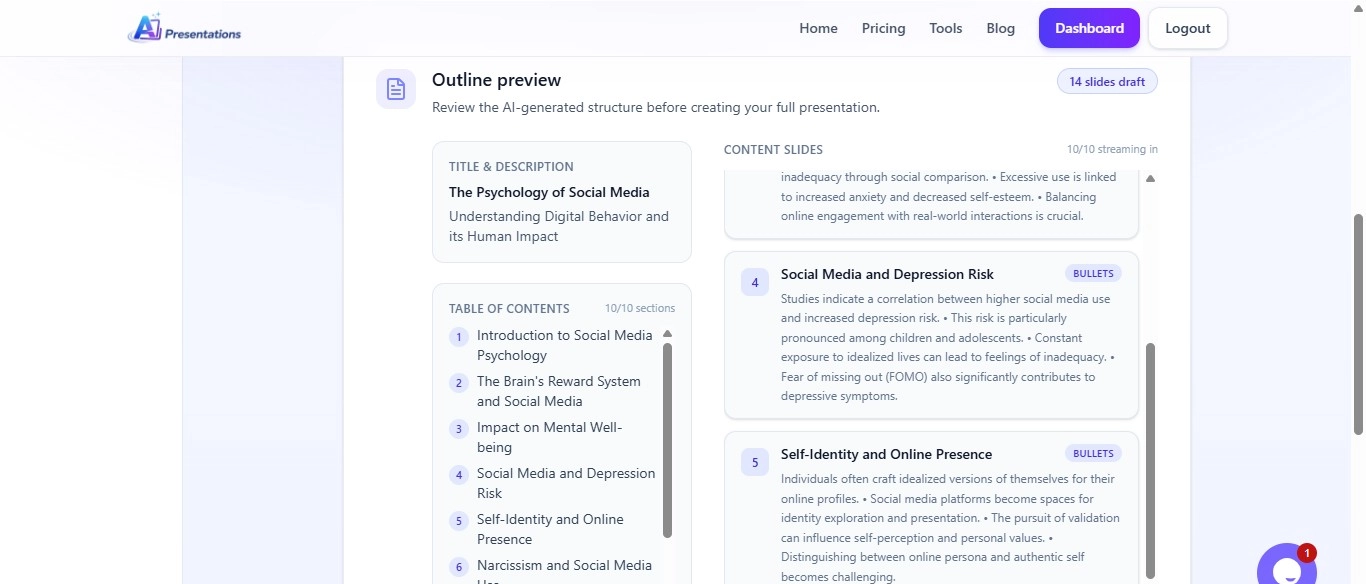
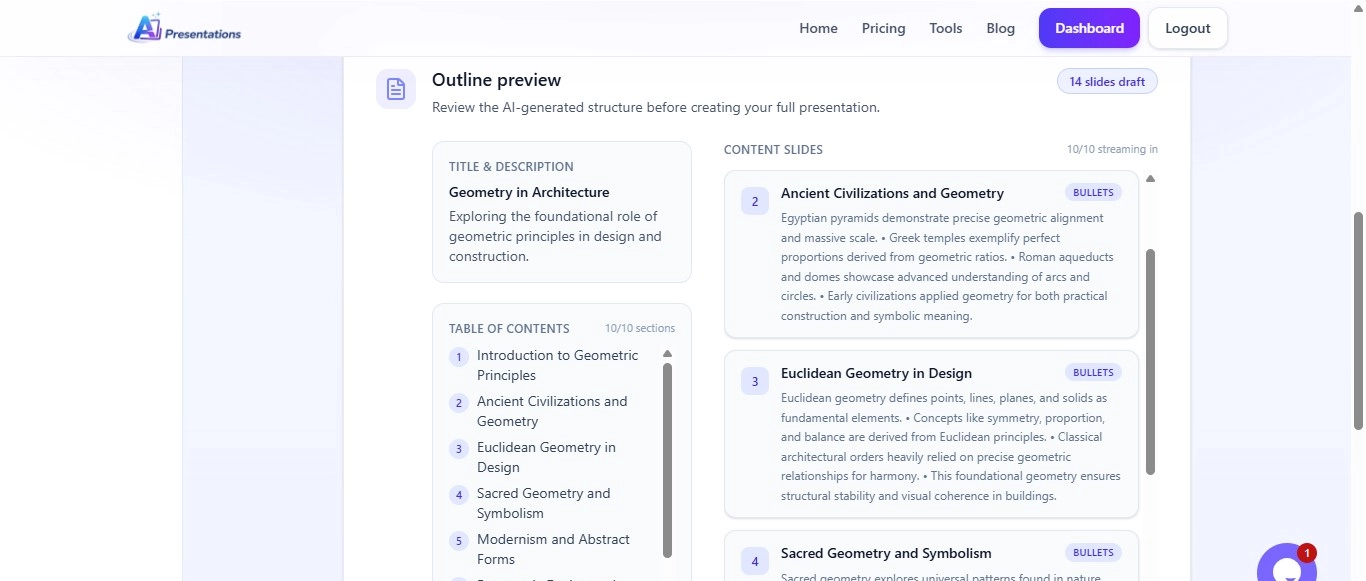
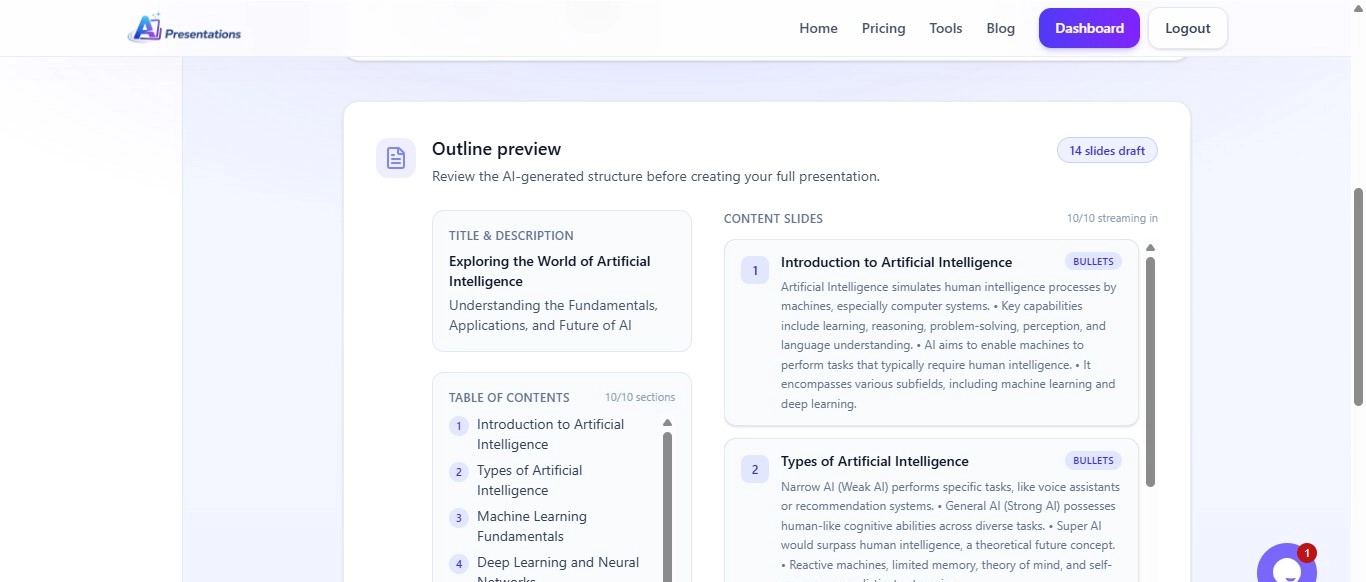
    कुछ ही सेकंड में AI

    • Outline तैयार करेगा।
    • Slide Titles बनाएगा।
    • Content लिखेगा।
    • Layout तैयार करेगा।
    • Presentation Generate करेगा।

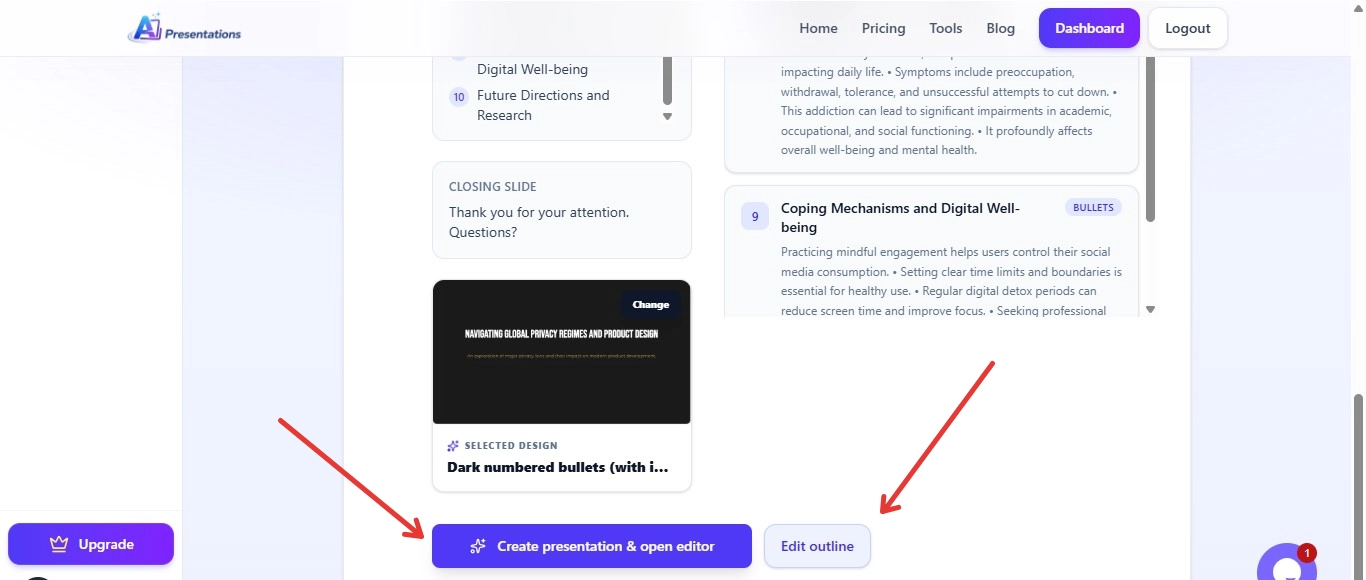
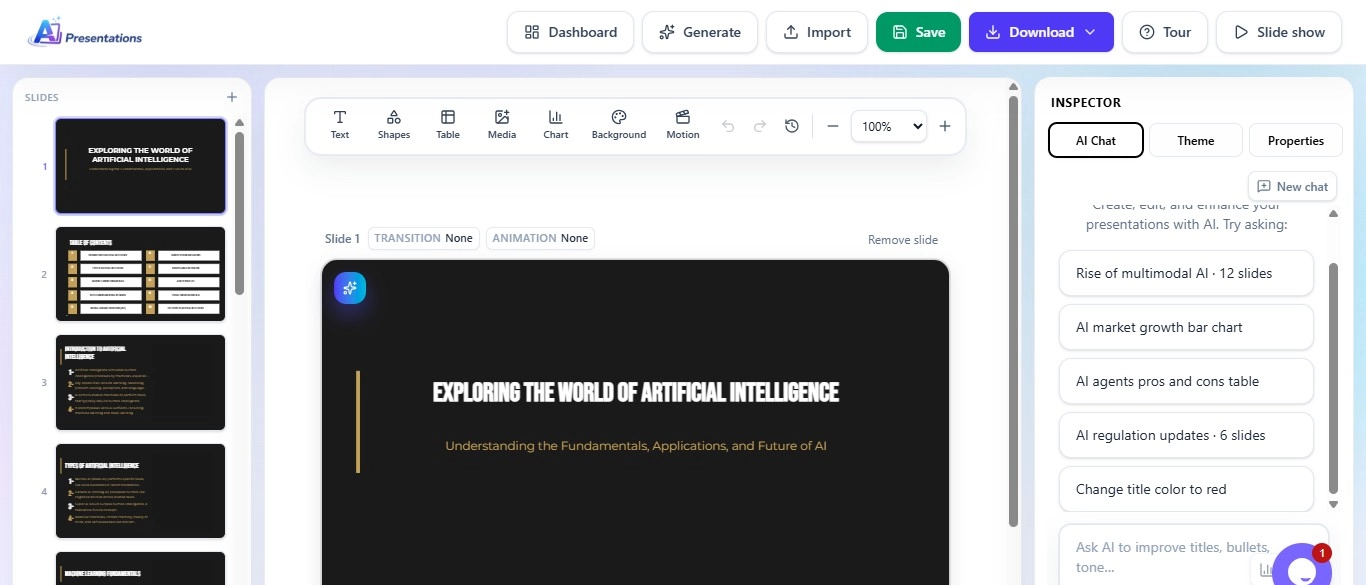
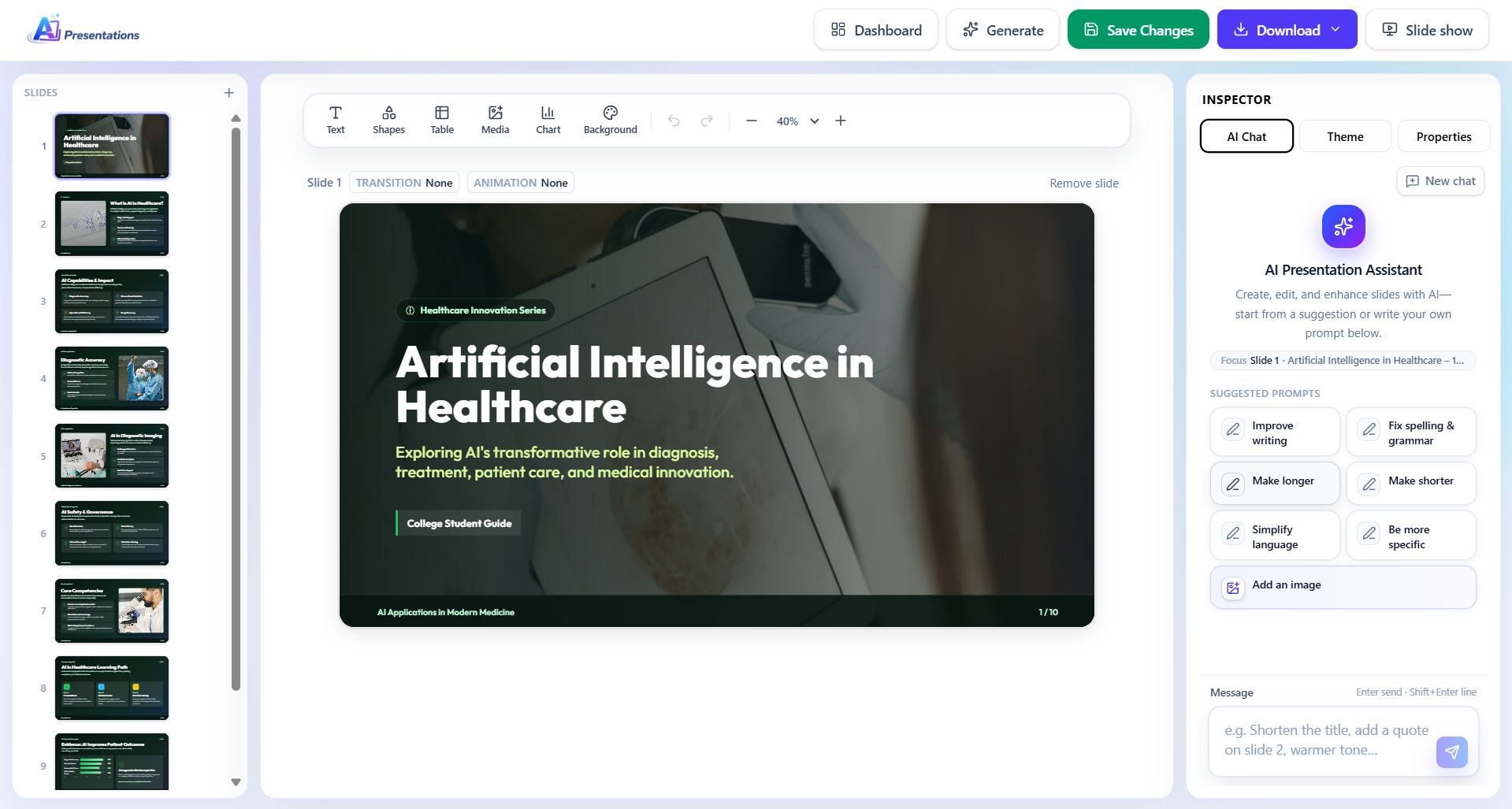
    अब आपके पास एक Editable Presentation तैयार होगी।

    Step 6: Presentation को Customize करें

    AI द्वारा तैयार की गई Presentation को अंतिम रूप देने से पहले उसे जरूर Review करें।

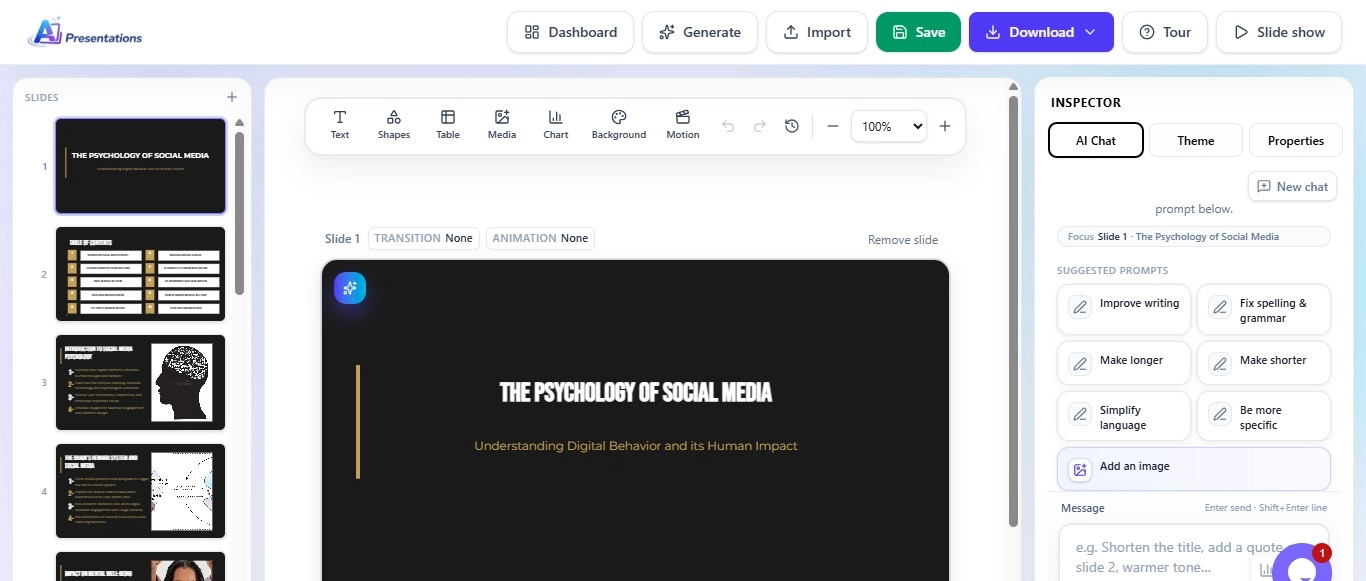
    आप

    • Content बदल सकते हैं।
    • Images जोड़ सकते हैं।
    • Slides हट या जोड़ सकते हैं।
    • Company Branding जोड़ सकते हैं।
    • Charts और Icons शामिल कर सकते हैं।

    इससे आपकी Presentation और अधिक Professional दिखाई देगी।

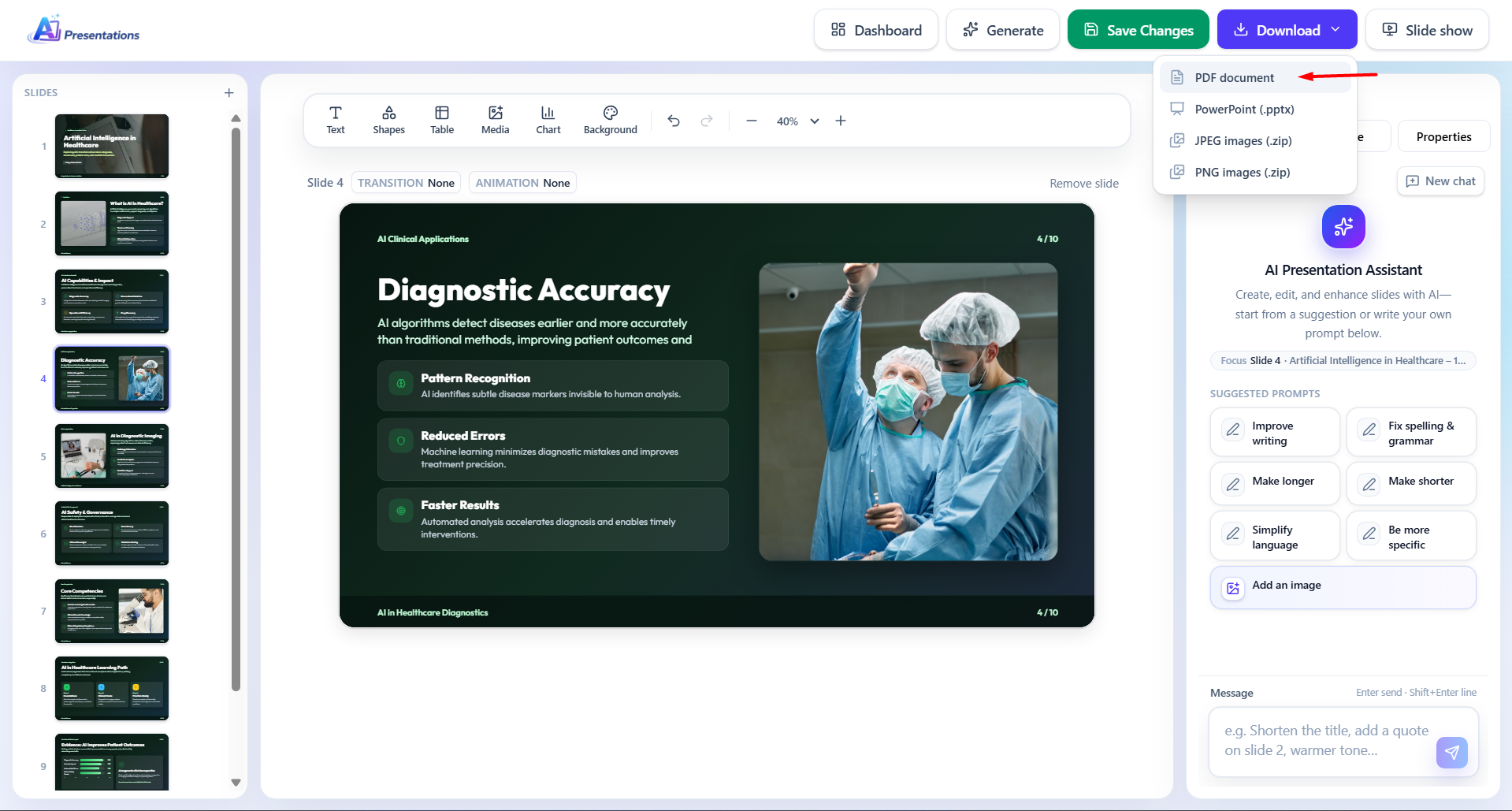
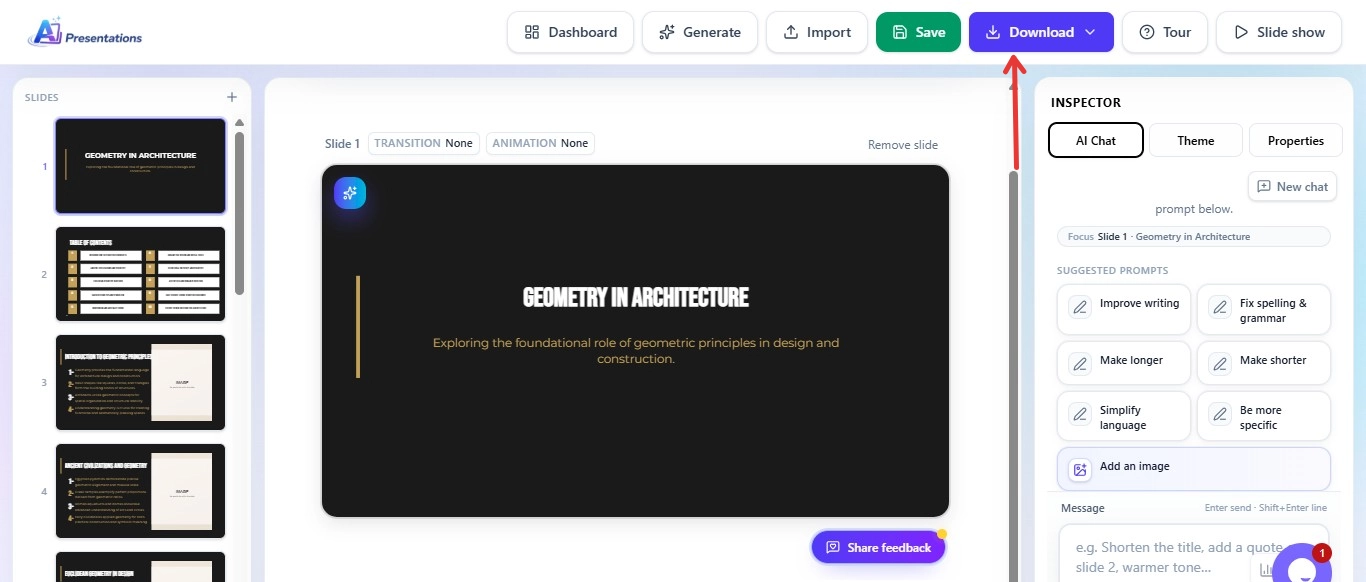
    Step 7: Presentation Export करें

    जब Presentation तैयार हो जाए, तब उसे Export करें।

    आप Presentation को

    • PowerPoint (.pptx)
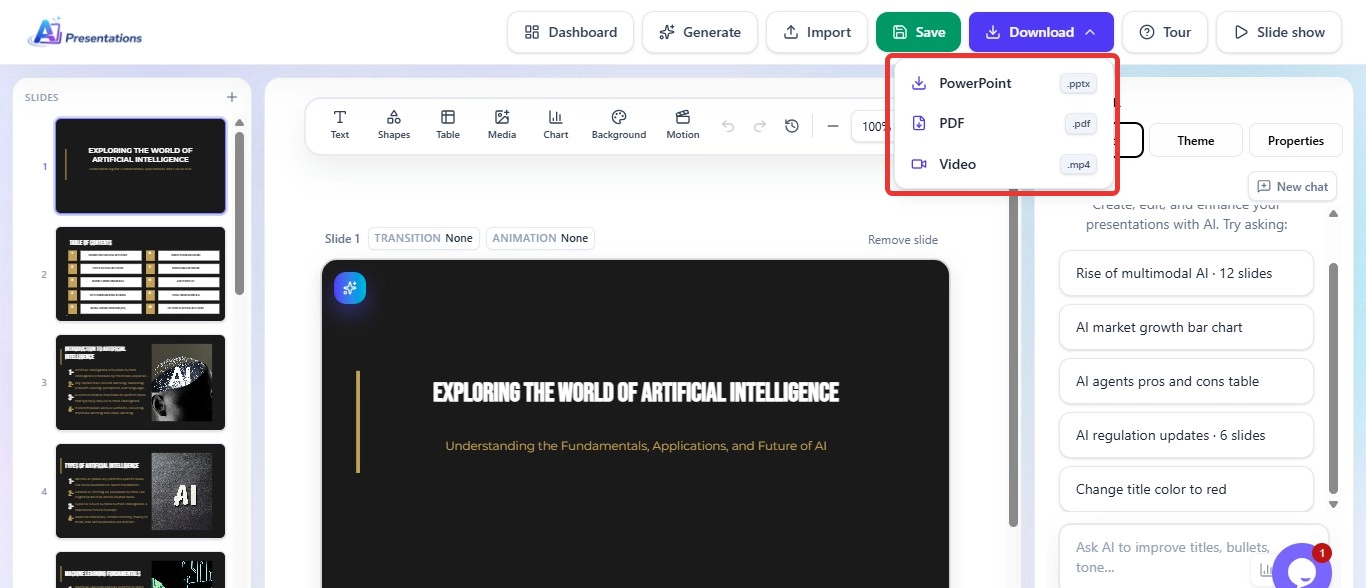
    • Google Slides
    • PDF

    में उपयोग कर सकते हैं।

    AI Presentations की मदद से Presentation बनाना क्यों आसान है?

    अगर आपके पास केवल एक Topic नहीं बल्कि अलग-अलग प्रकार का Content है, तो AI Presentations App आपकी पूरी Workflow को आसान बना सकता है।

    उदाहरण के लिए, अगर आपके पास

    • Research PDF
    • Word Report
    • YouTube Lecture
    • Blog Article
    • Website URL

    पहले से मौजूद है, तो आप उसी Content के आधार पर Presentation तैयार कर सकते हैं। इससे दोबारा Content लिखने की जरूरत नहीं पड़ती और आपका काफी समय बच जाता है।

    इसके अलावा तैयार Presentation को अपनी जरूरत के अनुसार Edit किया जा सकता है, जिससे Final Output आपकी Audience और उद्देश्य के अनुसार बेहतर बनती है।

    इस Tool की कुछ मुख्य विशेषताएं हैं:

    • One-click presentation generation
    • Automatic content creation
    • Smart slide design
    • Beginner-friendly interface
    • Fast processing

    इसके अलावा यह सिर्फ PPT बनाने तक सीमित नहीं है, बल्कि यह आपकी overall productivity को भी improve करता है।

    AI Presentations App क्यों choose करें?

    आज के समय में users simplicity और speed चाहते हैं। AI Presentations App इसी जरूरत को ध्यान में रखकर बनाया गया है। यह tool खासतौर पर उन लोगों के लिए useful है जो बार-बार presentations बनाते हैं और हर बार नया design और content बनाने में समय नहीं लगाना चाहते।

    यह tool आपको एक streamlined workflow देता है जिसमें आप एक ही जगह पर idea से लेकर final presentation तक का पूरा काम कर सकते हैं। इससे आपका time भी बचता है और effort भी कम होता है।

    AI Tools किन लोगों के लिए सबसे useful है?

    AI PPT tools लगभग हर category के users के लिए उपयोगी हैं। अगर आप student हैं, तो आप अपने assignments और projects जल्दी तैयार कर सकते हैं। अगर आप professional हैं, तो आप client presentations और reports आसानी से बना सकते हैं।

    Teachers के लिए यह lecture slides बनाने में बहुत मददगार है और freelancers के लिए यह fast delivery में मदद करता है। कुल मिलाकर, यह tool हर उस व्यक्ति के लिए उपयोगी है जिसे नियमित रूप से presentations बनानी पड़ती हैं।

    Common Mistakes (इनसे बचें)

    AI का उपयोग करते समय कई लोग कुछ सामान्य गलतियां करते हैं जो उनकी presentation की quality को कम कर देती हैं।

    इनमें शामिल हैं:

    • AI output को बिना edit किए use करना
    • Slides में बहुत ज्यादा text भर देना
    • Design consistency maintain न करना
    • Visual elements का उपयोग न करना

    इन गलतियों से बचकर आप अपनी presentation को काफी बेहतर बना सकते हैं।

    Also read: Seminar Topics for Students: 100 Ideas For Presentation

    Conclusion

    AI ने प्रेजेंटेशन बनाने की प्रक्रिया को पूरी तरह बदल दिया है। अब एक प्रभावशाली PPT तैयार करने के लिए आपको डिज़ाइन एक्सपर्ट या PowerPoint विशेषज्ञ होने की आवश्यकता नहीं है। सही AI Presentation Tool और स्पष्ट Prompt की मदद से कोई भी व्यक्ति कुछ ही मिनटों में एक व्यवस्थित और प्रोफेशनल प्रेजेंटेशन तैयार कर सकता है।

    हालांकि AI को केवल एक शुरुआती सहायक के रूप में देखना चाहिए, अंतिम परिणाम की गुणवत्ता अभी भी आपकी समीक्षा, कस्टमाइज़ेशन और विषय की समझ पर निर्भर करती है। इसलिए हमेशा AI द्वारा तैयार किए गए कंटेंट को जांचें, आवश्यक बदलाव करें और अपनी ऑडियंस के अनुसार प्रेजेंटेशन को बेहतर बनाएं।

    यदि आप नियमित रूप से प्रेजेंटेशन बनाते हैं, तो AI Tools आपके समय की बचत कर सकते हैं, उत्पादकता बढ़ा सकते हैं और बेहतर परिणाम प्राप्त करने में मदद कर सकते हैं। सही तरीके से उपयोग किए जाने पर AI केवल PPT बनाने का टूल नहीं बल्कि एक शक्तिशाली प्रोडक्टिविटी पार्टनर बन सकता है।

    अब आप इस गाइड में बताए गए स्टेप्स को फॉलो करके अपनी अगली प्रेजेंटेशन कुछ ही मिनटों में तैयार कर सकते हैं।

    FAQ – अक्सर पूछे जाने वाले सवाल

    Q1. क्या AI से PPT फ्री में बना सकते हैं?

    हाँ, कई AI tools free plan देते हैं जिनसे आप basic presentations बना सकते हैं।

    Q2. क्या AI PPT को edit किया जा सकता है?

    हाँ, आप पूरी तरह customize कर सकते हैं।

    Q3. क्या बिना design skill के PPT बना सकते हैं?

    हाँ, AI खुद design संभाल लेता है।

    Q4. सबसे अच्छा AI PPT tool कौन सा है?

    Beginners के लिए AI Presentations एक बहुत अच्छा विकल्प है।

    Q5. क्या ChatGPT PPT बना सकता है?

    ChatGPT content generate कर सकता है, लेकिन slides बनाने के लिए आपको अलग tool की जरूरत होती है।

    Also read: Easy Presentation Topics That Actually Impress (2026 Guide)

  • How to Add Audio to Google Slides (Step-by-Step Guide 2026)

    Adding audio to a presentation can make your slides more engaging, interactive, and memorable. Whether you’re creating a classroom lesson, business presentation, sales pitch, training module, or portfolio, audio helps explain ideas more effectively than text alone.

    Google Slides includes a built-in audio feature that lets you insert music, voice recordings, podcasts, or sound effects directly into individual slides. Once added, you can configure the audio to play automatically, loop continuously, or start only when clicked.

    This guide walks you through everything you need to know about adding audio to Google Slides, including supported formats, playback settings, troubleshooting tips, and best practices.

    Can You Add Audio to Google Slides?

    Yes.

    Google Slides allows you to insert audio files directly into your presentation, provided the files are stored in Google Drive.

    Common use cases include:

    • Voice narration
    • Background music
    • Sound effects
    • Language pronunciation
    • Educational explanations
    • Meeting recordings
    • Product demonstrations
    • Podcast clips

    Unlike embedding audio from external websites, Google Slides stores the audio reference through Google Drive, ensuring reliable playback when shared with others who have the appropriate permissions.

    Supported Audio Formats

    Google Slides supports several common audio formats, including:

    • MP3 (recommended)
    • WAV
    • OGG

    For the best compatibility across browsers and devices, MP3 is generally the safest choice because it offers excellent quality with smaller file sizes.

    Before inserting audio, upload the file to Google Drive and ensure anyone viewing the presentation has permission to access it if required.

    How to Add Audio to Google Slides?

    Follow these simple steps.

    Step 1: Upload the Audio File

    Open Google Drive and upload your audio file.

    Supported examples include:

    • Voice recordings
    • MP3 music
    • Narration
    • Podcast excerpts
    • Sound effects

    Wait until the upload completes.

    Step 2: Open Your Presentation

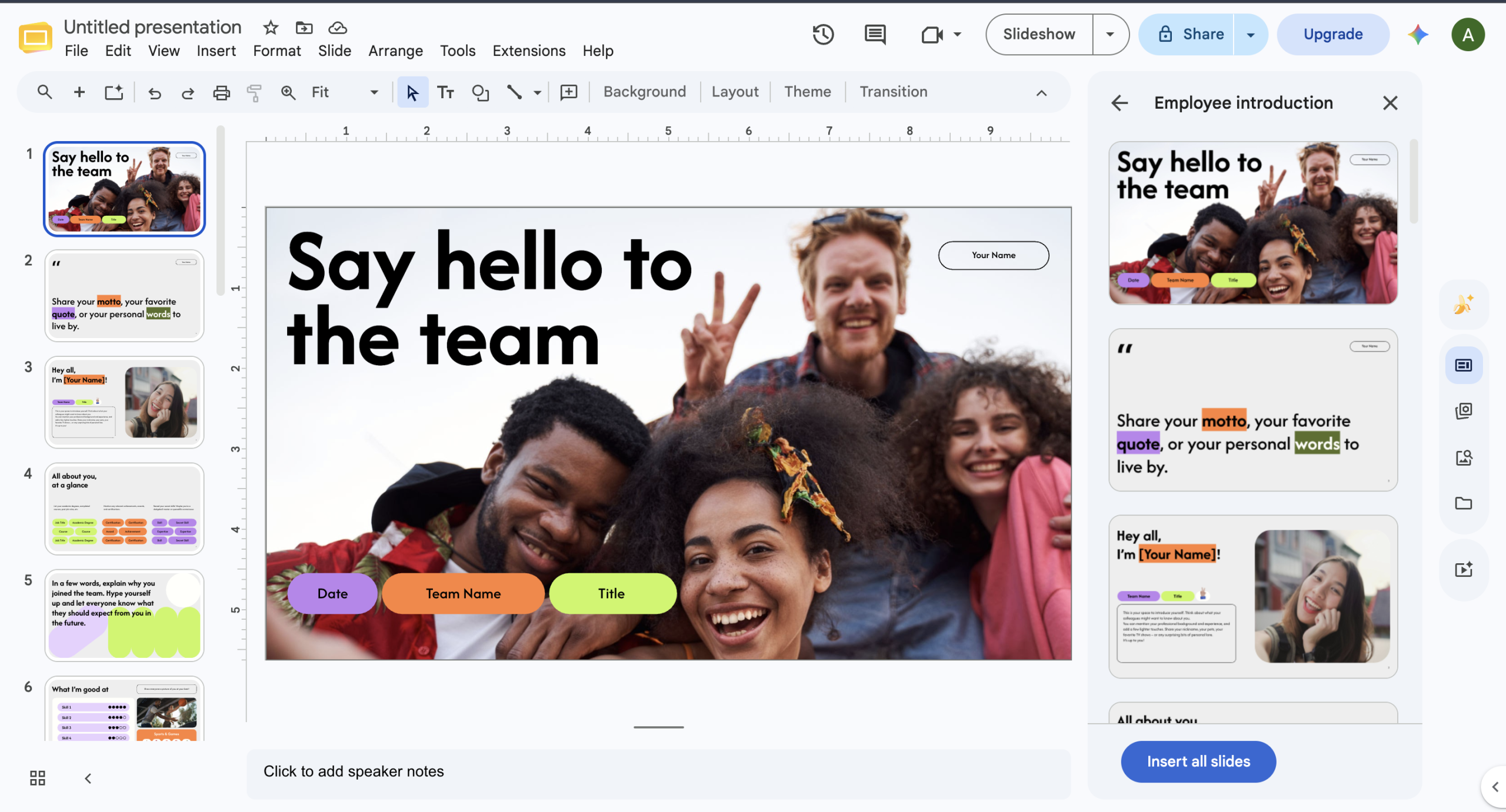
    Open Google Slides.

    google slides

    Navigate to the presentation where you want to include the audio.

    Select the slide that should contain the audio.

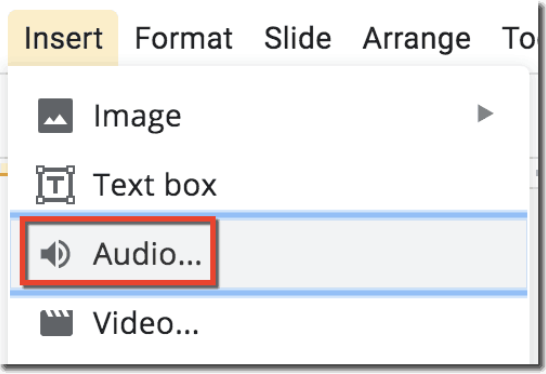
    Step 3: Insert Audio

    Click:

    Insert → Audio

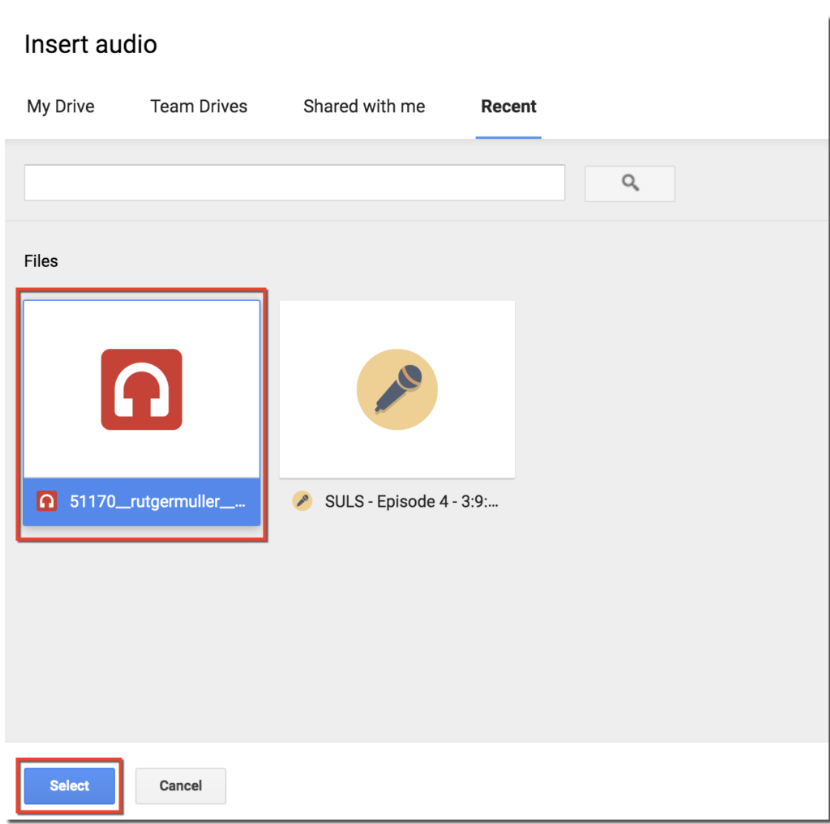
    A window will display audio files available in your Google Drive.

    Choose the desired file.

    Click Select.

    Google Slides places a speaker icon on the slide, representing the inserted audio.

    Step 4: Position the Audio Icon

    You can move the speaker icon anywhere on the slide.

    Many presenters place it:

    • In a corner
    • Behind an image
    • Outside the visible slide area (if appropriate)
    • Near instructions for learners

    The icon’s location does not affect playback.

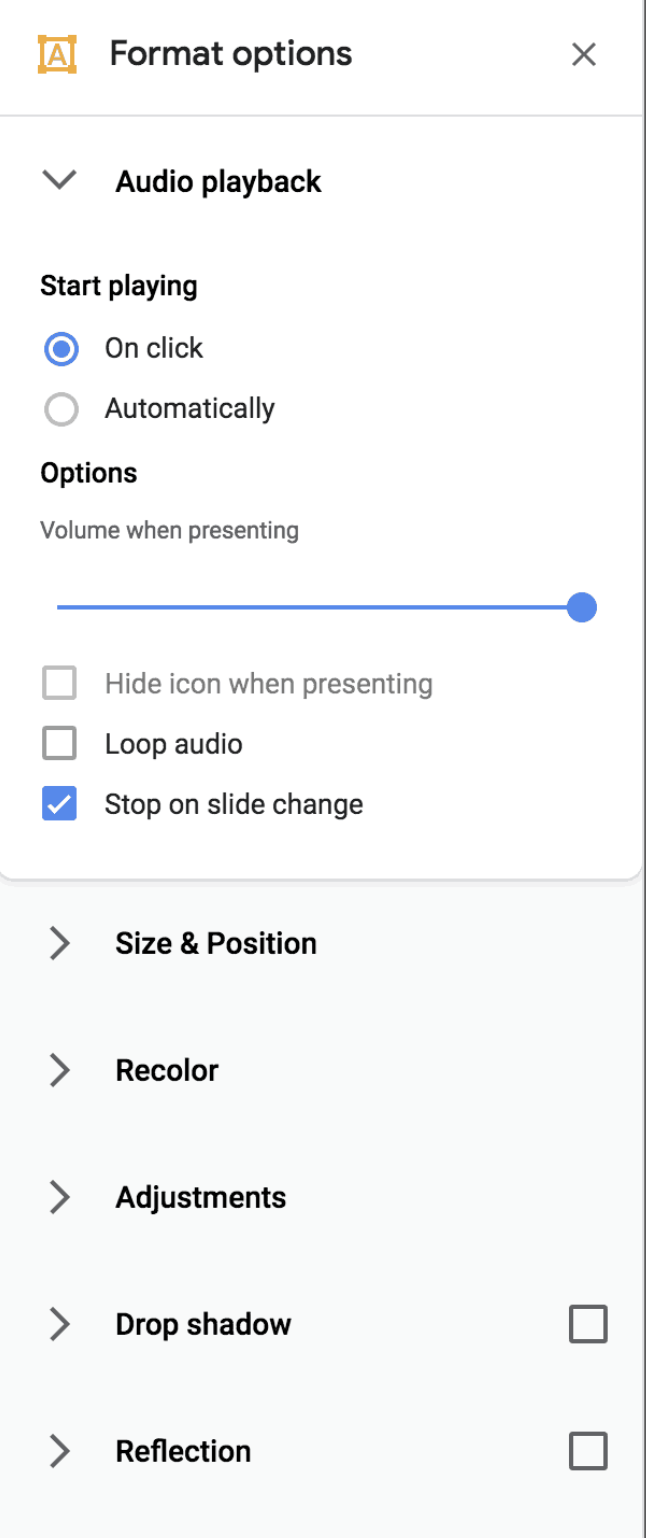
    Step 5: Configure Playback Settings

    Click the audio icon.

    Open Format Options.

    You’ll see playback controls such as:

    • Play on click
    • Play automatically
    • Hide icon during presentation
    • Loop audio
    • Stop on slide change
    • Volume adjustment

    These settings let you tailor the listening experience for your audience.

    How to Make Audio Play Automatically?

    Automatic playback is useful when creating:

    • Online lessons
    • Self-paced courses
    • Business demos
    • Digital kiosks
    • Product walkthroughs

    To enable autoplay:

    1. Select the audio icon.
    2. Open Format Options.
    3. Under Audio Playback, choose Automatically.

    Now the audio starts as soon as the slide appears during the presentation.

    How to Loop Audio in Google Slides?

    Looping repeats the audio until the presentation moves to another slide or the presentation ends.

    To loop audio:

    1. Select the speaker icon.
    2. Open Format Options.
    3. Enable Loop Audio.

    This works well for:

    • Background music
    • Ambient sounds
    • Exhibition displays
    • Waiting screens
    • Trade show presentations

    How to Hide the Audio Icon?

    If you don’t want your audience to see the speaker icon:

    1. Click the inserted audio.
    2. Open Format Options.
    3. Enable Hide icon when presenting.

    The audio will still play according to your selected playback settings, but the icon won’t appear during slideshow mode.

    Can You Add Voice Narration?

    Absolutely.

    Many educators, trainers, and professionals record their own voice and upload it as an MP3 file to Google Drive before inserting it into Google Slides.

    Voice narration is especially useful for:

    • Online learning
    • Employee onboarding
    • Product training
    • Client presentations
    • Sales demonstrations
    • Investor pitches

    You can record narration using any audio recording software, export it as an MP3, upload it to Google Drive, and insert it using the same steps described above.

    Tips for Better Audio Quality

    To create a professional presentation:

    • Record in a quiet environment.
    • Use a dedicated microphone when possible.
    • Remove background noise before uploading.
    • Keep narration concise.
    • Normalize audio volume so each recording sounds consistent.
    • Test playback on multiple devices.
    • Use high-quality MP3 files for better compatibility.

    Clear audio significantly improves the viewer’s experience and helps maintain engagement throughout your presentation.

    Create Professional Presentations Faster with AI

    Once you’ve added audio to your Google Slides presentation, you may also want to improve the overall design, structure, and visual appeal of your slides.

    Instead of manually designing every slide, consider using AI Presentations App to generate professional presentations in minutes. You can create complete slide decks from a topic, text, PDF, Word document, YouTube video, images, or other content sources. The generated presentations are fully editable, making it easy to refine your slides before adding narration or background audio in Google Slides.

    This workflow combines AI-powered content creation with Google Slides’ collaboration and audio features, helping students, educators, marketers, and business professionals create polished presentations much faster.

    Why Is Audio Not Playing in Google Slides?

    Sometimes your audio may not play as expected. The issue is usually related to file permissions, browser settings, or unsupported formats rather than Google Slides itself.

    Here are the most common problems and their solutions.

    1. Google Drive Permissions

    Google Slides references audio files stored in Google Drive. If viewers don’t have permission to access the file, the audio won’t play.

    Solution:

    • Open Google Drive.
    • Right-click the audio file.
    • Select Share.
    • Grant appropriate viewing permissions or adjust the sharing settings if the presentation is intended for a wider audience.

    2. Unsupported Audio Format

    Google Slides works best with:

    • MP3
    • WAV
    • OGG

    If your audio uses another format, convert it to MP3 before uploading.

    3. Browser Issues

    Older browsers or disabled media permissions may prevent playback.

    Try the following:

    • Refresh the presentation.
    • Update your browser.
    • Clear your browser cache.
    • Test the presentation in another browser.

    4. Audio File Was Deleted

    If the original file is removed from Google Drive, Google Slides can no longer access it.

    Solution:

    Restore the deleted file or upload it again and reinsert the audio.

    5. Internet Connection

    Google Slides relies on cloud-based files. A poor internet connection may delay or interrupt playback.

    If you’re presenting in an environment with unreliable internet, test everything beforehand or consider downloading the presentation if your workflow supports offline access.

    Best Practices for Adding Audio in Google Slides

    Adding audio can enhance your presentation, but it should support your message rather than distract from it.

    Follow these best practices:

    • Keep narration concise and focused.
    • Use background music sparingly.
    • Maintain a consistent audio volume throughout the presentation.
    • Avoid overlapping multiple audio tracks.
    • Test playback on desktop and mobile devices.
    • Use autoplay only when it improves the viewer’s experience.
    • Ensure audio aligns naturally with the slide content.
    • Optimize audio files to reduce loading time.
    • Always preview the entire presentation before sharing.

    Well-planned audio can improve engagement, especially in educational lessons, product demos, webinars, and self-guided presentations.

    Common Mistakes to Avoid

    Many users encounter avoidable issues when working with audio in Google Slides.

    Avoid these common mistakes:

    • Uploading unsupported audio formats.
    • Forgetting to upload files to Google Drive.
    • Restricting access to the audio file.
    • Using poor-quality recordings with background noise.
    • Playing loud background music over narration.
    • Leaving autoplay enabled where manual playback is more appropriate.
    • Not testing the presentation before a live audience.

    Taking a few extra minutes to review your presentation can help prevent technical issues during delivery.

    Final Thoughts

    Adding audio to Google Slides is an excellent way to create more engaging, informative, and memorable presentations. Whether you’re using voice narration, background music, or instructional sound effects, the built-in audio feature makes it easy to enhance your slides without requiring advanced technical skills.

    Following the steps in this guide, you can confidently insert audio, configure playback settings, troubleshoot common issues, and deliver presentations that capture your audience’s attention.

    If you’re looking to save even more time, consider creating your presentation with AI Presentation Tool mentioned above before importing it into Google Slides. AI-generated content, professionally designed layouts, and fully editable slides can dramatically reduce presentation creation time while helping you produce polished, presentation-ready results.

    Whether you’re a student, educator, business professional, or content creator, combining AI-powered presentation generation with Google Slides’ audio capabilities is an effective way to create presentations that are both visually impressive and highly engaging.

    Frequently Asked Questions

    Can I add audio directly from my computer?

    Not directly. First upload the audio file to Google Drive, then insert it into Google Slides using Insert → Audio.

    What audio formats does Google Slides support?

    Google Slides supports MP3, WAV, and OGG audio files. MP3 is generally recommended for the best compatibility.

    Can I make audio play automatically?

    Yes. Select the audio icon, open Format Options, and choose Play Automatically.

    Can I loop background music?

    Yes. Enable the Loop Audio option in the playback settings.

    Can I hide the speaker icon?

    Yes. Use Hide icon when presenting under the audio playback settings.

    Can I record audio inside Google Slides?

    No. Google Slides does not include a built-in audio recorder. Record your narration with another application, save it as an MP3, upload it to Google Drive, and then insert it into your presentation.

    Why can’t others hear my audio?

    Most playback issues occur because viewers don’t have permission to access the audio file in Google Drive or because the file has been moved or deleted.

    Can I use background music across multiple slides?

    Google Slides doesn’t support continuous background music across all slides. Audio is attached to individual slides, although looping can keep it playing while that slide remains active.

    Does Google Slides support voice narration?

    Yes. You can record your narration separately, upload it to Google Drive, and insert it into any slide.

    Is adding audio to Google Slides free?

    Yes. Anyone with a Google account can use the built-in audio feature at no additional cost.

    Must read: How to Transfer PowerPoint to Google Slides (Without Losing Formatting)

  • How to Do a Hanging Indent on Canva (Step-by-Step Guide)

    How to Do a Hanging Indent on Canva (Step-by-Step Guide)

    If you’re creating an academic paper, bibliography, or reference page, you may need to use a hanging indent. Many students and professionals use Canva to design documents and presentations but often struggle to find the hanging indent option.

    In this guide, you’ll learn how to do a hanging indent on Canva, how to create hanging indents in Canva Docs, and alternative methods if the feature isn’t available.

    What Is a Hanging Indent in Canva?

    A hanging indent is a paragraph formatting style where:

    • The first line starts at the left margin.
    • Every line after the first is indented to the right.

    Example:

    Smith, J. The Future of AI.

    New York Press, 2026.

    Johnson, M. Digital Marketing Basics.

    ABC Publishing, 2025.

    Hanging indents are commonly used for:

    • APA reference pages
    • MLA Works Cited pages
    • Chicago citations
    • Bibliographies
    • Professional reports

    Can You Do a Hanging Indent in Canva?

    Yes. Canva supports hanging indents in certain editors, including Canva Docs and some text editing environments. However, the process isn’t as obvious as it is in traditional word processors like Microsoft Word or Google Docs.

    How to Create a Hanging Indent in Canva?

    Follow these steps:

    Step 1: Open Your Canva Document

    Open your Canva design or Canva Docs document.

    Step 2: Select the Text

    Highlight the paragraph or citation that needs a hanging indent.

    Step 3: Enable the Ruler

    Navigate to:

    File → View Settings → Show Rulers and Guides

    Step 4: Adjust the Indent Markers

    You’ll see two markers on the ruler:

    • Top marker = First-line indent
    • Bottom marker = Left indent

    To create a hanging indent:

    1. Leave the top marker at the margin.
    2. Drag the bottom marker slightly to the right.

    Your paragraph will now use a hanging indent.

    How to Make a Hanging Indent on Canva Without the Ruler?

    If the ruler option isn’t available:

    Method 1: Use the Tab Key

    Press Enter and then Tab before the second line.

    Method 2: Add Spaces Manually

    Insert spaces before each subsequent line.

    This method works but may become misaligned if you edit the text later.

    How to Do a Hanging Indent on Canva for APA Style?

    APA formatting requires hanging indents in the reference section.

    Example:

    Brown, T. (2026). Artificial Intelligence and Education.

    Academic Press.

    Canva’s ruler tool makes formatting APA citations significantly easier.

    How to Create a Hanging Indent for MLA Works Cited?

    MLA formatting also requires a hanging indent:

    Brown, Thomas. Artificial Intelligence and Education.

    Academic Press, 2026.

    When creating research papers or presentations with references, using hanging indents improves readability and ensures your citations follow academic standards.

    Common Problems and Fixes

    My Hanging Indent Isn’t Working

    • Make sure the text is highlighted.
    • Enable rulers and guides.
    • Try using Canva Docs instead of a standard design page.

    I Can’t Find the Ruler

    The ruler feature may not be available in every Canva design type. Switching to Canva Docs often resolves the issue.

    The Indent Keeps Moving

    Avoid using multiple spaces. Use the ruler or tab method instead.

    Why Use Canva for Academic Documents?

    Canva is excellent for:

    • Reports
    • Infographics
    • Presentations
    • Research posters
    • Educational materials

    However, when you need to create presentations from documents, research papers, or outlines, manually designing slides can be time-consuming.

    Turn Your Canva Documents Into Presentations With AI

    Canva is great for creating documents, reports, and citation pages. But once your paper, assignment, or report is finished, you may also need to create a presentation to share your work.

    Instead of building slides manually, you can use an AI presentation maker to instantly transform your content into a professional presentation.

    With AI-powered presentation tools like AI Presentations App, you can:

    • Generate presentations from text, documents, PDFs, and topics.
    • Create professional PowerPoint presentations in minutes.
    • Automatically organize content into well-structured slides.
    • Save hours of manual formatting and slide design.
    • Export and edit presentations for school, work, or business meetings.

    For example, if you’ve created a research paper or bibliography in Canva and need to present your findings, you can simply copy your content into an AI presentation generator and instantly get a polished presentation ready for editing and presenting.

    This is especially useful for:

    • Students creating class presentations
    • Teachers preparing lesson slides
    • Professionals building reports and proposals
    • Researchers turning papers into presentations
    • Businesses creating pitch decks and presentations quickly

    By combining Canva’s document design capabilities with an AI presentation generator like AI Presentations App, you can go from a written document to a complete presentation in just a few minutes.

    Final Thoughts

    Learning how to do a hanging indent on Canva is essential for creating properly formatted citations, bibliographies, and reference pages. Whether you’re preparing an APA paper, MLA Works Cited page, or professional report, Canva provides several ways to create hanging indents.

    And once your document is ready, you can save hours of manual work by using an AI presentation maker like AI Presentations App to instantly transform your content into beautiful presentations.

    Frequently Asked Questions

    Q1. What is a hanging indent in Canva?

    A hanging indent is a formatting style where the first line stays at the margin and all following lines are indented.

    Q2. Can you create a hanging indent in Canva Docs?

    Yes. Canva Docs supports hanging indents through its ruler feature.

    Q3. How do I indent the second line in Canva?

    Use the ruler, tab key, or manually insert spaces.

    Q4. Why do APA and MLA formats use hanging indents?

    Hanging indents make citations easier to scan and improve the readability of reference lists.

    Q5. Is Canva good for academic papers?

    Canva works well for visually appealing documents, reports, and presentations, although advanced formatting features may be more limited than dedicated word processors.

  • How to Transfer PowerPoint to Google Slides (Without Losing Formatting)

    How to Transfer PowerPoint to Google Slides (Without Losing Formatting)

    If you’ve ever received a PowerPoint presentation but needed to collaborate using Google Workspace, you’ve probably wondered how to transfer PowerPoint to Google Slides without breaking the formatting.

    I’ve worked with both Microsoft PowerPoint and Google Slides for years, and one of the most common tasks I perform is converting presentations between the two platforms. While the process is simple, I’ve learned that there are a few important details that can save you from formatting headaches later.

    In this guide, I’ll show you exactly how to convert PowerPoint to Google Slides, explain what happens during the conversion process, share common issues I’ve encountered, and provide practical tips to preserve your presentation’s design.

    By the end, you’ll know how to upload PowerPoint to Google Slides, edit PPTX files online, and avoid the most common conversion mistakes.

    Quick Answer: How to Convert PowerPoint to Google Slides

    If you’re looking for the fastest method:

    1. Open Google Drive.
    2. Upload your PowerPoint (.PPT or .PPTX) file.
    3. Right-click the file.
    4. Select Open With → Google Slides.
    5. Click File → Save as Google Slides.

    Google Slides will automatically convert the PowerPoint presentation into an editable Google Slides file.

    Can Google Slides Open PowerPoint Files?

    Yes.

    Google Slides supports both:

    • PPT files
    • PPTX files

    This means you can upload PowerPoint presentations directly into Google Drive and open them in Google Slides without installing additional software.

    In my experience, standard presentations containing text, images, charts, and tables usually transfer very well. However, presentations with advanced animations, custom fonts, or complex SmartArt graphics may require minor adjustments after conversion.

    Why Transfer PowerPoint to Google Slides?

    Many users move from PowerPoint to Google Slides because of the collaboration benefits.

    Some advantages include:

    • Real-Time Collaboration: Multiple team members can edit slides simultaneously.
    • Cloud Accessibility: Access presentations from any device with an internet connection.
    • Automatic Saving: Google Slides automatically saves changes.
    • Easy Sharing: Instead of emailing large presentation files, you can simply share a link.

    For teams already using Google Workspace, converting PowerPoint files to Google Slides often creates a more efficient workflow.

    Step-by-Step Guide: Upload PowerPoint to Google Slides

    Open Google Drive. Click the New button.

    Select File Upload.

    Choose your PowerPoint presentation. Wait for the upload to complete.

    Locate the uploaded file. Right-click it.

    Select:

    Open With → Google Slides

    Google Slides will begin converting the presentation automatically.

    Once the file opens:

    1. Click File
    2. Select Save as Google Slides

    This creates a native Google Slides version while preserving the original PowerPoint file.

    I always recommend saving a separate Google Slides copy rather than overwriting the original presentation. This gives you a backup if anything doesn’t convert perfectly.

    What Happens During PowerPoint Conversion?

    Many people assume Google Slides simply copies the presentation.

    That’s not exactly what happens.

    Google Slides translates PowerPoint-specific elements into its own format.

    Most content transfers successfully, but compatibility varies by feature.

    Presentation Element Conversion Success
    Text Excellent
    Images Excellent
    Tables Excellent
    Charts Good
    Videos Usually Good
    Speaker Notes Usually Preserved
    Hyperlinks Excellent
    SmartArt Sometimes Modified
    Custom Fonts May Change
    Advanced Animations Often Lost

    This compatibility gap is one reason I always review every slide after converting a PPTX file to Google Slides.

    Common PowerPoint to Google Slides Formatting Issues

    After converting hundreds of presentations, I’ve noticed several recurring problems.

    1. Missing Fonts

    This is by far the issue I encounter most often.

    If PowerPoint uses a font unavailable in Google Slides, Google automatically replaces it.

    Solution

    Use widely supported fonts such as:

    • Arial
    • Calibri
    • Roboto
    • Open Sans

    before converting.

    2. Broken Layouts

    Complex slide layouts sometimes shift during conversion.

    Text boxes may move slightly, and image placement can change.

    Solution

    Review:

    • Title alignment
    • Image positioning
    • Spacing
    • Slide dimensions

    after importing.

    3. Animation Problems

    PowerPoint supports more advanced animations than Google Slides.

    In my testing, advanced motion effects often disappear entirely during conversion.

    Solution

    Rebuild important animations using Google Slides’ built-in animation tools.

    4. SmartArt Conversion Issues

    SmartArt frequently converts poorly.

    I’ve found that converting SmartArt to grouped shapes before importing significantly improves results.

    My Personal Checklist After Every Conversion

    Whenever I transfer a PowerPoint presentation to Google Slides, I spend five minutes checking:

    ✓ Fonts

    ✓ Charts

    ✓ Images

    ✓ Speaker notes

    ✓ Animations

    ✓ Embedded videos

    ✓ Hyperlinks

    ✓ Slide layouts

    This quick review helps catch issues before presenting to clients, colleagues, or stakeholders.

    PowerPoint vs Google Slides: Which Is Better?

    The answer depends on your needs.

    Feature PowerPoint Google Slides
    Offline Editing Excellent Limited
    Collaboration Good Excellent
    Cloud Sharing Good Excellent
    Design Flexibility Excellent Good
    Advanced Animations Excellent Limited
    Team Workflows Good Excellent
    Accessibility Good Excellent

    I generally recommend Google Slides for collaboration-heavy projects and PowerPoint for highly designed presentations requiring advanced visual effects.

    A Faster Way to Create Presentations with AI

    One thing I’ve noticed over the years is that presentation conversion isn’t usually the biggest challenge.

    Creating the presentation itself often takes far longer.

    That’s why many professionals are now using AI-powered presentation generators.

    For example, AI Presentations App allows users to generate presentations from several formats. It allows you to convert:

    Instead of spending hours building slides manually and then converting them between platforms, you can generate a complete presentation, edit it using AI, and export it as a PowerPoint file that works with both Microsoft PowerPoint and Google Slides.

    For teams that regularly create presentations, this can dramatically reduce preparation time.

    Best Practices for Importing PowerPoint Into Google Slides

    To achieve the best results:

    • Use Standard Fonts: Avoid obscure or proprietary fonts whenever possible.
    • Keep Layouts Simple: Complex designs are more likely to break during conversion.
    • Compress Large Images: Large media files can slow uploads and affect performance.
    • Test Before Presenting: Always review your converted presentation before sharing it.
    • Keep the Original File: Never delete the original PowerPoint presentation until you’ve confirmed the Google Slides version is accurate.

    Final Thoughts

    Transferring PowerPoint to Google Slides is usually a straightforward process. Simply upload the PPT or PPTX file to Google Drive, open it with Google Slides, and save it as a native Google Slides presentation.

    In my experience, most presentations convert successfully with minimal issues. The biggest challenges typically involve custom fonts, SmartArt graphics, and advanced animations. By reviewing your slides after conversion and following the best practices outlined above, you can avoid most compatibility problems.

    If you frequently create presentations from scratch, consider using AI-powered tools like AI Presentations to streamline the entire workflow. Rather than manually building slides and then converting them between formats, you can generate, edit, and export presentation-ready files that work seamlessly across both PowerPoint and Google Slides.

    Frequently Asked Questions

    Q1. Can Google Slides Open PowerPoint Files?

    Yes. Google Slides supports both PPT and PPTX files.

    Q2. How Do I Convert PPTX to Google Slides Online?

    Upload the PPTX file to Google Drive, open it with Google Slides, and save it as a Google Slides presentation.

    Q3. Can I Edit PowerPoint in Google Slides?

    Yes. Once imported, you can fully edit the presentation.

    Q4. Why Does My PowerPoint Look Different in Google Slides?

    Differences usually occur because of unsupported fonts, SmartArt elements, or advanced animations.

    Q5. Is Google Slides Free?

    Yes. Google Slides is available free with a Google account.

    Q6. Can I Convert Google Slides Back to PowerPoint?

    Yes. Go to:

    File → Download → Microsoft PowerPoint (.pptx)

    to export the presentation.

    Q7. Does Google Slides Support PowerPoint Animations?

    Basic animations may transfer successfully, but advanced PowerPoint animations often require manual recreation.

  • Best Pecha Kucha Presentation Ideas for Creative 20×20 Slides

    Best Pecha Kucha Presentation Ideas for Creative 20×20 Slides

    Pecha Kucha presentation topics work well when they are visual, creative, personal, and easy to explain in the fast-paced 20×20 presentation format. Some popular Pecha Kucha presentation topics include storytelling, technology, student life, motivation, travel, and social media trends. These can also overlap with technology presentation topics and even creative health presentation topics when presented visually.

    People like Pecha Kucha presentations because they make presentations more fun and less boring. Instead of long lectures filled with text-heavy slides, this format uses 20 slides shown for 20 seconds each, creating a presentation that lasts only 6 minutes and 40 seconds.

    The timing is very strict, so choosing the Pecha Kucha presentation topics is really important. The best Pecha Kucha presentation topics are simple, look good and are easy to turn into a story. Whether you are a student, a teacher or a professional, picking Pecha Kucha presentation topics that are engaging can help you connect with the people listening and make your Pecha Kucha presentation memorable.

    In this guide, you will find Pecha Kucha presentation topics, funny Pecha Kucha presentation ideas, examples that students will like and tips to create a Pecha Kucha presentation that will have an impact.

    What Is a Pecha Kucha Presentation?

    A Pecha Kucha presentation is a fast-paced presentation format where speakers show 20 slides for 20 seconds each, creating a presentation that lasts 6 minutes and 40 seconds. The format focuses on visual storytelling, concise communication, and audience engagement.

    Unlike traditional presentations with text-heavy slides, Pecha Kucha presentations rely on images, minimal text, and natural speaking. Since slides automatically change every 20 seconds, presenters must explain ideas clearly and stay on track.

    Today, Pecha Kucha presentation topics are widely used in schools, colleges, workplaces, and public speaking events because the format makes presentations more engaging, creative, and easier for audiences to follow. Many students also use this style for seminar topics for students because it keeps audiences focused.

    How to Choose the Best Pecha Kucha Presentation Topics

    Choosing the right Pecha Kucha presentation topics is important because the 20×20 format moves quickly. A good topic should be simple, visual, and easy to explain within a few minutes.

    Start by choosing something you already know or genuinely enjoy. Personal experiences, hobbies, technology trends, travel stories, and motivational lessons often make the best Pecha Kucha topics because they feel natural to present.

    It is also important to pick visual presentation ideas. Since Pecha Kucha presentations rely heavily on images, topics related to photography, social media, lifestyle, fashion, or storytelling usually work well. Avoid overly broad or technical subjects that are difficult to explain quickly.

    Another helpful tip is to keep your presentation focused on one main idea. Instead of discussing a huge topic like artificial intelligence, narrow it down to something specific like “How AI Changed Student Productivity” or “The Future of AI in Education.” which can also work as strong ai presentation topics.

    The best Pecha Kucha presentation ideas combine storytelling, audience engagement, and clear communication. When your topic feels relatable and visually engaging, your presentation becomes far more memorable.

    Best Pecha Kucha Presentation Topics for Students

    Finding engaging Pecha Kucha presentation topics for students can feel difficult, especially when you need ideas that are creative, simple, and easy to present within the 20×20 format. The best student presentation topics are usually relatable, visual, and connected to everyday experiences. Many of these also fit into easy presentation topics 100 ideas collections shared by teachers and educators online.

    Educational Presentation Topics

    • How online learning changed education
    • The psychology of procrastination
    • Study habits that actually work
    • Mental health awareness in schools
    • Why creativity matters in classrooms

    Technology Presentation Ideas

    • AI tools students use daily
    • The impact of social media addiction
    • Cybersecurity basics for beginners
    • How smartphones affect attention spans
    • The future of virtual classrooms

    Motivational Pecha Kucha Topics

    • Lessons learned from failure
    • Building self-confidence as a student
    • Why discipline matters more than motivation
    • Small habits that improve productivity
    • My journey overcoming stage fear

    Fun and Creative Presentation Topics

    • The evolution of meme culture
    • Why introverts make great leaders
    • My most embarrassing school moment
    • The hidden psychology of colors
    • A day without the internet

    These Pecha Kucha presentation ideas help students improve public speaking skills and keep audiences engaged through storytelling and visual communication.

    Creative Pecha Kucha Presentation Topics

    Creative Pecha Kucha presentation topics are often the most memorable because they combine storytelling, visuals, and personal experiences. These topics allow speakers to connect emotionally with the audience while making the presentation feel natural and engaging.

    Some of the best creative Pecha Kucha topics include:

    • A place that changed my life
    • The power of nostalgia
    • Life lessons from travel
    • Why do people romanticize rain
    • My relationship with photography
    • The psychology behind music and mood
    • The evolution of fashion trends
    • Things I learned from failure
    • The hidden beauty of old buildings
    • How social media changed communication

    You can also explore storytelling presentation ideas based on hobbies, childhood memories, cultural experiences, or daily routines. Topics that include strong visuals and emotional connection usually work best in the 20×20 presentation format.

    The key to choosing creative presentation topics is keeping them personal, simple, and visually engaging. When audiences feel connected to your story, your presentation becomes far more impactful.

    Funny Pecha Kucha Presentation Topics

    Funny Pecha Kucha presentation topics work extremely well because the fast-paced 20×20 format naturally keeps audiences entertained. Humorous topics also make presentations feel more relaxed and relatable.

    Here are some funny Pecha Kucha topics that can easily grab attention:

    • Why group projects never work
    • My toxic relationship with alarms
    • How Netflix destroys productivity
    • The emotional stages of online shopping
    • Why autocorrect ruins lives
    • Surviving family WhatsApp groups
    • Things students pretend to understand
    • The science of procrastination
    • Why everyone thinks they are a life coach online
    • Weird food combinations that actually taste good

    The best funny presentation ideas are based on everyday situations that people can relate to. Adding humour, storytelling, and expressive visuals helps make your Pecha Kucha presentation more memorable and engaging.

    When using humour, keep your presentation light, simple, and audience-friendly. The goal is to entertain while maintaining a clear, organised presentation.

    Turn Your Pecha Kucha Presentation Topics into Ready-to-Present Slides

    Once you finalise your Pecha Kucha presentation topics, the next challenge is creating visually engaging slides that match the fast-paced 20×20 presentation format. Designing 20 different slides manually can take a lot of time, especially when you also need strong visuals, smooth storytelling, and proper timing.

    This is where an AI Presentation Maker can simplify the entire process. Instead of starting from scratch, you can instantly turn your topic into a structured presentation with ready-to-edit slides, visual layouts, and presentation flow suggestions.

    Whether you are creating a classroom assignment, business presentation, seminar deck, or creative storytelling presentation, AI-powered presentation tools help save time while maintaining a professional and engaging design.

    Quick Steps to Create Your Pecha Kucha Presentation

    Step 1. Start with an AI PPT Maker or Topic-to-Slides tool directly from your browser.

    Step 2. Add your selected Pecha Kucha presentation topic, such as:

    • The Psychology of Social Media
    • Lessons Learned from Failure
    • AI in Student Life
    • The Evolution of Meme Culture

    Step 3. Choose the number of slides, presentation theme, and visual style based on your audience and topic.

    Step 4. The AI tool automatically creates a presentation outline with slide content, headings, and design structure optimised for visual storytelling.

    Step 5. Edit text, add images, change themes, rearrange slides, or include your personal storytelling elements.

    Step 6. Preview the final presentation.

    Step 7. Lastly, export it in formats like PPT or PDF for school, college, meetings, or events.

    Using AI for presentation creation makes it much easier to focus on storytelling, audience engagement, and delivery instead of spending hours on slide formatting and design.

    Conclusion

    Pecha Kucha presentations are really good at making things more interesting and fun to listen to. They do this with a format that is very fast-paced, it is called the 20×20 format. To make a Pecha Kucha presentation really good, you need to pick Pecha Kucha presentation topics that are easy to understand, have a lot of pictures, and are about things that people can relate to.

    It does not matter what your Pecha Kucha presentation topic is about, whether it is funny, meant to motivate people, teach them something or is, for a job. What is important is that you tell a story and use strong pictures to help people remember what you are saying. You can use tools to help you make your Pecha Kucha presentation slides look nice and be ready to show people quickly and easily. Pecha Kucha presentations are great because they help people pay attention and remember what you are saying.

  • Math Presentation Topics: Beginner to Advanced Ideas for Students

    Math Presentation Topics: Beginner to Advanced Ideas for Students

    The best math presentation topics make mathematics easy to understand, useful and fun for the audience. Topics like probability, geometry, statistics, cryptography and math in AI are popular because they combine applications with cool concepts.

    Picking the right math presentation topic can really make a difference in how your audience reacts. A good topic helps you explain ideas clearly, keeps listeners interested, and makes your presentation more memorable.

    Today, students are encouraged to explore math presentation topics that go beyond just formulas and connect math to daily life, technology, sports, finance, and science. Whether you need math presentation topics for school or advanced math seminar ideas for college, choosing a topic with real-life examples and visuals always works better. Many students also search for unique college presentation topics that combine mathematics with modern industries and innovation.

    In this guide, you will find beginner-friendly, advanced, and real-life math presentation topics along with helpful tips to make your presentation more engaging and interactive with probability, geometry, statistics, cryptography, and math in AI.

    How to Choose the Best Math Presentation Topics

    Picking the right math presentation topics is really important because it makes your presentation easy to understand and fun to listen to. You should think about who’s going to be listening to you and pick topics that are not too hard or too easy for them.

    For example, kids in school might like simple math presentation topics, such as how to figure out percentages or what symmetries are. On the other hand, college kids can learn about harder topics like cryptography or graph theory. Some teachers also prefer kid friendly presentation topics that make mathematics simple and interactive for younger students.

    You should also try to pick math presentation topics that people can relate to in their lives. It is an idea to use pictures and graphs to help explain these topics. Math presentation topics, with graphs, charts, or diagrams, are really helpful. The important thing is to pick a topic that you know Well so you can explain it to your audience in a way that keeps them interested and listening to what you have to say about math presentation topics.

    Beginner Math Presentation Topics

    Topic Best For
    Prime Numbers and Their Importance Beginners
    Fractions in Daily Life School Students
    Understanding Percentages Beginners
    Importance of Zero in Mathematics School Seminars
    Roman Numerals Explained Beginners
    Time and Calendar Mathematics School Projects
    Simple Interest vs Compound Interest Commerce Students
    Odd and Even Numbers Primary & Middle School
    Basic Probability with Coins and Dice Interactive Classroom Activities
    Mathematical Patterns School Students

    These are also useful for students looking for 5 minute presentation topics that are easy to explain in classrooms.

    Creative Math Presentation Topics

    Topic Best For
    Fibonacci Sequence in Nature Creative Presentations
    Math Behind Sudoku Fun Math Seminar Topics
    The Golden Ratio in Art and Architecture Visual Learners
    Fractals and Infinite Patterns Advanced School Students
    Mathematics in Music Creative Mathematics Presentation Topics
    Rubik’s Cube Mathematics Interactive Presentations
    Mathematics Behind Video Games Teen Students
    Magic Squares Explained Fun Classroom Activities
    Infinity in Mathematics College Students
    Mathematics in Escape Rooms Interactive Learning

    Algebra and Calculus Presentation Topics

    Topic Best For
    Linear Equations in Real Life Algebra Presentation Ideas
    Quadratic Equations Explained High School Students
    Polynomial Functions Algebra Seminars
    Logarithms and Their Applications College Mathematics
    Sequences and Series Advanced Students
    Derivatives in Daily Life Calculus Presentation Topics
    Optimization Problems in Mathematics College Seminars
    Limits and Continuity Advanced Mathematics Presentation Topics
    Exponential Growth and Decay Science & Math Projects
    Functions and Graphs School & College Students

    Geometry and Trigonometry Presentation Topics

    Topic Best For
    Coordinate Geometry Basics Geometry Presentation Topics
    Pythagorean Theorem Applications School Students
    Geometry in Architecture Real-Life Applications of Mathematics
    Symmetry in Nature and Art Visual Presentations
    Trigonometry in Navigation Trigonometry Presentation Topics
    Waves and Sound Mathematics Science & Math Combined Topics
    Circles and Their Properties School Mathematics
    Surface Area and Volume Practical Geometry Learning
    Tessellations in Art Creative Geometry Topics
    Geometry Behind Bridges and Buildings Engineering Awareness

    Statistics and Probability Presentation Topics

    Topic Best For
    Statistics in Sports Analytics Statistics Presentation Ideas
    Probability in Casino Games Interactive Math Presentations
    The Birthday Paradox Fun Probability Topics
    Survey Data Analysis School & College Projects
    Mathematics in Weather Forecasting Real-Life Math Presentation Topics
    Conditional Probability Advanced Students
    Risk Analysis in Banking Commerce Students
    Statistics in Medical Research College Seminars
    Data Collection Methods Beginners
    Probability in Daily Life Classroom Presentations

    Advanced Mathematics Presentation Topics

    Topic Best For
    Cryptography and Internet Security College Seminar Topics
    Graph Theory Applications Advanced Mathematics Topics
    Chaos Theory Explained University Students
    Machine Learning Mathematics Technology & AI Seminars
    Mathematics in Space Exploration STEM Presentations
    Game Theory in Business Decisions Applied Mathematics Topics
    Differential Equations Advanced College Students
    Matrix Algebra Applications Engineering Students
    Neural Networks Mathematics AI & Data Science Learners
    Number Theory Concepts Mathematics Research Presentations

    Real-Life Applications of Mathematics Topics

    Topic Best For
    Mathematics in Artificial Intelligence Technology Seminars
    Mathematics Behind Social Media Algorithms Modern Mathematics Presentation Ideas
    Financial Mathematics in Banking Commerce & Finance Students
    Mathematics in Medicine and Healthcare Research Presentations
    Data Science and Predictive Analytics College & University Seminars
    Mathematics in Sports Performance Sports Analytics Discussions
    GPS Navigation Mathematics Practical Learning
    Mathematics in Shopping Discounts School Students
    Math in Architecture and Design Creative Learners
    Mathematics in Business Decisions Applied Mathematics Presentations

    Use AI to Create Presentations for Math Presentation Topics

    Once you have selected your math presentation topics, the next step is creating well-structured and visually engaging slides. Instead of spending hours designing presentations manually, many students now use AI presentation tools to generate complete presentations within minutes.

    An AI presentation maker is very useful for mathematics presentation topics because it can automatically organise concepts, create clean slide structures, and suggest visuals like graphs, charts, and diagrams. This makes it much easier to explain complex mathematical concepts clearly.

    Quick Steps to Create Your Math Presentation Using AI

    Step 1. Visit an AI presentation tool in your browser and choose the Topic to PPT Generator feature.

    Step 2. Enter Your Math Presentation Topic, such as:

    • Probability in Daily Life
    • Mathematics in Artificial Intelligence
    • Geometry in Architecture
    • Statistics in Sports Analytics

    Step 3. Choose how many slides of the presentation you want based on your assignment or seminar requirements.

    Step 4. The AI tool will automatically create:

    • A structured outline
    • Topic-wise slides
    • Key points and explanations
    • Visual suggestions for graphs and diagrams

    5. Review the presentation and make changes based on your style, audience, or academic requirements by clicking on edit outline option.

    6. Export the presentation in your preferred format, such as PPT or PDF, and use it directly for your classroom or seminar presentation.

    Using AI tools can save time while helping students create more professional and visually appealing math presentation topics presentations with less effort. Students searching for easy presentation topics 100 ideas often use AI tools to quickly generate and customise presentation outlines.

    Tips to Make Math Presentation Topics More Engaging

    The best math presentation topics become more engaging when explained in simple language, with visuals and real-life examples. Use graphs, charts, animations, and diagrams to make mathematical concepts easier to understand.

    Avoid adding too many formulas on one slide. Instead, explain one concept at a time and connect it to daily life, such as using sports statistics, shopping discounts, or AI technology as examples.

    You can also make mathematics presentation topics more interactive by asking questions, adding quizzes, or using short demonstrations. Simple and visually clear slides help audiences stay focused and understand concepts more easily.

    Common Mistakes to Avoid in Math Presentations

    When students choose math presentation topics, they often do a good job, but they lose the audience because they present poorly. A big mistake students make is choosing topics that are too hard without really understanding what they are about. It is always better to make an idea easy to understand than to make a hard topic confusing.

    Another thing students do wrong is putting many math formulas and long paragraphs on their slides. People usually understand math topics better when they are explained one step at a time with pictures and examples.

    Math presentation topics are easier to understand when they are explained in a way. Reading from the slides is also a bad idea because it makes the presentation boring. Instead, students should try to explain the math presentation topics in their own words and talk to the audience. Students should also avoid using technical terms when simpler language works, making the math presentation topics easier to understand.

    The best math presentation topics are the ones that are easy to understand, use pictures and help people really get what is going on rather than just memorising things. Math presentation topics should be, about understanding, not just memorising.

    Conclusion

    Choosing the right math presentation topics can make mathematics more engaging, practical, and easier to understand for any audience. Whether you select beginner-friendly topics like percentages and symmetry or advanced mathematics presentation topics like cryptography and machine learning, the key is to explain concepts clearly using real-life examples and visuals.

    The best mathematics presentation topics are the ones that combine creativity, simplicity, and practical applications. By selecting a topic you understand well and presenting it in an interactive way, you can make your presentation more memorable, informative, and impactful for your audience.

  • AI Presentation Topics for Beginners, Students & Experts

    AI Presentation Topics for Beginners, Students & Experts

    AI presentation topics are super popular today because artificial intelligence is changing areas of life. It is transforming education, healthcare, business, marketing and everyday life.

    Here are some reasons why AI presentation topics are widely chosen by students, professionals, and seminar speakers who love talking about AI. AI is now part of conversations from ChatGPT and machine learning to AI automation and robotics. People are curious about AI. They want to learn how it works, where it is used and how it may shape the future.

    Some topics, such as AI in healthcare, AI ethics, natural language processing, and AI in education, generate a lot of interest and discussion. The good thing about AI topics is that they are flexible.

    If you are new to AI, you can choose topics like AI in daily life or AI chatbots. If you are more technical, you can explore topics such as learning, neural networks, computer vision, and AI research.

    This guide will help you find the AI seminar topics, trending AI presentation ideas and practical artificial intelligence topics for students and professionals, including seminar topics for students.

    Why are AI Presentation Topics Are Popular these Days?

    AI presentation topics are becoming increasingly popular because artificial intelligence is now part of everyday life. From ChatGPT and AI chatbots to healthcare, education, banking, and business automation, AI is transforming how people work and communicate.

    One major reason artificial intelligence presentation topics attract attention is audience curiosity. People want to understand how AI works, where it is used, and how it may affect future jobs and industries. Topics like generative AI, machine learning, AI ethics, and automation naturally create discussion and engagement.

    AI seminar topics are also trending because they are modern, practical, and relevant across multiple industries. Whether for students, professionals, or researchers, AI topics for presentation offer endless opportunities to create interesting and informative presentations, from funny presentation topics to serious technical themes.

    How to Choose the Best AI Presentation Topics

    Choosing the Artificial Intelligence presentation topics is important. It depends on who your audience’s what you want to achieve with your presentation, and how much technical knowledge they have.

    • For beginners or students, simple topics work best. You can talk about Artificial Intelligence in life or AI chatbots.
    • These topics are easy to understand and have examples that people can relate to.

    If your audience is technical, you can choose topics. Some examples are machine learning, deep learning or natural language processing.

    These topics are good for college seminars and technical presentations about Artificial Intelligence.

    • Trending Artificial Intelligence topics are also a choice. People are curious about AI, ChatGPT, AI automation and AI ethics.
    • These subjects usually get attention and discussion.

    When picking a topic, think about how much time you have.

    • If you need 5 minute presentation topics, choose a focused topic.
    • If you need 10 minute presentation topics, you can go into more detail and include case studies about Artificial Intelligence.
    • Make sure your topic is easy to explain and interesting for your listeners.
    • Artificial Intelligence topics should be relevant to your audience.

    50+ Trending AI Topics for Presentation

    These easy presentations topic ideas are perfect for school students, beginners, and short classroom presentations.

    Beginner-Friendly AI Presentation Topics

    Topic Best For
    What is Artificial Intelligence? Beginners
    History of AI School Students
    AI in Daily Life Awareness
    Advantages of AI Easy Presentation
    Disadvantages of AI Debate
    AI in Smartphones Students
    AI Chatbots Beginners
    AI Virtual Assistants School Projects
    AI in Social Media Classroom Discussion
    AI in YouTube Recommendations Short Presentation
    AI in Netflix Suggestions Beginners
    AI in Online Shopping Awareness
    AI in Banking Students
    AI in Education Seminar
    AI in Healthcare Awareness
    AI in Gaming Fun Topic
    AI in Mobile Apps Beginners
    AI and Future Jobs Discussion
    AI in Transportation Students
    AI in Smart Homes School Presentation

    15+ Trending AI Presentation Topics

    These trending AI topics are highly searched and popular.

    Topic Best For
    Generative AI Trending Seminar
    ChatGPT Explained Students
    AI Content Creation Modern Topics
    AI Image Generators Creative Presentation
    AI Automation Business Seminar
    AI and Cybersecurity Technical Discussion
    Deepfake Technology Awareness
    AI in Digital Marketing Professionals
    AI Voice Generators Trending Topic
    AI in Video Editing Content Creators
    AI in Search Engines Students
    AI in Customer Support Business
    AI and Human Creativity Debate
    AI Influencers Social Media
    Future of Generative AI Research

    AI Seminar Topics for College Students

    These AI seminar topics are suitable for college presentations and academic discussions.

    Topic Best For
    Machine Learning Basics College Seminar
    Deep Learning Technical Audience
    Neural Networks Engineering Students
    Natural Language Processing Research
    Robotics and AI Technical Seminar
    AI Algorithms Academic Presentation
    Computer Vision IT Students
    AI Model Training Research
    Reinforcement Learning Advanced Students
    Explainable AI Technical Seminar
    AI in Cloud Computing Engineering
    AI in Data Analytics College Students
    AI in IoT Seminar
    AI in Blockchain Technical Discussion
    AI and Big Data Research

    AI Ethics and Debate Topics

    These artificial intelligence presentation topics encourage discussion and audience interaction.

    Topic Best For
    Will AI Replace Human Jobs? Debate
    Is AI Dangerous? Awareness
    AI Privacy Concerns Seminar
    AI Bias and Discrimination Discussion
    Ethical Use of AI Research
    Can AI Think Like Humans? Debate
    AI Surveillance Systems Awareness
    AI and Human Rights Seminar
    Should AI Be Regulated? College Debate
    AI in Warfare Ethical Discussion
    Risks of Generative AI Trending Topic
    AI and Fake News Awareness
    AI and Data Security Technical Debate
    AI Addiction Students
    Human vs Artificial Intelligence Discussion

    AI Presentation Topics by Industry

    These AI applications presentation topics focus on real-world industries.

    Topic Best For
    AI in Healthcare Seminar
    AI in Education Students
    AI in Finance Business Presentation
    AI in Agriculture Awareness
    AI in Cybersecurity Technical Seminar
    AI in Manufacturing Industry Discussion
    AI in Retail Business
    AI in Transportation Seminar
    AI in Aviation Research
    AI in Space Exploration Innovation
    AI in E-commerce Marketing
    AI in Digital Marketing Professionals
    AI in Human Resources Business
    AI in Customer Service Office Presentation
    AI in Entertainment Students
    AI in Music Generation Creative Topic
    AI in Movie Recommendations Fun Seminar
    AI in Smart Cities Research
    AI in Supply Chain Management Business
    AI in Environmental Protection Awareness

    Advanced AI Presentation Topics

    These advanced AI presentation topics are ideal for technical audiences and research presentations.

    Topic Best For
    Large Language Models (LLMs) Technical Seminar
    Transformer Architecture AI Research
    Federated Learning Advanced Discussion
    Quantum AI Research
    Autonomous AI Agents Innovation
    AI Model Optimization Engineering
    AI in Edge Computing Technical Presentation
    GANs (Generative Adversarial Networks) AI Students
    AI in Robotics Research
    AI and Quantum Computing Advanced Seminar
    Self-Driving Car Technology Innovation
    AI in Predictive Analytics Business Intelligence
    AI in Medical Diagnosis Research
    AI for Climate Change Solutions Innovation
    Artificial General Intelligence (AGI) Future Trends

    Turn Your AI Presentation Topics into Ready-to-Use Slides

    After you finalise the topic for the AI presentation, the best and easiest way to make use of the smart technology of Artificial Intelligence. Instead of designing every slide manually, you can use an AI Presentation Maker to turn your topic into a complete presentation within minutes.

    These tools are especially useful for students, teachers, professionals, and seminar speakers who want to create engaging presentations quickly without spending hours on formatting and design, including health presentation topics or business themes.

    Simple Steps to Generate Your AI Presentation

    • Open an AI PPT Maker or Topic-to-Presentation tool in your browser.
    • Enter your selected topic, such as:
      • AI in Education
      • Generative AI
      • AI Ethics
      • Machine Learning
      • AI in Healthcare
    • Select the required number of slides and presentation style.
    • The AI tool will instantly generate a presentation outline along with ready-to-use slide content.
    • Customize the slides by editing text, adding visuals, changing themes, or rearranging sections.
    • Preview the final presentation and make any necessary adjustments.
    • Export or download the presentation in your preferred format like PPT or PDF.

    Conclusion

    AI presentation topics are among the most engaging and future-focused presentation ideas today. Whether you choose beginner-friendly artificial intelligence presentation topics or advanced AI seminar topics, selecting a relevant and practical subject can make your presentation more impactful.

    Focus on real-world examples, audience interest, and clear explanations to create a strong presentation. You can also use AI presentation tools to quickly generate professional slides and save time while preparing your PPT.

  • 100 Health Presentation Topics for Students, Work & Awareness

    100 Health Presentation Topics for Students, Work & Awareness

    When people hear the phrase health presentation topics they usually think about doctors talking or scientists doing research. Health presentation topics are actually really broad and really useful. These topics are about anything that helps people understand their health make it better or keep it good.

    In school, students often have to pick health topics for a presentation that’re easy to talk about and that people can use in their everyday life. At work, people are more interested in learning about things like managing stress, not getting too tired or finding a balance between work and home life. Many students also look for easy presentation topics that are practical and simple to explain.

    What makes health presentation topics good is that they are important to everyone. Every person, no matter how old they are or what they do, has to deal with health issues at some point. That is why people like to talk about things like sleep, food and being happy. Because these things are a part of life.

    At the heart of health presentation topics, it is not about giving people information. It is about helping people know what is going on, stopping problems before they start and making changes that can really make a difference in how people live their lives.

    How to Choose the Best Health Presentation Topics?

    When you are choosing health presentation topics, you want to pick something that people will actually remember.

    First, you need to know who you are talking to. If you are talking to students, you should choose health topics for students like how much time they spend looking at screens, their sleep habits or the stress they feel when they study. If you are talking to people at work, health awareness topics like feeling burned out, having good posture or taking care of your mental health are usually more interesting.

    Next, do not make it too hard. A lot of people pick subjects that’re too complicated or technical. Instead, choose health topics for presentation that are easy to understand and explain. Health presentation topics like drinking water, exercising every day or eating a balanced diet might seem simple, but they can have a big impact.

    It is also a good idea to choose interesting health topics that people are talking about now. For example, people are talking a lot about feeling tired from looking at screens all the time, getting sick because of their lifestyle and taking care of their health. These can also work well as technology presentation topics when linked with digital wellness.

    Finally, think about what people will get out of your presentation. The best health presentation topics do not just give people information. They also give them something they can use. If people can leave your presentation with one habit or idea, you have done a good job.

    Top 100 Health Presentation Topics

    Topic Best For
    What is Health and Wellness? Beginners
    Importance of a Healthy Lifestyle General Audience
    What is Mental Health? Awareness Programs
    Difference Between Physical and Mental Health Students
    Role of Hygiene in Daily Life Schools
    What is Preventive Healthcare? Education
    Importance of Regular Health Checkups Adults
    What is Stress and Its Impact? Beginners
    Health Myths vs Facts General Audience
    Importance of Health Education Schools & Colleges

    Student & Youth Health Presentation Topics

    Topic Best For
    Impact of Screen Time on Health School/College
    Study Stress and Mental Health Students
    Healthy Eating Habits for Students Schools
    Sleep Importance for Students Beginners
    Social Media and Mental Health Teens
    Peer Pressure and Emotional Health Youth
    Importance of Physical Activity for Students Schools
    Effects of Junk Food on Students Awareness
    Time Management and Health Students
    Balancing Studies and Health College

    Mental Health Presentation Topics

    Topic Best For
    What is Anxiety? Beginners
    Signs of Depression Awareness
    Stress Management Techniques General Audience
    Importance of Emotional Well-being Students
    Work-Life Balance Professionals
    Burnout and Its Effects Corporate
    Meditation and Mental Health Wellness Programs
    Overthinking and Mental Health Youth
    Coping with Failure Students
    Digital Detox for Mental Peace General Audience

    Nutrition & Diet Topics

    Topic Best For
    What is a Balanced Diet? Beginners
    Importance of Nutrition Schools
    Benefits of Healthy Eating General Audience
    Junk Food vs Healthy Food Students
    Role of Vitamins and Minerals Education
    Hydration and Health Awareness
    Diet and Immunity Health Programs
    Weight Management Basics Adults
    Superfoods and Their Benefits General Audience
    Eating Disorders Awareness Advanced

    Fitness & Physical Health Topics

    Topic Best For
    Importance of Daily Exercise Beginners
    Benefits of Walking General Audience
    Sedentary Lifestyle Risks Office Workers
    Yoga for Beginners Wellness
    Stretching and Flexibility Students
    Cardio vs Strength Training Fitness Enthusiasts
    Posture and Back Pain Office
    Importance of Physical Fitness Schools
    Home Workouts Benefits General Audience
    Exercise and Mental Health Awareness

    Public Health Presentation Topics

    Topic Best For
    Importance of Vaccination Awareness
    Air Pollution and Health Public Speaking
    Clean Water and Sanitation Community
    Global Health Challenges Advanced
    Role of Government in Healthcare Education
    Pandemic Awareness General Audience
    Health Inequality Research
    Public Health Policies Students
    Waste Management and Health Awareness
    Community Health Programs NGOs

    Medical & Healthcare Topics

    Topic Best For
    What is Diabetes? Beginners
    Heart Disease Awareness Adults
    Obesity and Health Risks General Audience
    Cancer Awareness Public Speaking
    Blood Pressure Management Adults
    Common Lifestyle Diseases Awareness
    Role of Doctors in Healthcare Students
    Medical Technology Advancements Advanced
    Telemedicine Benefits Professionals
    Importance of Early Diagnosis Awareness

    Preventive Healthcare Topics

    Topic Best For
    Importance of Preventive Care General Audience
    Healthy Daily Routine Beginners
    Sleep and Health Connection Students
    Stress Prevention Techniques Awareness
    Boosting Immunity Naturally General Audience
    Importance of Regular Exercise Schools
    Avoiding Lifestyle Diseases Adults
    Hygiene and Disease Prevention Schools
    Healthy Aging Tips Seniors
    Workplace Health Prevention Corporate

    Lifestyle & Wellness Topics

    Topic Best For
    Work-Life Balance Tips Professionals
    Healthy Morning Routine General Audience
    Mindfulness and Daily Life Wellness
    Impact of Technology on Health Youth
    Healthy Habits for Long Life Awareness
    Self-care Importance General Audience
    Time Management for Health Students
    Building Healthy Habits Beginners
    Importance of Relaxation Stress Relief
    Life Without Stress Motivation

    Advanced & Trending Health Topics

    Topic Best For
    Biohacking and Health Advanced
    Wearable Health Technology Tech Audience
    AI in Healthcare Professionals
    Personalized Nutrition Advanced
    Mental Health in Digital Age Research
    Impact of Remote Work on Health Corporate
    Sleep Science and Brain Health Advanced
    Gut Health and Microbiome Awareness
    Holistic Health Approaches Wellness
    Future of Healthcare Seminars

    Tips to Make Your Health Presentation Topics Stand Out

    • When you are giving a health presentation, choosing strong health presentation topics is half of what you need to do. The way you present these health presentation topics is what really makes a difference.
    • First, make sure the information you are giving is useful in life. Do not just talk about a concept; show how it affects people in their lives.

    For example if your health presentation topic is stress talk about things that cause stress like deadlines or much screen time. This makes your health presentation topics seem real and not just something you read in a book.

    • Next use examples. Tell small stories. People remember stories and experiences more than just facts. You can use numbers and statistics to support what you are saying.
    • Do not put too much information on your slides. The goal is to make things easy to understand, not to confuse people.
    • It is also very important to be clear when you are presenting your health presentation topics. Some presenters lose their audience because they use language that’s too difficult to understand.
    • Getting your audience involved is also very important. Ask them questions, give them tips or have a small discussion with them. This works well for health topics for students and for sessions where you are trying to raise awareness about certain health presentation topics. You can even add quizzes for kids presentation topics or light humour for funny presentation topics.

    Once you have chosen your health presentation topics, you can use an AI presentation maker to create your slides. This tool can take your idea. Turn it into a presentation in just a few minutes, which saves you time and effort.

    Quick Steps to Create Your Presentation Using AI

    • Step 2. Choose the number of slides and click on generate presentation
    • Step 3. Let the tool create a structured outline automatically
    • Step 4. Review and edit the slides as per your requirements

    This approach is especially useful when working with short presentation topics on health or tight deadlines, as it helps you focus more on delivery rather than design.

    Conclusion

    When you are giving a talk about health you need to pick health presentation topics that people can really relate to. The best health presentation topics are ones that’re easy to understand and are about things that happen in real life, like stress, nutrition, fitness and how to feel good overall.

    It does not matter if you are talking to people in a school or at work or in a seminar; the health presentation topics you choose need to be explained in a way that’s clear and easy to understand. If you give people ideas that’re useful and easy to do, they will remember what you said and actually do it.

    The best health presentation topics are ones that make people want to make changes that are good for them. If you focus on making your talk clear and relevant and valuable, then people will really listen to what you have to say about health presentation topics.