Webinars have become one of the most effective ways to educate customers, train employees, demonstrate products, and share expertise. However, once the live session ends, valuable insights often remain locked inside a lengthy webinar recording or transcript. Manually turning that information into a presentation can take hours of reviewing, summarising, designing, and formatting.
That’s where AI changes the workflow.
Instead of rebuilding your presentation from scratch, modern AI tools can analyse webinar content, identify the most important topics, organise ideas into logical sections, and generate presentation-ready slides in minutes. Whether you’re repurposing a customer webinar, an internal training session, or a product demonstration, AI helps transform your content into polished PowerPoint or Google Slides presentations with minimal effort.
In this guide, you’ll learn what a webinar-to-PPT workflow looks like, why businesses are adopting it, and how AI can dramatically reduce the time required to create professional presentation decks.
What Does Webinar to PPT Mean?
A Webinar to PPT workflow refers to converting the content of a webinar into a structured presentation that can be edited, shared, or presented later.
Rather than replaying an entire webinar whenever someone needs the information, organisations often convert key ideas into presentation slides that are easier to consume and distribute.
These presentations can be used for:
- Employee onboarding
- Customer education
- Sales enablement
- Product demonstrations
- Partner training
- Executive summaries
- Knowledge sharing
- Workshop materials
Instead of reviewing a one-hour webinar multiple times, you can present the same information in a concise 15-slide deck.
Why Businesses Convert Webinars into Presentations?
A webinar usually contains far more information than an audience can retain in a single session. Converting it into presentation slides makes that knowledge reusable across different teams and use cases.
- Improve Knowledge Sharing: Presentation decks are easier to circulate across departments than long webinar recordings. Employees can quickly review key concepts without watching an hour-long session.
- Support Sales Teams: Product webinars often contain valuable demonstrations and customer insights. Turning them into presentation slides helps sales representatives communicate the same value consistently.
- Simplify Training: Training webinars can become reusable learning materials for future employees, reducing the need to repeat live sessions.
- Create Executive Summaries: Leadership teams rarely have time to watch full webinars. A concise slide deck highlighting objectives, key findings, and recommendations communicates information much faster.
- Repurpose Existing Content: One webinar can become multiple assets, including presentation decks, documentation, blog posts, and training materials, helping organisations maximise the value of their content.
Types of Webinars You Can Convert into PowerPoint
Not every webinar has the same objective, but almost any webinar can be transformed into a professional presentation with AI. Whether you’re educating customers or training employees, converting webinar content into slides makes it easier to share information, improve engagement, and reuse valuable content.
You can convert various types of webinars into PowerPoint presentations, including:
- Product demonstration webinars
- Customer onboarding webinars
- Employee training sessions
- Sales enablement webinars
- Marketing webinars
- Educational webinars
- Partner enablement webinars
- Industry thought leadership webinars
- Product launch webinars
- Internal company webinars
Each webinar type benefits from a slightly different presentation structure, but the goal remains the same present key insights in a clear, visual, and easy-to-understand format.
How AI Converts a Webinar into a Presentation?
Artificial Intelligence combines Natural Language Processing (NLP) and Large Language Models (LLMs) to analyse webinar content, identify the most important discussion points, summarise key ideas, and organise them into a logical presentation structure.
Instead of copying every sentence from a webinar, AI focuses on the information that belongs on presentation slides, helping you create concise, visually engaging presentations in a fraction of the time it would take manually.
A typical AI-powered workflow includes the following steps.
Step 1: Upload Your Webinar Content
Upload your webinar content to an AI presentation tool. The AI analyses the webinar, understands the discussion, and prepares the key information for presentation generation.
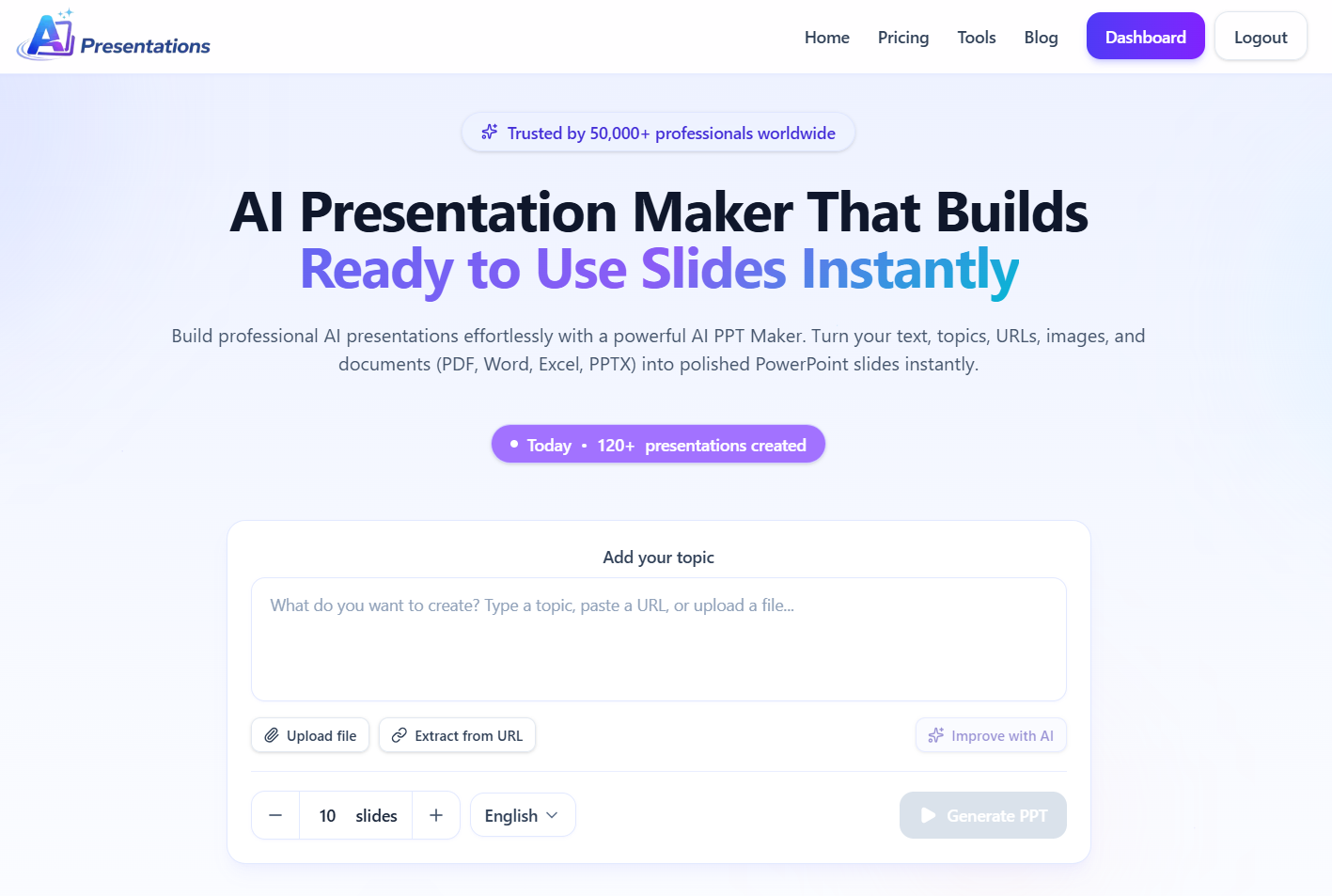
The AI analyses the content while preserving the overall structure and context.
Step 2: Identify Key Topics
Large Language Models (LLMs) and Natural Language Processing (NLP) identify:
- Main discussion topics
- Important insights
- Action items
- Key takeaways
- Supporting examples
Instead of copying every sentence, AI focuses on the information that belongs on presentation slides.
Step 3: Organise Information into Sections
Good presentations follow a logical flow.
AI automatically groups related information into sections such as:
- Introduction
- Agenda
- Challenges
- Solutions
- Results
- Recommendations
- Next Steps
This makes the final presentation easier to understand.
Step 4: Generate Presentation Slides
Each section becomes one or more slides with:
- Clear headings
- Concise bullet points
- Logical content hierarchy
- Professional layouts
- Consistent formatting
Rather than overwhelming the audience with text, AI produces presentation-friendly content.
Step 5: Refine and Export
After reviewing the generated slides, you can make edits, adjust the design, and export the presentation to PowerPoint or Google Slides for collaboration and delivery.
Example: Converting a Webinar into a Presentation
Imagine you’ve just finished hosting a 45-minute product webinar introducing a new software feature. Instead of replaying the webinar and manually creating slides, AI analyses the discussion, identifies the agenda, product highlights, customer benefits, and next steps, then organises everything into a professional presentation. After a quick review, you can customise the design and export it as a PowerPoint or Google Slides presentation in just a few minutes.
Also read: How to Add Video to Google Slides?
AI vs Manual Webinar-to-PPT Comparison
While creating slides manually gives you complete control, it also requires significant time and effort. AI automates much of the repetitive work, allowing you to focus on refining your message rather than building every slide from scratch. Here’s how the two approaches compare:
| Feature | AI Webinar-to-PPT | Manual Presentation Creation |
|---|---|---|
| Time Required | Minutes | Several hours |
| Summarises Key Insights | ✅ Automatically | ❌ Manual note-taking |
| Creates Slide Structure | ✅ Yes | ❌ Build from scratch |
| Generates Professional Layouts | ✅ Automatically | ❌ Manual design |
| Maintains Consistent Formatting | ✅ Yes | Depends on the creator |
| Editable After Generation | ✅ Fully editable | ✅ Yes |
| Export to PowerPoint & Google Slides | ✅ One-click export | Manual formatting required |
| Best For | Fast, scalable presentation creation | One-off presentations |
Ready to turn your webinar into a professional presentation?
With AI Presentations, you can generate editable PowerPoint or Google Slides presentations from your webinar content in minutes. Instead of spending hours organising information and designing slides, let AI create a structured presentation that you can customise and share immediately.
Common Mistakes to Avoid
- Copying the Webinar Word for Word: Presentation slides should summarise ideas rather than reproduce an entire webinar transcript.
- Adding Too Much Text: Crowded slides reduce audience attention. Keep information concise and presentation-friendly.
- Ignoring Structure: Randomly arranged slides make presentations difficult to follow. Maintain a logical progression throughout the deck.
- Inconsistent Formatting: Different fonts, colours, and layouts can make presentations appear unprofessional. Use a consistent design throughout.
- Skipping the Final Review: AI accelerates slide creation, but reviewing the presentation ensures accuracy and clarity before sharing it.
Why Choose AI Presentations to Convert a Webinar into PPT?
Creating a PowerPoint from a webinar manually takes time. AI Presentations makes it easy by turning your webinar content into a well-structured, editable presentation in minutes.
With AI Presentations Tool, you can:
- Convert webinar content into PowerPoint or Google Slides
- Automatically generate clear slide titles and key takeaways
- Create professional, presentation-ready slides instantly
- Customise themes, layouts, and branding
- Edit and export your presentation with ease
Whether you’re creating training materials, sales presentations, or customer education decks, AI Presentations helps you save time while delivering polished, professional presentations.
Turn your next webinar into an engaging PowerPoint in minutes with AI Presentations App.
Frequently Asked Questions
Q1. Can AI convert webinar content into PowerPoint?
Yes. AI can analyse webinar content, identify important topics, organise information into slides, and generate presentation-ready PowerPoint decks that can be edited further.
Q2. Can I create Google Slides from webinar content?
Yes. Many AI presentation tools allow you to generate presentations that can be exported to Google Slides for collaboration and sharing.
Q3. Is AI-generated presentation content editable?
Absolutely. You can modify slide text, layouts, images, colours, and themes after generation.
Q4. How long does it take to convert webinar content into slides?
Depending on the length and complexity of the webinar, AI can usually generate a presentation within minutes, significantly faster than manual creation.
Q5. Can AI summarise webinar content before creating slides?
Yes. Modern AI uses Natural Language Processing (NLP) to identify key themes, remove repetitive information, and organise ideas into a structured presentation.
Q6. What’s the difference between a webinar recording and a webinar presentation?
A webinar recording captures the complete session, while a webinar presentation highlights the essential points in a concise, visual format that is easier to present, review, and share.
Q7. Can I customise AI-generated webinar presentations?
Yes. You can edit slide content, rearrange sections, update themes, apply your own branding, and export the presentation as PowerPoint or Google Slides before sharing it with your audience.
Final Thoughts
Webinars contain valuable knowledge, but long sessions are rarely the most efficient way to share information. Converting webinar content into a well-structured presentation helps teams communicate ideas faster, improve knowledge retention, and reuse existing content across multiple business functions.
By combining AI with modern presentation workflows, you can transform webinar insights into polished PowerPoint or Google Slides presentations in a fraction of the time it would take manually. Whether you’re supporting employee training, customer education, sales enablement, or executive reporting, AI-powered presentation generation allows you to focus less on formatting and more on delivering impactful ideas.
Instead of letting valuable webinar insights remain inside a recording, repurpose them into engaging PowerPoint or Google Slides presentations that are easier to share, present, and reuse across your organisation. With AI Presentations, you can create professional webinar presentations in minutes while saving hours of manual work.
Also read: How to Transfer PowerPoint to Google Slides?
Leave a Reply