Webinars have become one of the most effective ways for businesses, educators, marketers, and professionals to connect with audiences online. Whether you’re launching a product, training employees, educating customers, or generating leads, a well-designed webinar presentation can make the difference between an engaged audience and one that loses interest after a few minutes.
However, creating an effective webinar presentation isn’t just about adding information to PowerPoint slides. It requires clear objectives, a logical flow, engaging visuals, and content that keeps your audience focused from start to finish. The good news is that modern AI tools can help simplify much of this process, allowing you to spend more time refining your message instead of designing every slide manually.
Quick Answer:
In this guide, you’ll learn how to create a webinar presentation step by step, discover best practices for designing engaging slides, and see how AI can help you build professional presentations in minutes.
Creating a webinar presentation involves defining your objective, understanding your audience, organising your content into a clear outline, designing visually engaging slides, adding interactive elements, and rehearsing before going live. AI presentation tools can further simplify the process by generating structured, editable presentations in minutes.
What Is a Webinar Presentation?
A webinar presentation is a structured slide deck used to deliver information during an online seminar or virtual event. Unlike a traditional in-person presentation, webinar slides are designed for digital audiences viewing through platforms such as Zoom, Microsoft Teams, Google Meet, or Cisco Webex.
A typical webinar presentation includes an agenda, key discussion points, visuals, examples, and a clear call to action. Depending on the purpose, webinar presentations can be used for:
- Product demonstrations
- Customer onboarding
- Employee training
- Educational sessions
- Sales presentations
- Marketing webinars
- Internal meetings
- Thought leadership events
The goal is to communicate information clearly while keeping attendees engaged throughout the session.
Why a Great Webinar Presentation Matters?
A well-planned webinar presentation does more than support your speech it helps your audience understand, remember, and act on the information you’re sharing.
Some of the biggest benefits include:
- Higher audience engagement: Well-designed slides with visuals, examples, and interactive elements keep attendees interested throughout the webinar.
- Better knowledge retention: Clear, structured slides make complex topics easier to understand and remember.
- Professional brand image: Consistent colours, fonts, and layouts create a polished presentation that reflects your brand professionally.
- Improved conversions: Whether your goal is generating leads, selling a product, or educating customers, a strong presentation helps communicate your message more effectively.
How to Create a Webinar Presentation?
Step 1: Define Your Goal and Audience
Before creating your first slide, determine exactly what you want your webinar to achieve.
Ask yourself:
- Who is my audience?
- What problem am I helping them solve?
- What should attendees learn?
- What action should they take after the webinar?
For example, a customer onboarding webinar will focus on product education, while a sales webinar may highlight features, benefits, and customer success stories. Defining your objective early helps you build a presentation that stays focused from beginning to end.
Step 2: Create a Clear Presentation Outline
A webinar presentation should follow a logical structure so attendees can easily follow the discussion.
A simple outline includes:
- Title slide
- Agenda
- Introduction
- Problem or challenge
- Solution
- Main discussion
- Examples or demonstrations
- Key takeaways
- Q&A
- Call to action
Planning your presentation before designing slides reduces unnecessary edits later and creates a smoother flow.
Step 3: Design Clean and Engaging Slides
Good webinar slides support your presentation they shouldn’t replace it.
Keep these best practices in mind:
- Use one idea per slide.
- Keep text concise.
- Use readable fonts and consistent colours.
- Include charts, icons, screenshots, or diagrams where appropriate.
- Leave enough white space to improve readability.
- Maintain consistent branding throughout the presentation.
Instead of filling slides with paragraphs, use visuals and concise bullet points to reinforce your message while you explain the details.
Step 4: Add Interactive Elements
One of the biggest advantages of webinars is real-time interaction.
Keep your audience engaged by including:
- Live polls
- Q&A sessions
- Audience questions
- Short quizzes
- Product demonstrations
- Interactive discussions
These elements encourage participation and help attendees stay focused throughout the presentation.
Step 5: Rehearse and Deliver with Confidence
Even the best-designed presentation can lose impact without proper preparation.
Before your webinar:
- Practice your timing.
- Test your microphone and camera.
- Check screen sharing.
- Review speaker notes.
- Confirm your internet connection.
- Prepare answers for common questions.
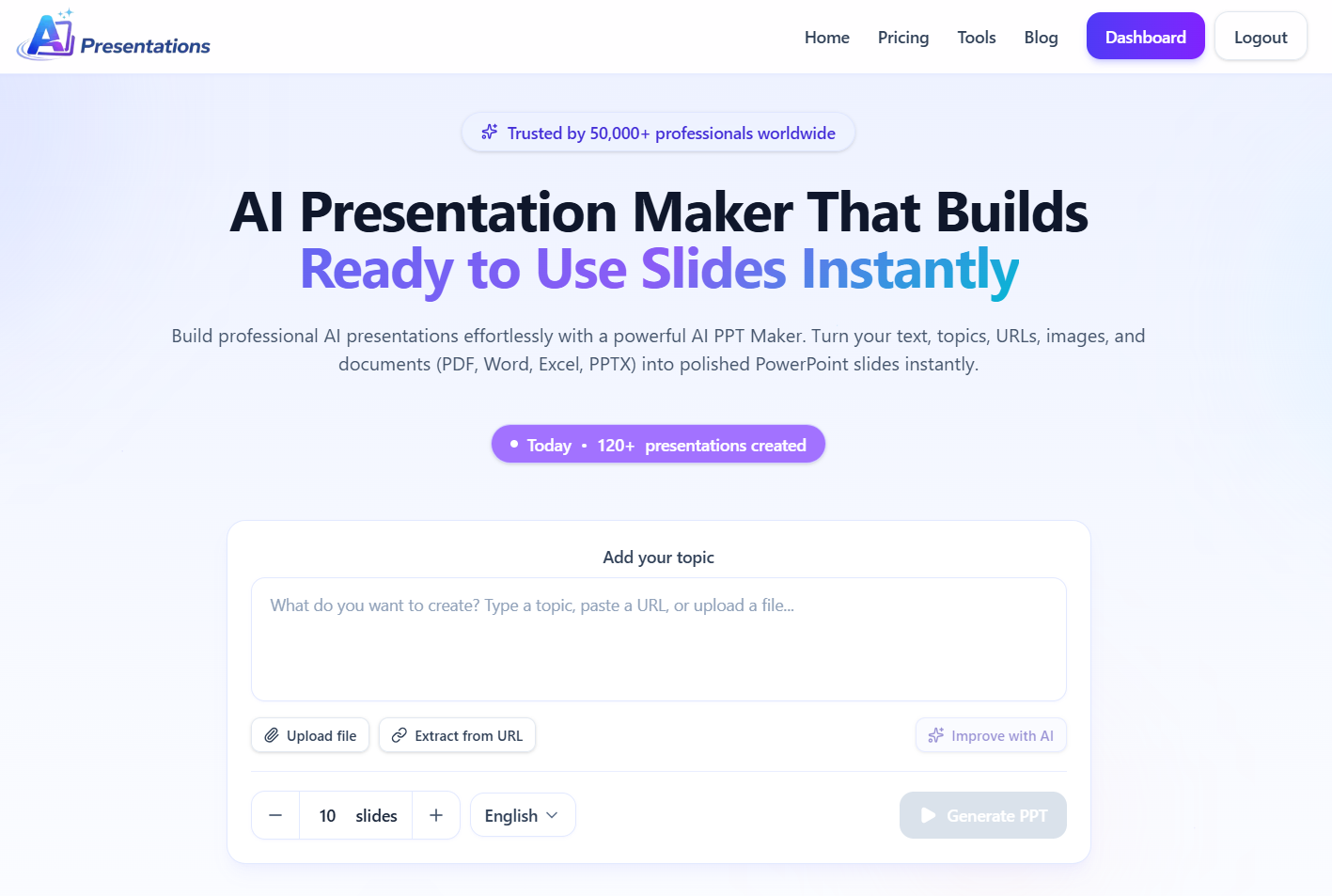
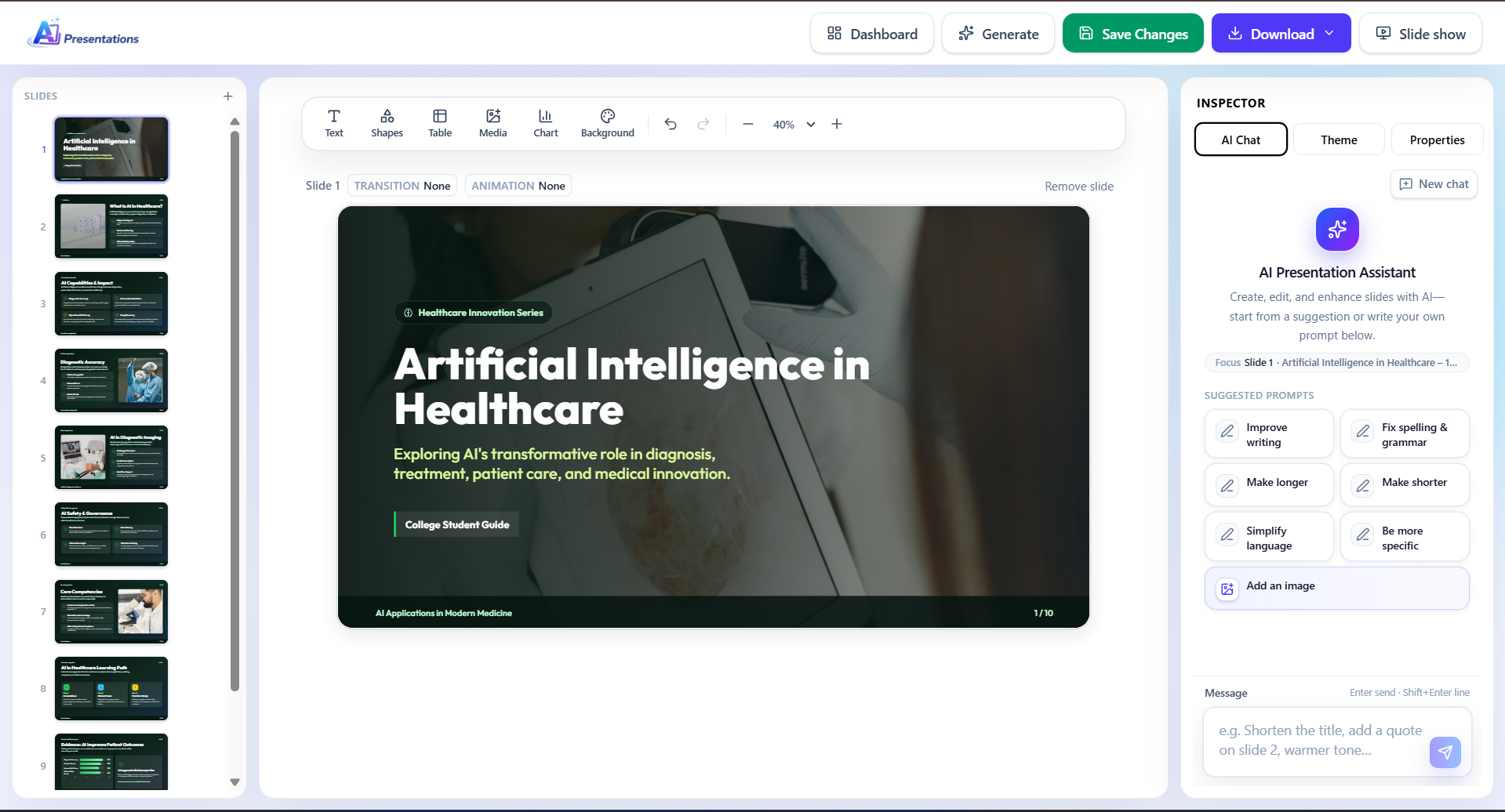
If you’re using AI Presentations, you can generate a structured presentation in minutes, customise every slide, and export it to Microsoft PowerPoint or Google Slides before your webinar begins.
Example Webinar Presentation Structure
Most successful webinar presentations follow a simple flow:
- Welcome & Title
- Agenda
- Introduction
- Problem Statement
- Solution
- Key Features or Main Content
- Examples or Case Study
- Summary
- Questions & Answers
- Call to Action
For example, imagine you’re hosting a 30-minute webinar to introduce a new software feature. Your presentation might begin with the problem customers face, demonstrate the new feature, highlight its benefits with real examples, answer audience questions, and conclude with the next steps or product trial invitation.
Common Webinar Presentation Mistakes to Avoid
Even experienced presenters can make mistakes that reduce audience engagement.
- Adding too much text: Slides should highlight key points, not display your entire script.
- Poor presentation structure: Jumping between unrelated topics makes it difficult for attendees to follow your message.
- Weak visuals: Charts, screenshots, diagrams, and icons often communicate ideas better than paragraphs of text.
- Ignoring audience interaction: Webinars perform better when attendees can participate through polls, questions, or discussions.
- Skipping rehearsal: Always review your presentation before going live to ensure smooth delivery and avoid technical issues.
Use AI to Create Stunning Webinar Presentations in Minutes
Creating a webinar presentation doesn’t have to take hours. AI Presentations helps you generate a well-structured, professional slide deck in minutes, complete with clear content, polished layouts, and editable slides. You can customise the presentation to match your brand and export it to Microsoft PowerPoint or Google Slides, making it easy to prepare for your next webinar with less effort and more confidence.
Frequently Asked Questions
Q1. Can AI create a webinar presentation?
Yes. AI PPT tools can generate presentation outlines, organise content into slides, suggest layouts, and produce editable PowerPoint or Google Slides presentations within minutes.
Q2. How many slides should a webinar presentation have?
It depends on the webinar length. A 30-minute webinar typically includes around 15–20 slides, while a 60-minute webinar may require 25–35 slides.
Q3. Should I use PowerPoint or Google Slides?
Both are excellent choices. Microsoft PowerPoint offers advanced presentation features, while Google Slides is ideal for collaboration and cloud-based editing.
Q4. What should a webinar presentation include?
A webinar presentation should include a title slide, agenda, introduction, main discussion points, visuals, examples, key takeaways, a Q&A section, and a clear call to action.
Q5. Can I customise AI-generated presentations?
Absolutely. AI-generated presentations are fully editable, allowing you to update text, change layouts, apply branding, and export the presentation before sharing it.
Q6. How can I make my webinar more engaging?
Use concise slides, visuals, audience polls, live Q&A sessions, real-world examples, and interactive discussions to keep attendees involved throughout the webinar.
Also read: Convert Webinar to PowerPoint: A Step-by-Step Guide
Final Thoughts
Instead of spending hours planning, writing, and designing every slide manually, AI Presentations helps you create professional webinar presentations in minutes. Generate a structured slide deck, customise it to match your brand, and present with confidence using Microsoft PowerPoint or Google Slides. Whether you’re hosting a product demo, training session, sales webinar, or educational event, you’ll spend less time building slides and more time engaging your audience.
Leave a Reply